Audit
The Audit screen is the tenant's journal of changes to its registry: who changed what, and when. The platform records an entry for every create, update and delete it makes to the registry; if an entry cannot be written, the change is reported as failed. Changes to connectors, dashboards, rules and updates are not in this journal. Entries are never edited. Use this screen to answer questions such as "who deleted that device?" or "what did this script create last night?". It is for tenant administrators and anyone reviewing activity in a tenant.
Open Audit in the sidebar. It appears only if your role grants the audit:read permission. The
journal only ever shows your own tenant's entries.
Reading the journal
The newest entries come first, 25 to a page. Each row shows:
| Column | What it means |
|---|---|
| Time | When the change was made. |
| Actor | Who made it: the signed-in identity, usually an email address. |
| Operation | Create, Update or Delete. |
| Table | The kind of record that changed, such as devices, assets, device_credentials or alarms. |
| Target | A label for the record that changed, usually its token or an ID. |
| Rows | How many records the change affected. |
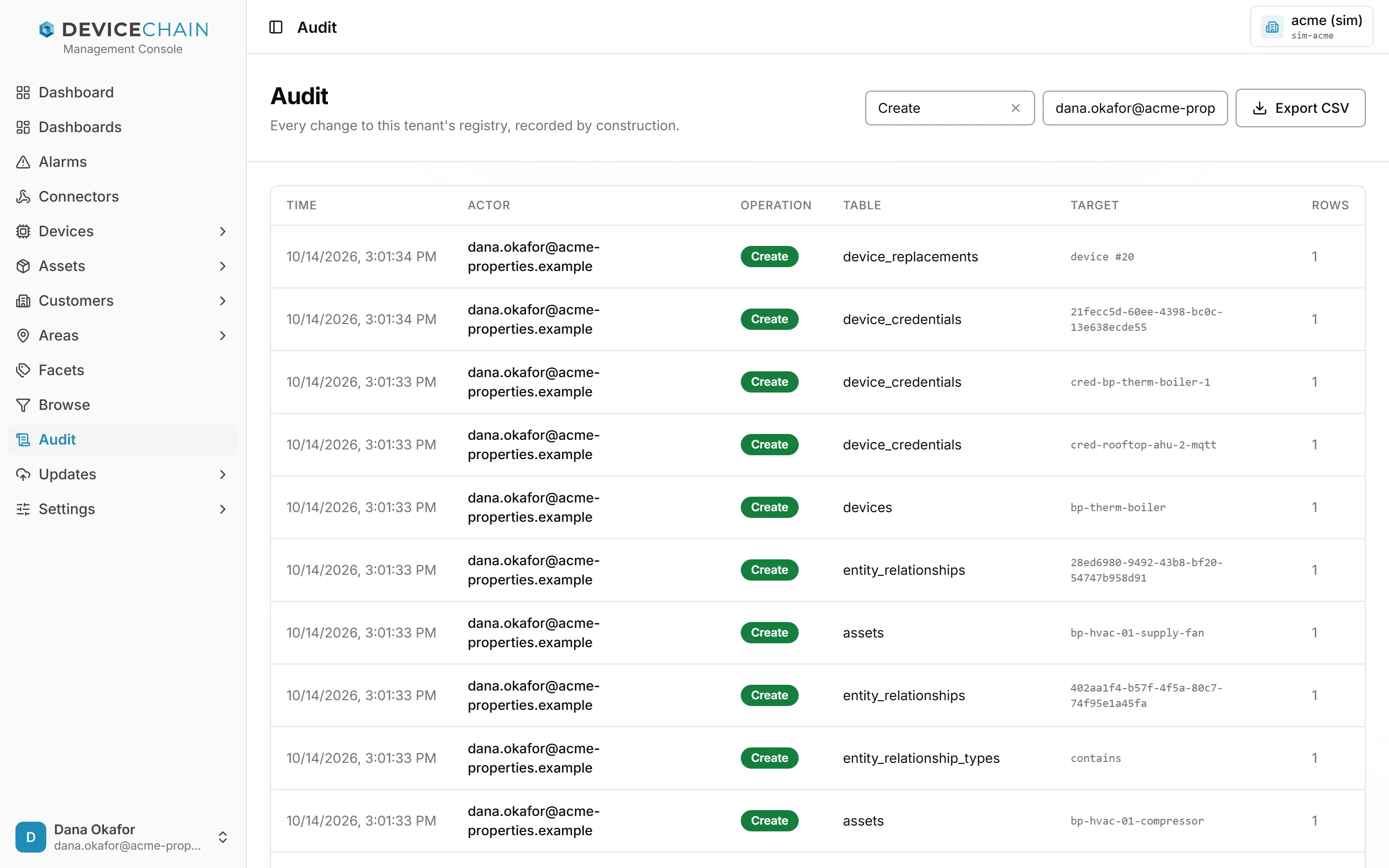
Not every row is a form someone saved. Acknowledging an alarm, for example, is an update to the
alarms table, made under the identity of the person who acknowledged it.
Filtering
Two filters sit at the top right:
- The All operations picker narrows the journal to Create, Update or Delete. Clear it to see every operation again.
- Filter by actor… matches any actor that contains what you type, ignoring case. Typing part of an address is enough.
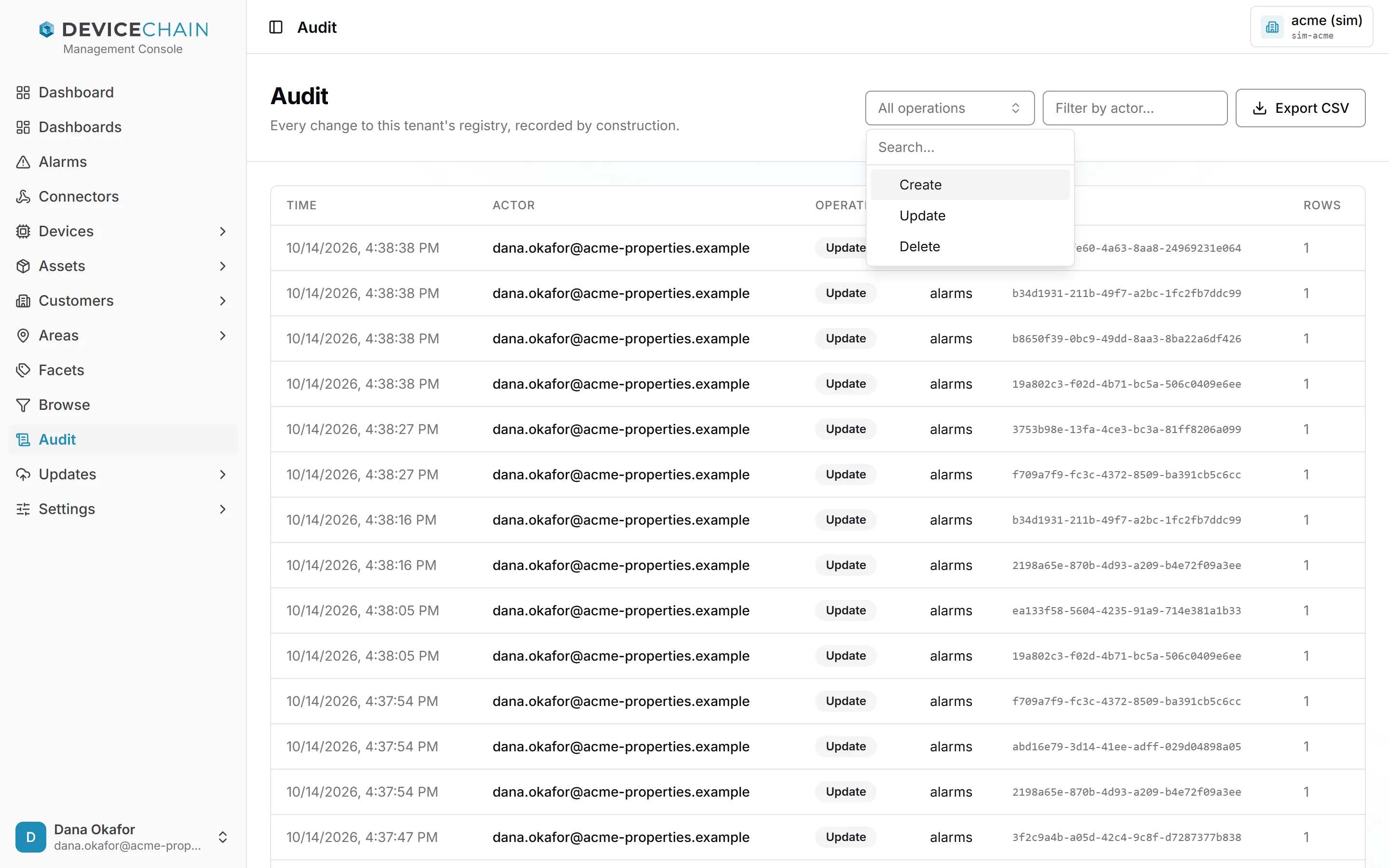
The filters work together, and changing either one returns you to the first page.
Exporting
Export CSV downloads every entry that matches the current filters, not only the page on screen.
The file has the same columns as the table, with the operation as create, update or delete and
the table under its full name. An export stops at 10,000 rows; if it does, the console
says so, and you can narrow the filters to export the rest. The export shows its progress and can
be cancelled, and changing a filter while it runs abandons it.
Related
- Architecture: how the platform's services and data fit together.
- Multi-tenancy: how one tenant's records are kept apart from another's.