Updates (over the air)
The Updates area is where you deliver new firmware, software or configuration to your devices over the air. You upload an update image (an artifact), vouch for it with a signature from a key you trust (a signer), and assign it to a device. The device then downloads and installs it, and the console follows each step until the device proves it is running the new version.
This chapter is for tenant administrators and the people who release device software. It covers the console screens; for how updates work end to end, see over-the-air updates, and for creating keys and signing artifacts, see signing updates.
The update service is optional, and not every installation runs it. If yours does not, the sidebar has no Updates group and devices have no Updates tab. See turning it on.
In the sidebar, Updates has two screens: Artifacts and Signers. Assigning an update to a device happens on the device's own page, on its Updates tab.
Artifacts
An artifact is one update image: a file plus what it is (its kind, name, version and component) and which device profiles it is compatible with. Once its content is uploaded, an artifact cannot be changed.
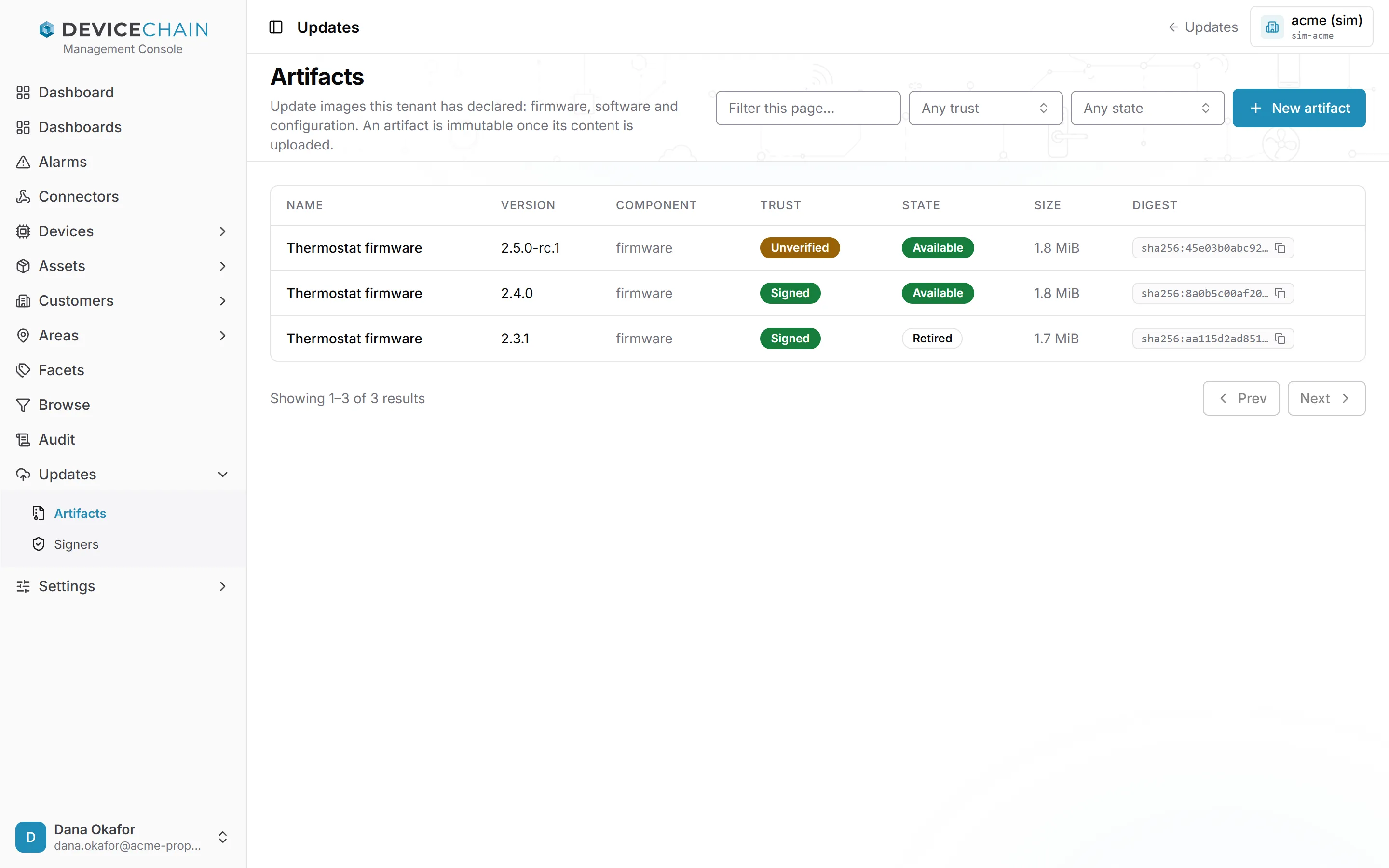
Each row shows the name, version, component, Trust (Signed or Unverified), State, size and the SHA-256 Digest. The states are:
- Uploading: the artifact is declared but its content is not stored yet.
- Available: the content is stored and verified, so the artifact can be assigned.
- Retired: the artifact is withdrawn from new use. Its metadata and content remain.
The Any trust and Any state pickers filter the whole catalogue. The Filter this page… box is different: it only narrows the page already loaded, by name, version, component, token or digest. To look further, use Next.
Adding an artifact
Click New artifact. You start from the file, and the console does the rest in one step: it computes the file's size and SHA-256 in your browser, declares the artifact, and uploads the content.
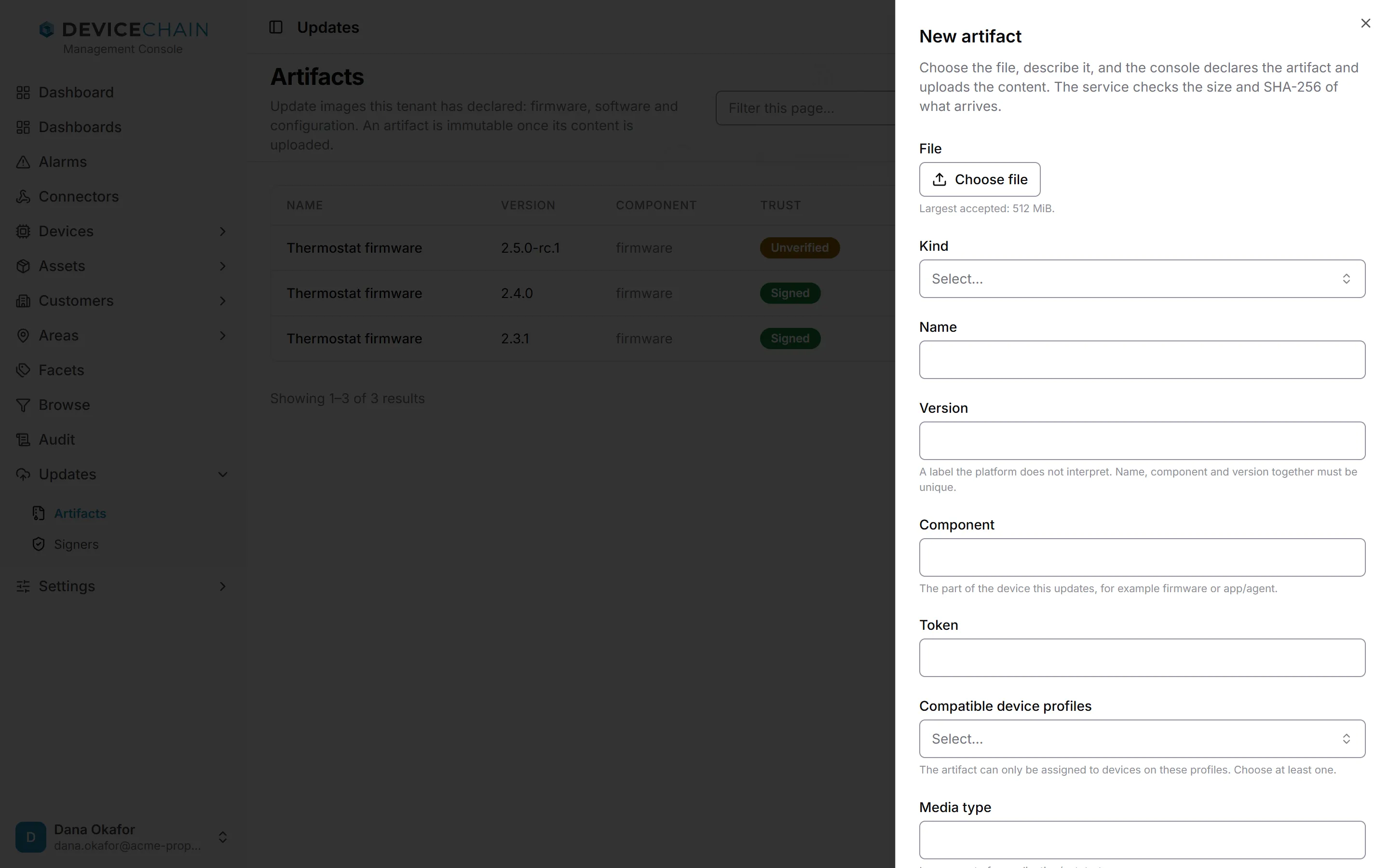
- Click Choose file. The largest file your instance accepts is shown below the button; a larger file is refused before anything is sent.
- Choose the Kind: Firmware, Software or Configuration.
- Enter the Name, Version and Component. The version is a label the platform does not
interpret. The component is the part of the device this updates, such as
firmwareorapp/agent. Name, component and version together must be unique. - The Token is filled in from the name and version. You can change it.
- Choose the Compatible device profiles. The artifact can only be assigned to devices on these profiles, so choose at least one.
- Optionally, set the Media type (left empty, it is
application/octet-stream), a Source and Notes. - Click Declare and upload.
The upload shows its progress. When it finishes, the console compares what the service stored with what you declared. Content stored and verified means they match. If they do not, the console says so, and the artifact stays unavailable: check the file and upload it again.
If the upload fails after the artifact has been declared, the artifact exists but has no content. Click Retry upload, or Open artifact and upload the file from its page.
The artifact page
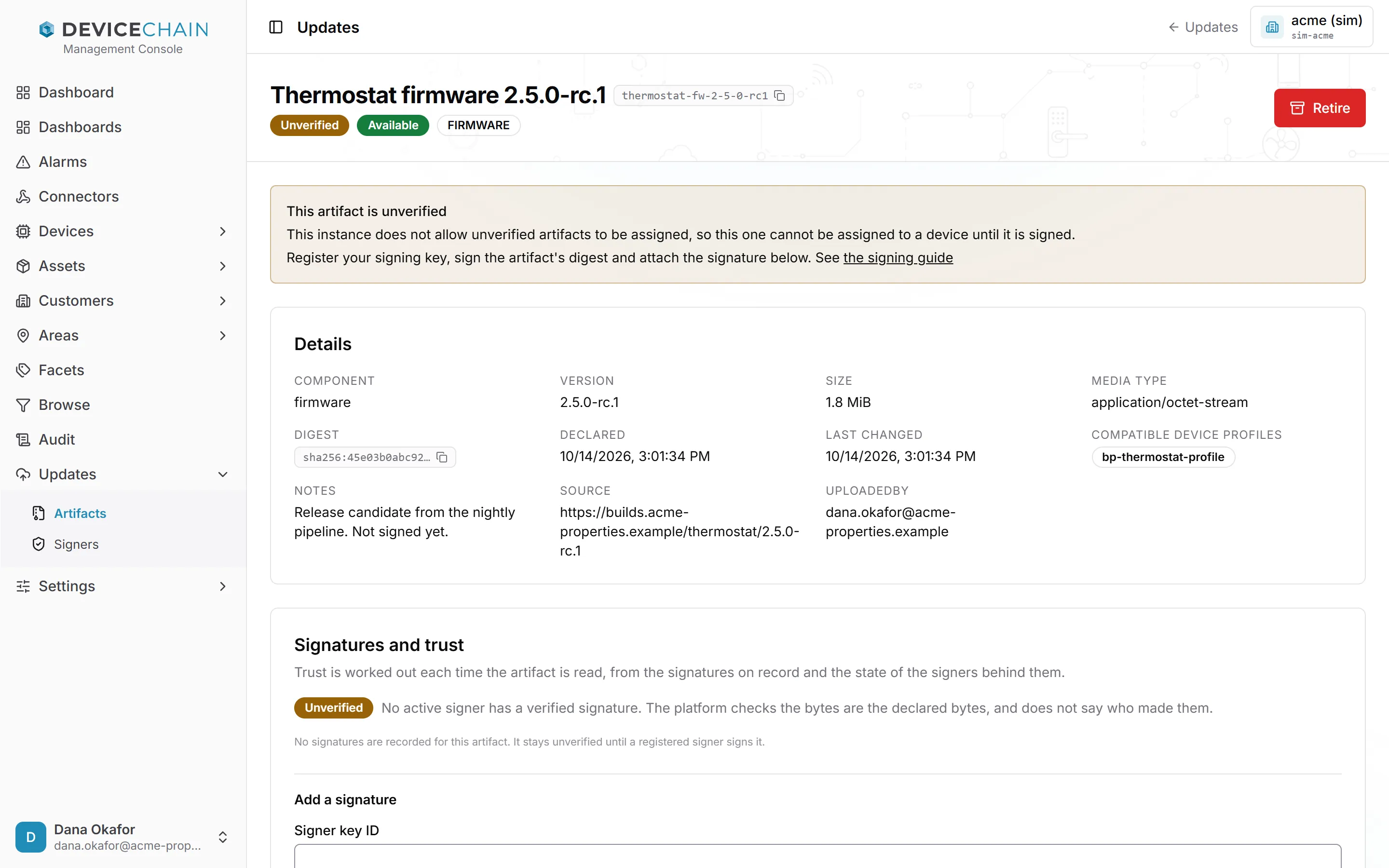
Open an artifact to see its page. The header shows its name and version, its token, and badges for its trust, state and kind. Retire withdraws the artifact from new use, after you confirm. Retiring cannot be undone.
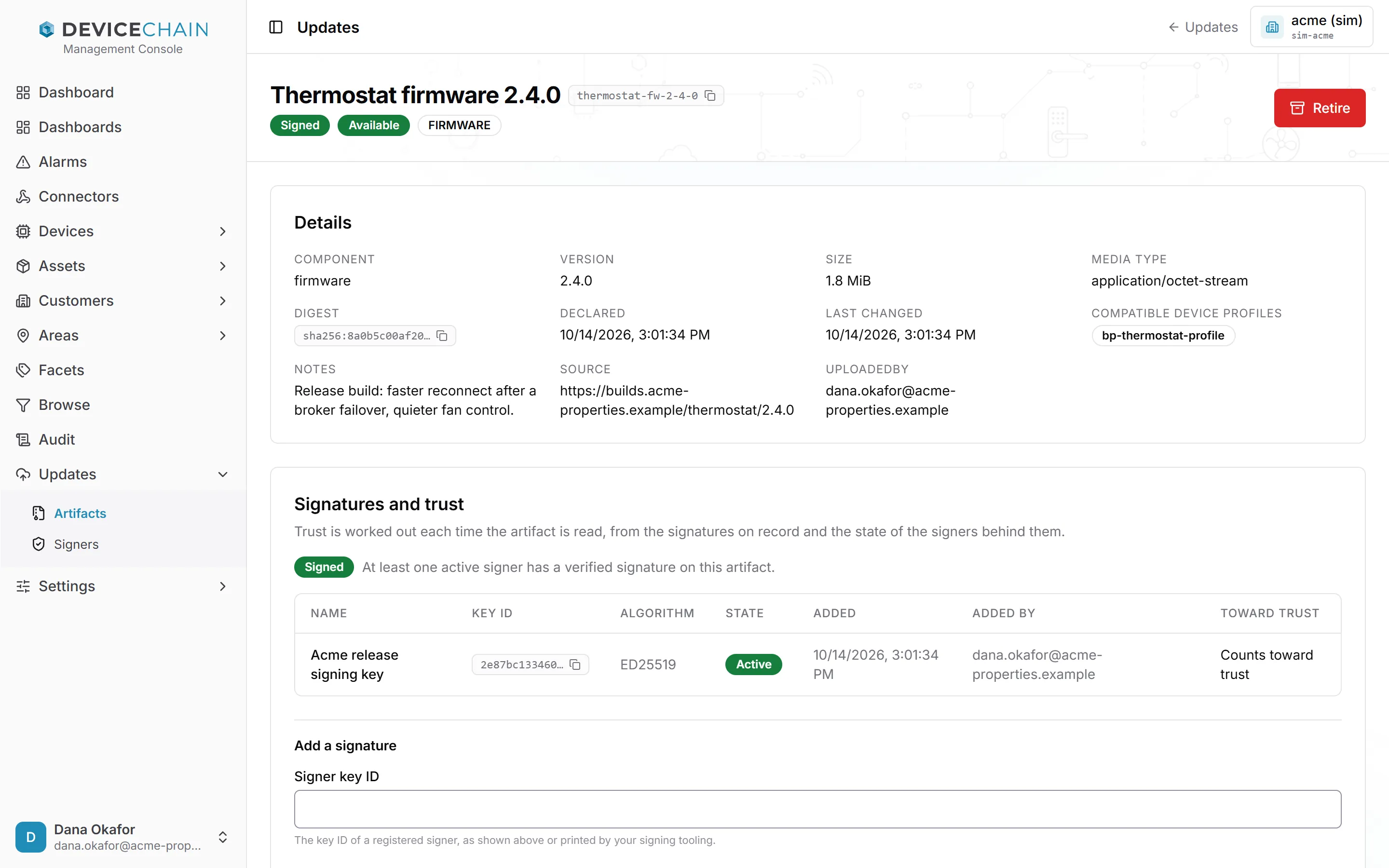
The Details panel lists what was declared, with the full digest behind the copy button. Any provenance recorded with the artifact, such as its notes and source, follows. Those entries are shown under the keys they were stored with, untranslated (for example UPLOADEDBY).
An artifact still in the Uploading state has an Upload content panel. Choose the file declared for the artifact; the console checks its size and SHA-256 before sending anything, and refuses a file that is not the declared one.
Signatures and trust
An artifact's trust is worked out each time it is read, from the signatures on record and the state of the signers behind them:
- Signed: at least one active signer has a verified signature on the artifact.
- Unverified: no active signer has. The platform still checks that the bytes are the declared bytes, but says nothing about who made them.
The Signatures and trust panel shows the trust, then lists the signatures recorded on this artifact, oldest first. For each one you see the signer's name, its key ID, the algorithm, the signer's state, when the signature was added and by whom, and whether it still Counts toward trust. A signature from a signer that has since been revoked stays on record but reads No longer counts (signer revoked). An artifact with no signatures says so.
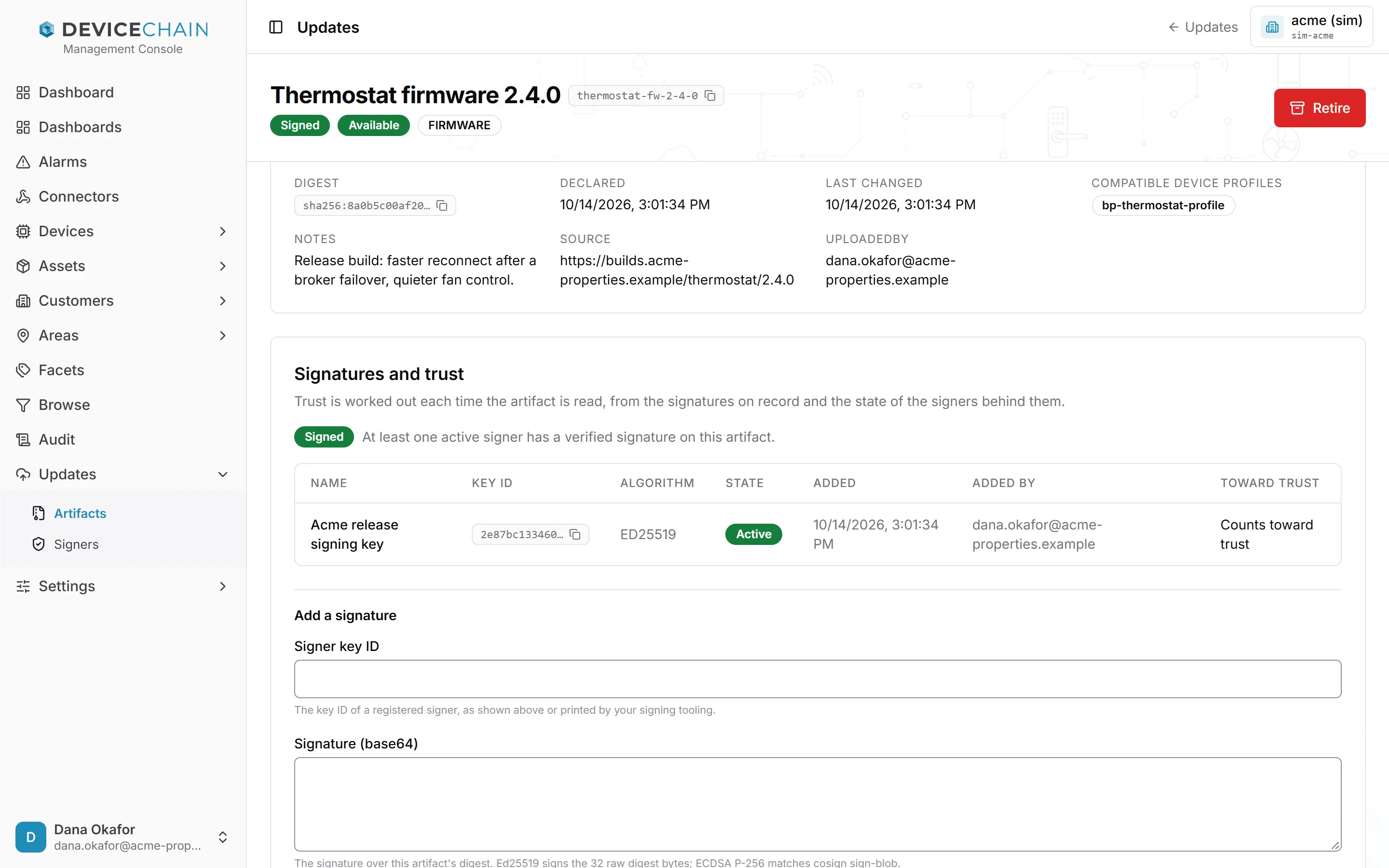
To add a signature, fill in Add a signature at the bottom of the panel:
- Signer key ID: the key ID of a registered signer, as shown on the Signers screen or printed by your signing tool. The console tells you which signer it matches, or warns you if the signer is revoked or not found.
- Signature (base64): the signature over the artifact's digest. An Ed25519 key signs the 32 raw
digest bytes; an ECDSA P-256 signature matches
cosign sign-blob.
Click Add signature. The service verifies the signature against the artifact's stored digest and refuses one that does not verify. The signing guide shows the commands for each step.
Unverified artifacts
An unverified artifact carries a notice at the top of its page. It tells you what your instance allows: usually, an unverified artifact cannot be assigned to a device until it is signed. An instance can be set to allow it, which is meant for development only. If the console could not read the setting, the notice tells you to assume the artifact cannot be assigned.
Signers
A signer is a public key your tenant trusts to vouch for artifacts. Only the public key is stored; the private key stays with whoever signs. Open Updates → Signers.
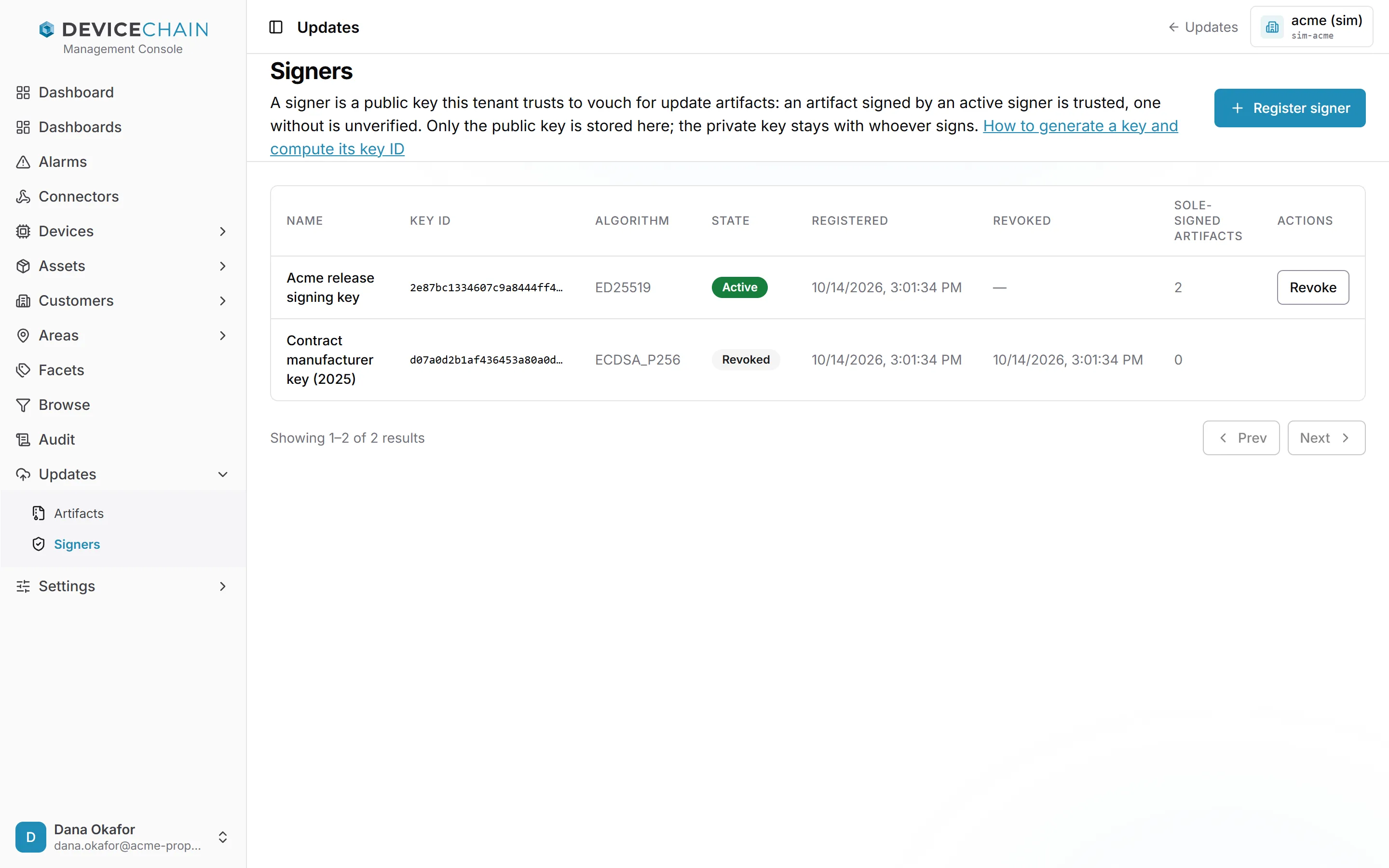
The list shows each signer's name, key ID, algorithm, state, when it was registered and revoked, and its Sole-signed artifacts: how many artifacts have no other active signer, and so would become unverified if this one were revoked.
Registering and revoking signers requires the artifact:trust permission, which is separate from the
permission to upload artifacts. Without it, you see the list but no actions.
Registering a signer
Click Register signer and enter:
- Name: a label to recognize the signer by, such as the team or build pipeline that holds the key.
- Public key (PEM): one SPKI public key block, ECDSA P-256 or Ed25519.
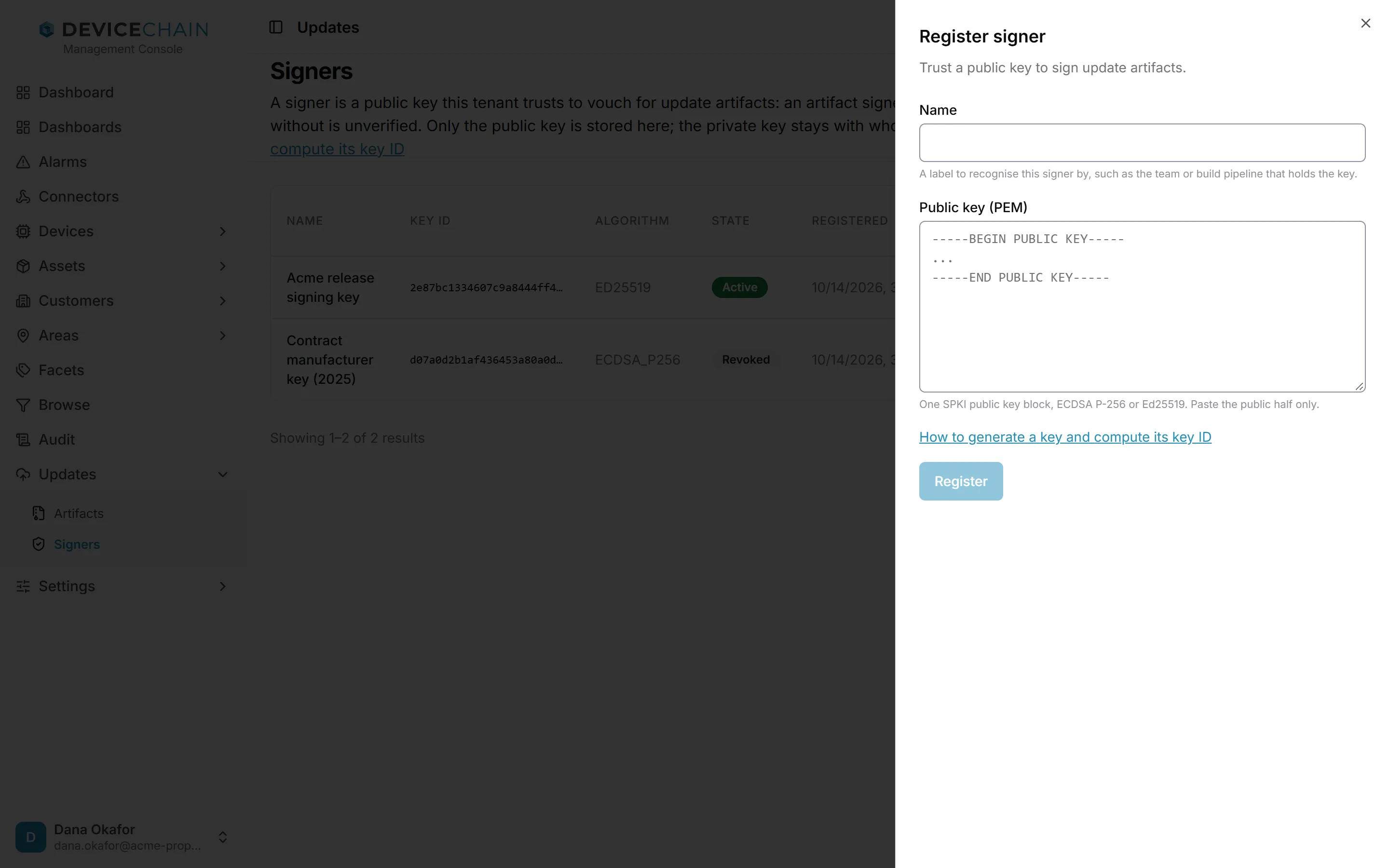
Click Register. Paste the public half of the key pair only. If you paste something that looks like a private key, the console sends nothing and clears the field. The link in the drawer leads to the signing guide, which shows how to generate a key and compute its key ID.
Revoking a signer
Click Revoke on an active signer. The confirmation tells you how many artifacts have no other active signer and will become UNVERIFIED. That count includes retired artifacts.
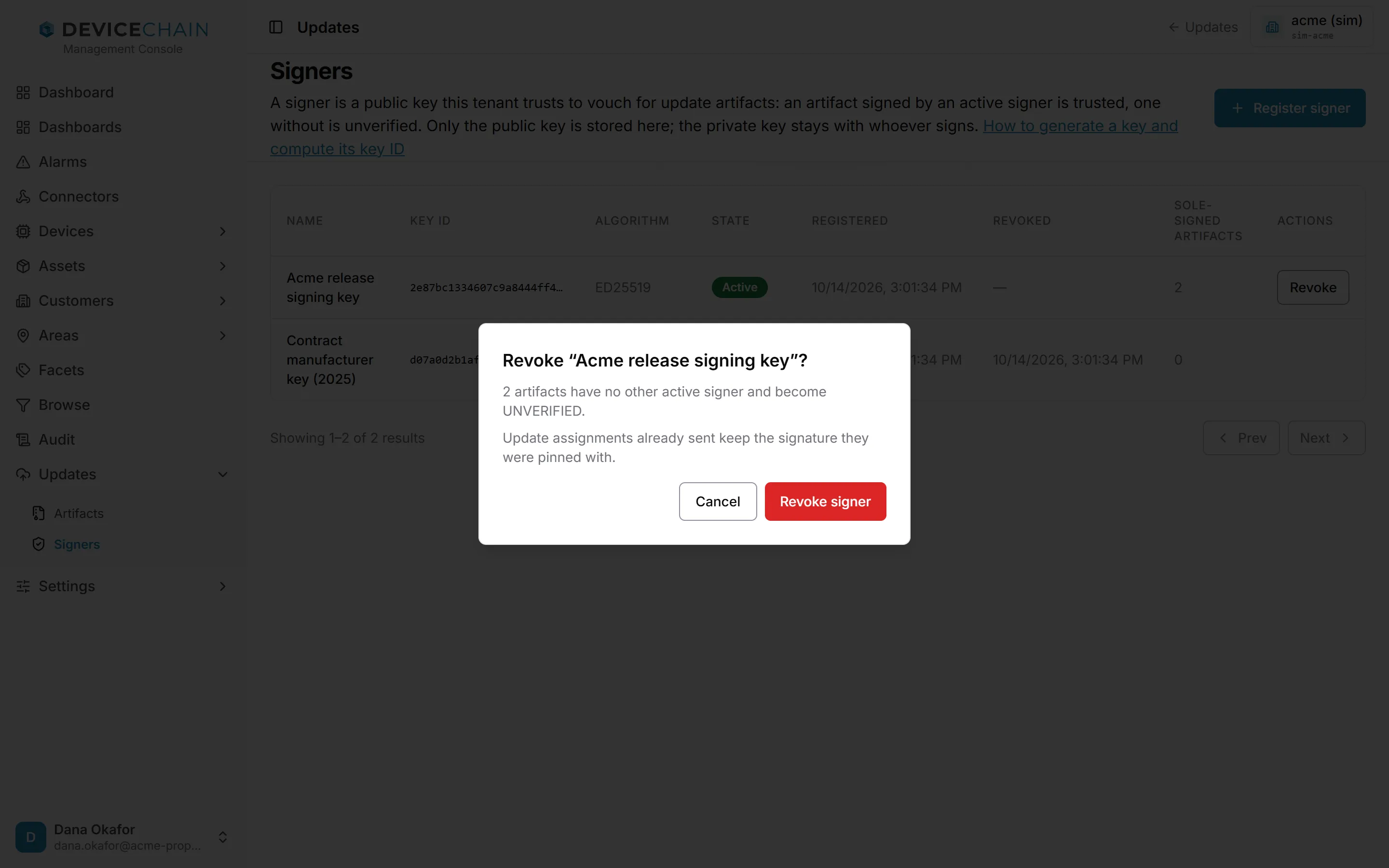
Revocation is permanent. The signer's signatures stay on record but stop counting, so artifacts it alone vouched for become unverified at once. An update already assigned keeps the signature it was assigned with, so it is still delivered as it was assigned. See "Revoking a signer" in the signing guide.
Assigning an update to a device
Updates are assigned one device at a time, from the device's page. Open the device and choose the Updates tab. The tab appears only when your instance runs the update service and you are allowed to read updates.
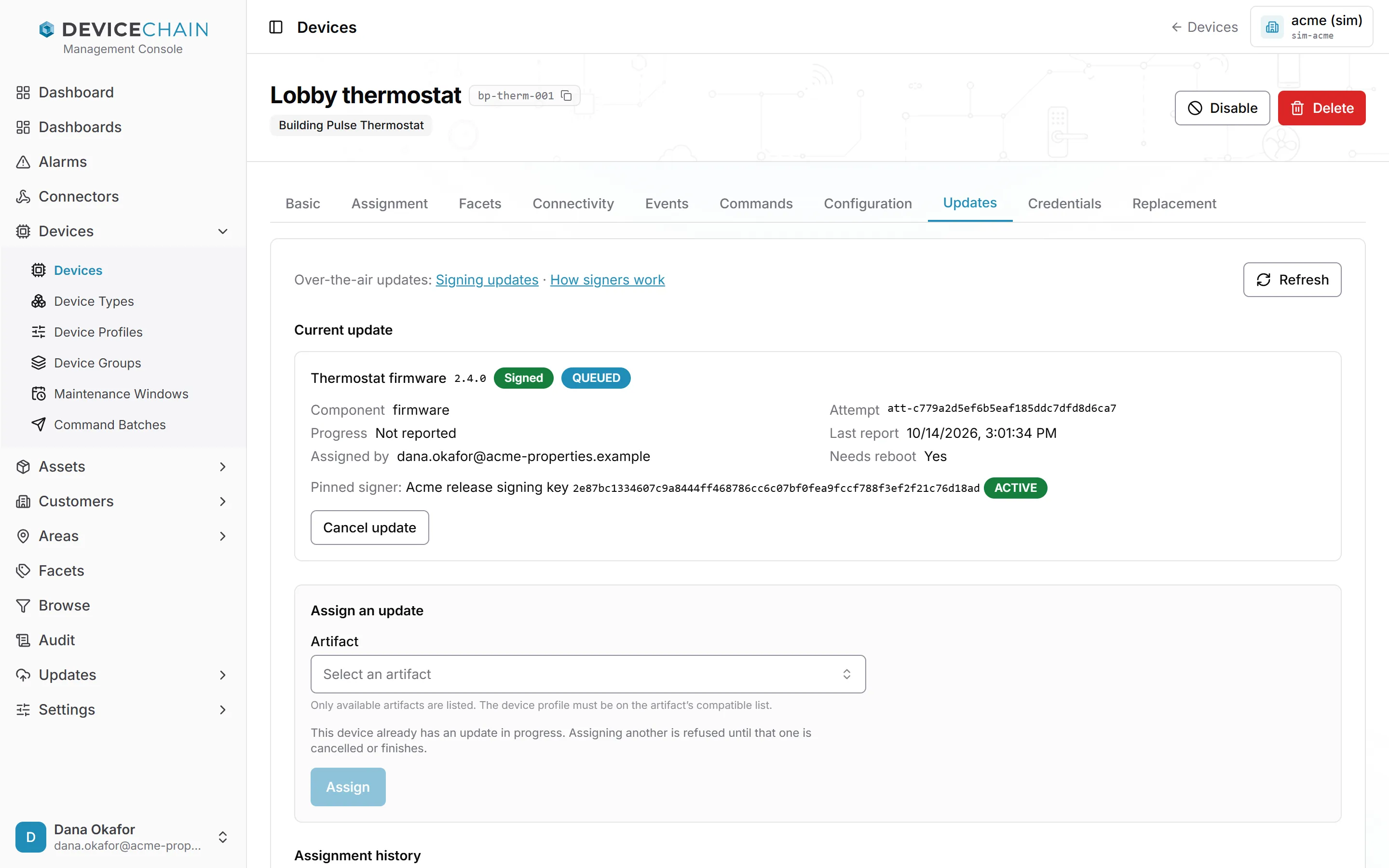
The links at the top lead to the signing guide and to how signers work. Refresh reloads the tab.
Current update
The Current update card shows the update the device is working on: the artifact and its trust, the state of the update attempt, the component, the attempt ID, the progress, when the device last reported, who assigned it, and whether it needs a reboot. Pinned signer shows the signature the device was sent with the update. If that signer is revoked later, the card says so: the update keeps the signature it was assigned with.
The state badge follows what the device reports, from QUEUED through downloading, verifying, installing and rebooting, to UPDATED. The update reaches UPDATED only on evidence: the device reports the new version running. The full list of states is in how an attempt progresses.
QUEUED means the platform has created the update but the device has not reported anything about it yet. Progress reads Not reported until it does. In the screenshot, the update stays QUEUED because the simulated thermostat in this demo tenant never reports update progress. A real device that receives the assignment acknowledges it and moves it forward.
If the update fails, the card shows why: the stage it failed at, whether the device reported the failure or the platform decided it, and, for the common signature and download failures, what to do about it.
Cancelling or abandoning an update
- Cancel update is offered until installation begins. A QUEUED update is cancelled at once, and a new one can be assigned afterwards. Once the device has picked up the update, cancelling sends it a request to stop: the cancel completes only when the device confirms, and until then the card shows Cancel pending. Once installation has begun, the update can no longer be cancelled.
- Abandon update is offered when an update is in the unknown state: the device stopped reporting while it was installing or rebooting, so nobody knows which version it is running. Abandoning ends the update as cancelled, keeps the Reason you give (it is required) on the update, records the change under your name, sends the device a cancel, and frees the device for a new assignment. It does not find out what the device is running, so check its inventory before relying on either version.
Assigning an update
Use Assign an update:
- Choose an Artifact. Only available artifacts are listed, and the device's profile must be on the artifact's compatible list. An unverified artifact is marked Not assignable when your instance does not allow unverified artifacts.
- Click Assign.
While the device already has an update in progress, the section says so, and assigning another is refused until that one is cancelled or finishes. When the instance does not allow unverified artifacts, Assign stays disabled for an unverified one, with the reason shown.
Assignment history
Assignment history lists the device's past and current assignments, with the artifact, the state, any failure, when each was assigned, and by whom.
A disabled device
When a device is disabled, the tab says that it is cut off from updates. No new update can be assigned until the device is enabled again, and Assign is disabled. Disabling the device does not recall an update already in flight; cancel it on this tab if it should not proceed. A queued update is cancelled at once. One the device has already picked up stays Cancel pending while the device is disabled, because its reports are refused: the cancel completes when the device is enabled again and confirms, or the update ends as timed out at its stage deadline.
Related
- Over-the-air updates: artifacts, assignments, update states, deadlines and signers.
- Signing updates: generating a key, registering it, signing an artifact and rotating keys.