Groups, facets and Browse
As a fleet grows, you need ways to pick out the devices (or assets, areas, customers) you care about: the units on the roof, the sensors on floor 3. DeviceChain gives you three tools for this, and this chapter covers all of them:
- Groups: named collections of one family, either a list you maintain by hand or a saved filter.
- Facets: classification keys, such as
zoneorfloor, that you declare once and then set on each entity. - Browse: a screen that filters a family by its facets, shows the matches live, and saves the filter as a dynamic group whose members stay up to date on their own.
It is for tenant users and administrators who organize a fleet. For the model behind it, see facets and dynamic groups.
Groups
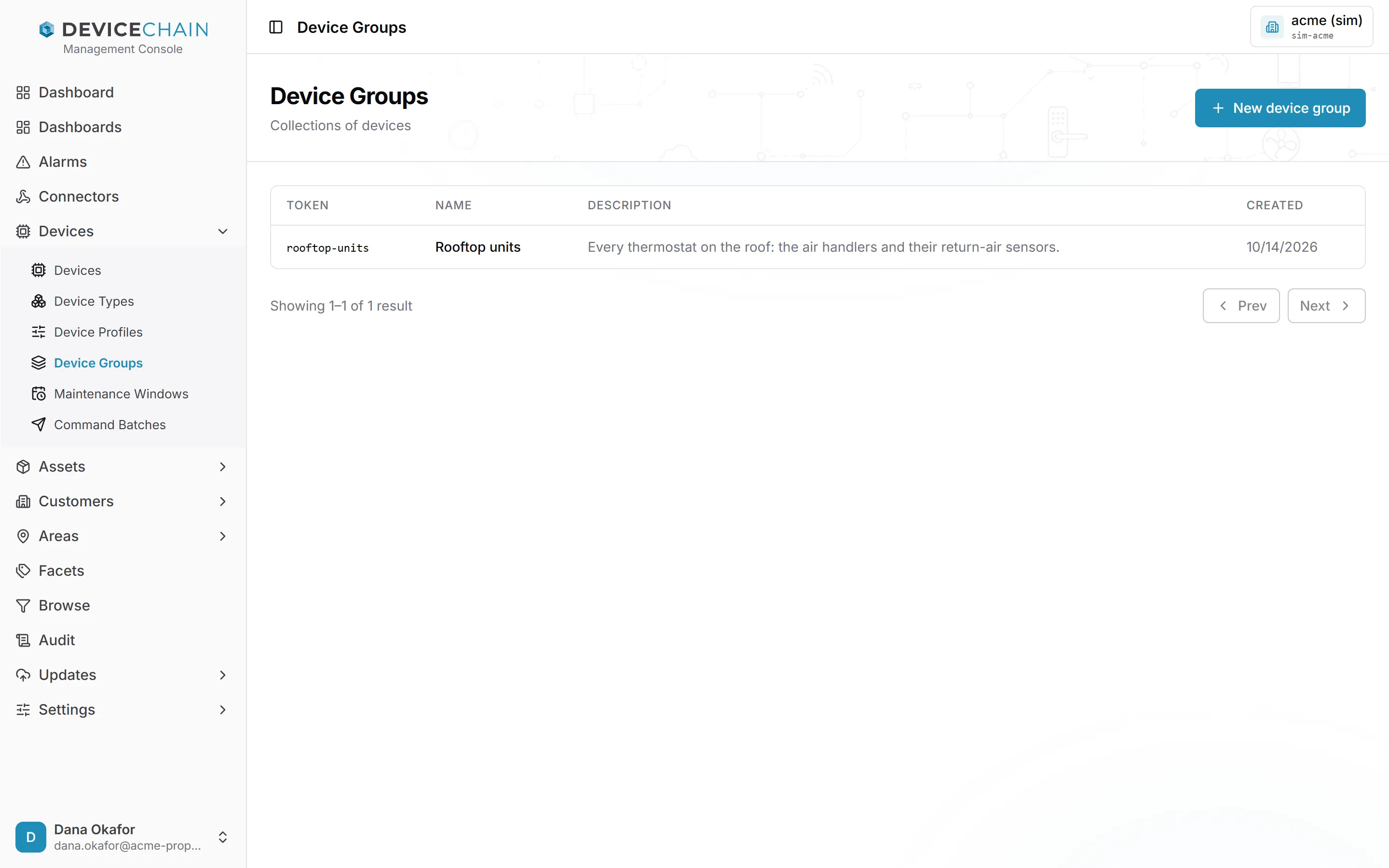
Each family has its own group screen: Devices → Device Groups, Assets → Asset Groups, Customers → Customer Groups and Areas → Area Groups. A group holds members of one family only. The list shows each group's token, name, description and creation date.
There are two kinds of group:
- A static group holds an explicit list of members. Create it with New device group (or the matching button for the family), then open it and use its Members tab to add and remove members.
- A dynamic group holds a saved filter instead of a list. Its members are worked out each time
the group is read, so they always reflect the entities' current facet values. You create one on
the Browse screen. Dynamic groups appear in the family's group list too; the
rooftop-unitsgroup above is one. To see a dynamic group's current members, use its Members button under Saved dynamic groups on the Browse screen, which works them out from the filter. The Members tab on the group's own page manages a hand-kept list, so it does not show the members the filter matches.
Facets
A facet is an attribute key you declare as a classification axis for one family, such as zone
for devices. Declaring a facet does two things: it makes the key available as a filter on the
Browse screen, and it gives the key a value field on each entity's Facets tab.
The values themselves live on the entities, not on this screen. A facet that is declared but has no value on any entity matches nothing.
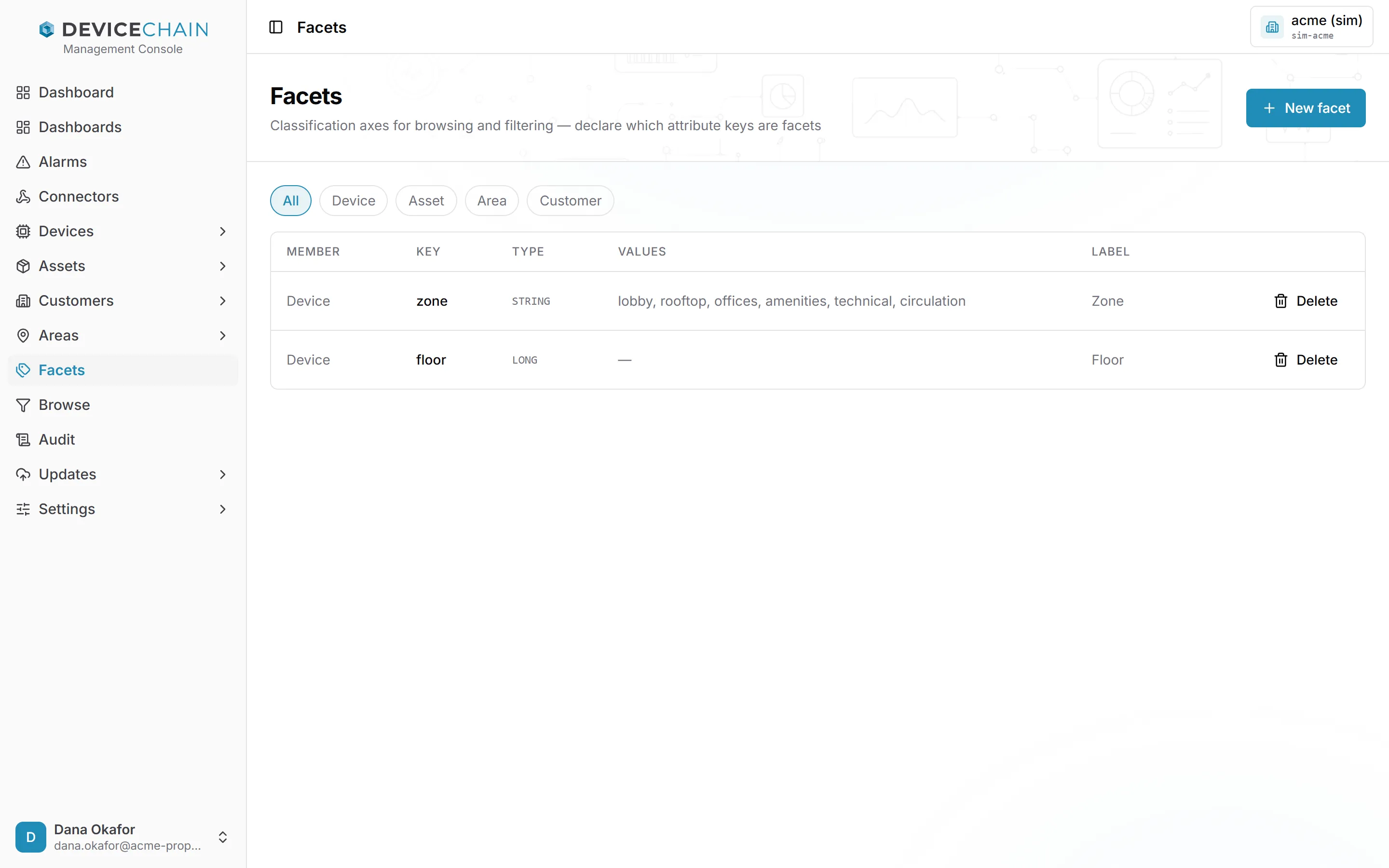
Open Facets in the sidebar. The chips at the top filter the list by member family: All, Device, Asset, Area or Customer. Each row shows the member family, the key, the value type, the suggested values and the label.
Declaring a facet
Declaring or deleting a facet, and saving a dynamic group, need the device:write permission;
without it those buttons are hidden.
Click New facet. The drawer asks for:
- Member family: Device, Asset, Area or Customer.
- Attribute key: the key the values are stored under, for example
climate. - Value type:
STRING,LONG,DOUBLE,BOOLEANorJSON. Values entered for the facet are checked against it. - Values: optional. A comma-separated list of suggested values, offered as you type. Leave it blank for free-form values.
- Label: optional. The name shown for the facet; it defaults to the key.
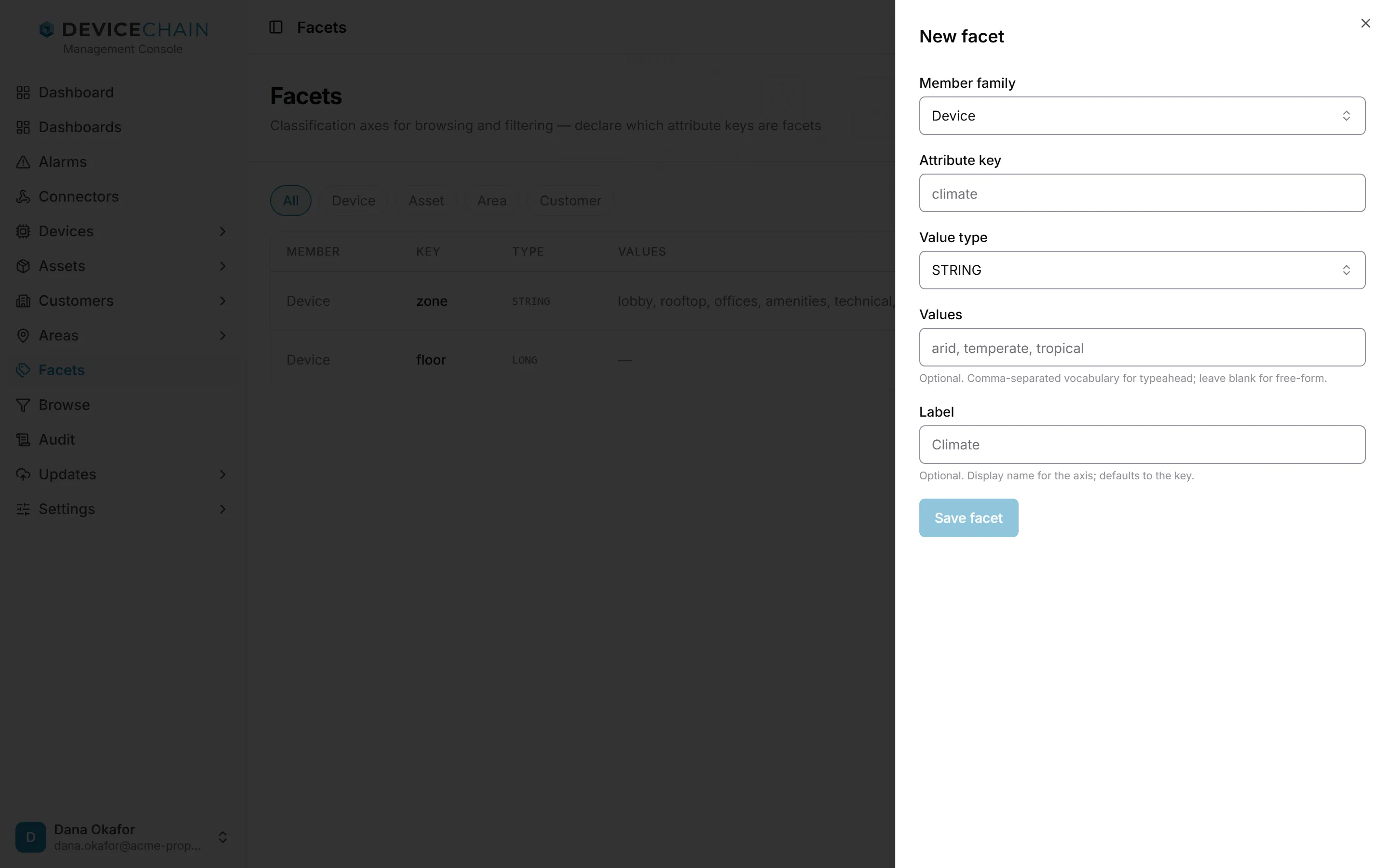
Click Save facet. There is no separate edit screen: to change a facet's type, values or label, declare it again with the same member family and key, and the new declaration replaces the old one.
Delete removes only the declaration. The values stored on entities are left alone, and any saved dynamic group that uses the facet keeps working.
Setting facet values
To give an entity a facet value, open the entity and go to its Facets tab. Each facet declared for that family is listed with its current value, or Not set. Enter a value and click Save, or click Clear to remove it. If dynamic groups depend on the facet, the tab tells you which groups a change would move the entity into or out of. The tab is described in Assets, customers and areas; devices have the same tab.
Browse
Browse turns facets into a filter. Pick a member family with the chips at the top (Device, Asset, Area or Customer). The Facet axes panel lists every facet declared for that family, each with an operator:
- — (ignore): the facet plays no part in the filter. This is the default.
- is and is not: match a value. For a text facet with suggested values, is lets you pick several values, and the entity matches any of them.
- has any value: the entity has some value for the facet. This is the only operator for a
JSONfacet. - For
LONGandDOUBLEfacets, the comparisons<,≤,>and≥are also offered.
As you set conditions, the Matches panel shows the Selector the console has composed, the number of members that match, and a sample of them. The count updates when you pause typing.
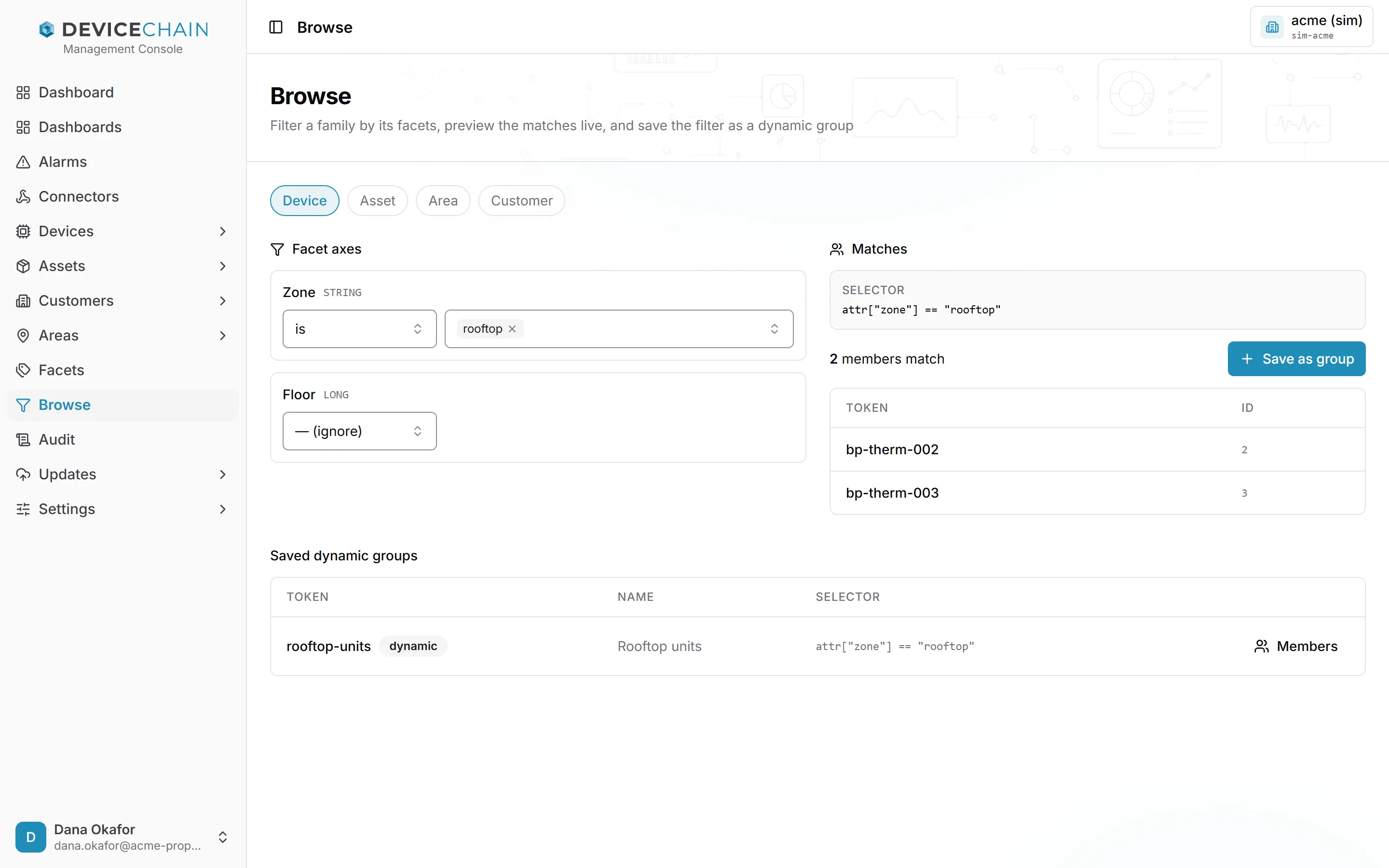
The selector is shown exactly as it will be stored. It is written in CEL, the same expression language detection rules use.
Saving a dynamic group
When the filter matches what you want, click Save as group. The drawer shows the selector again and asks for a Token (the button beside it generates one) and an optional Name. Click Save group.
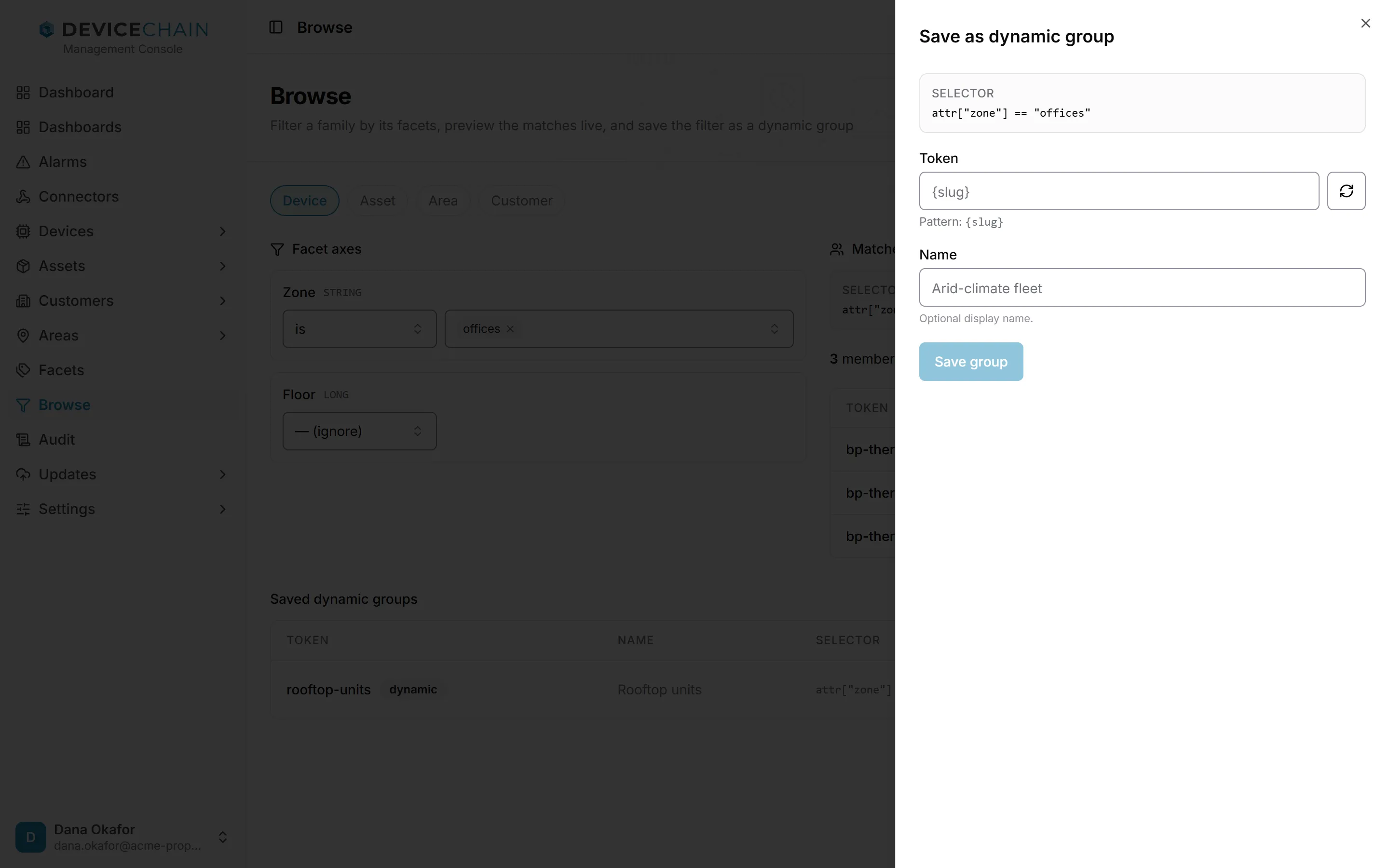
The platform checks the selector again when you save, and refuses one it cannot run efficiently. Once saved, the group appears under Saved dynamic groups for that family, with its token, name and selector. Click Members to see who belongs to it right now; the list is worked out from the selector each time you open it.
Related
- Facets and dynamic groups
- Assets, customers and areas
- Commanding a fleet: sending a command to every device in a group.