Viewing dashboards in /dash
Besides the console, the instance serves a separate dashboard viewer at /dash/. It shows a
published dashboard and nothing else: no sidebar, no editor, no draft. Use it for a wall display in a
control room, for a bookmark that opens straight onto one board, or for people who only need to look
at a dashboard. This chapter is for anyone who opens it, and for whoever sets up a wall display.
Dashboards themselves are built and published in the console; see Dashboards.
Signing in
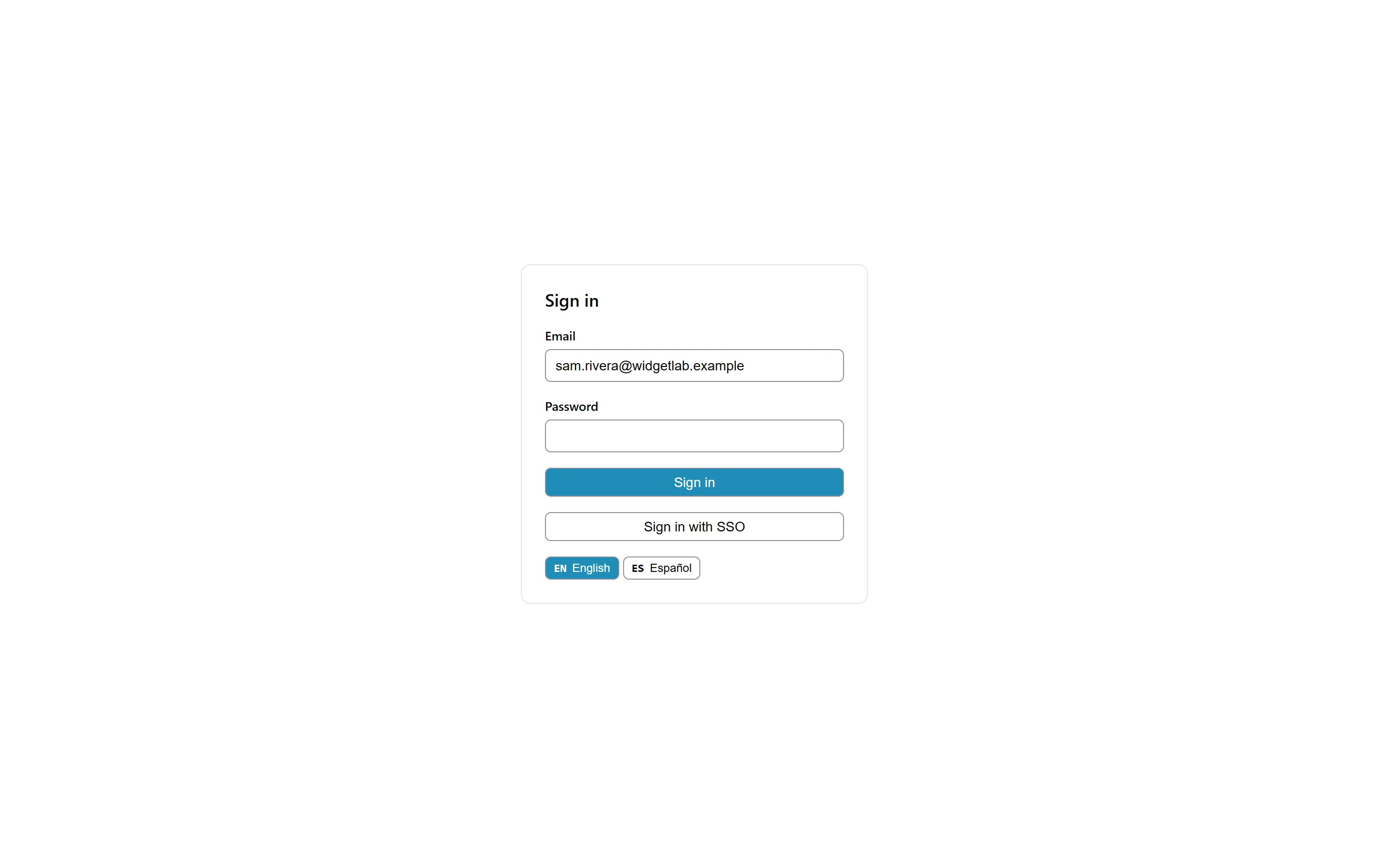
The viewer has its own sign-in form, with Email, Password, Sign in and Sign in with SSO, and a language switch. For single sign-on, type your email address first, then choose Sign in with SSO. If your account belongs to several tenants, the viewer asks you to choose one.
The viewer keeps its session in the page's memory only. It does not share the console's session:
being signed in to the console does not sign you in here, and signing out of one leaves the other
alone. Reloading the page, or opening /dash/ in another tab, asks you to sign in again.
Loading a dashboard
After you sign in, Load a dashboard asks for a Dashboard token. Type the token of a dashboard, which you can copy from its page in the console, and choose Load published. The viewer fetches the version that was last published. A dashboard that has never been published cannot be opened here; the viewer asks you to have an author publish it.
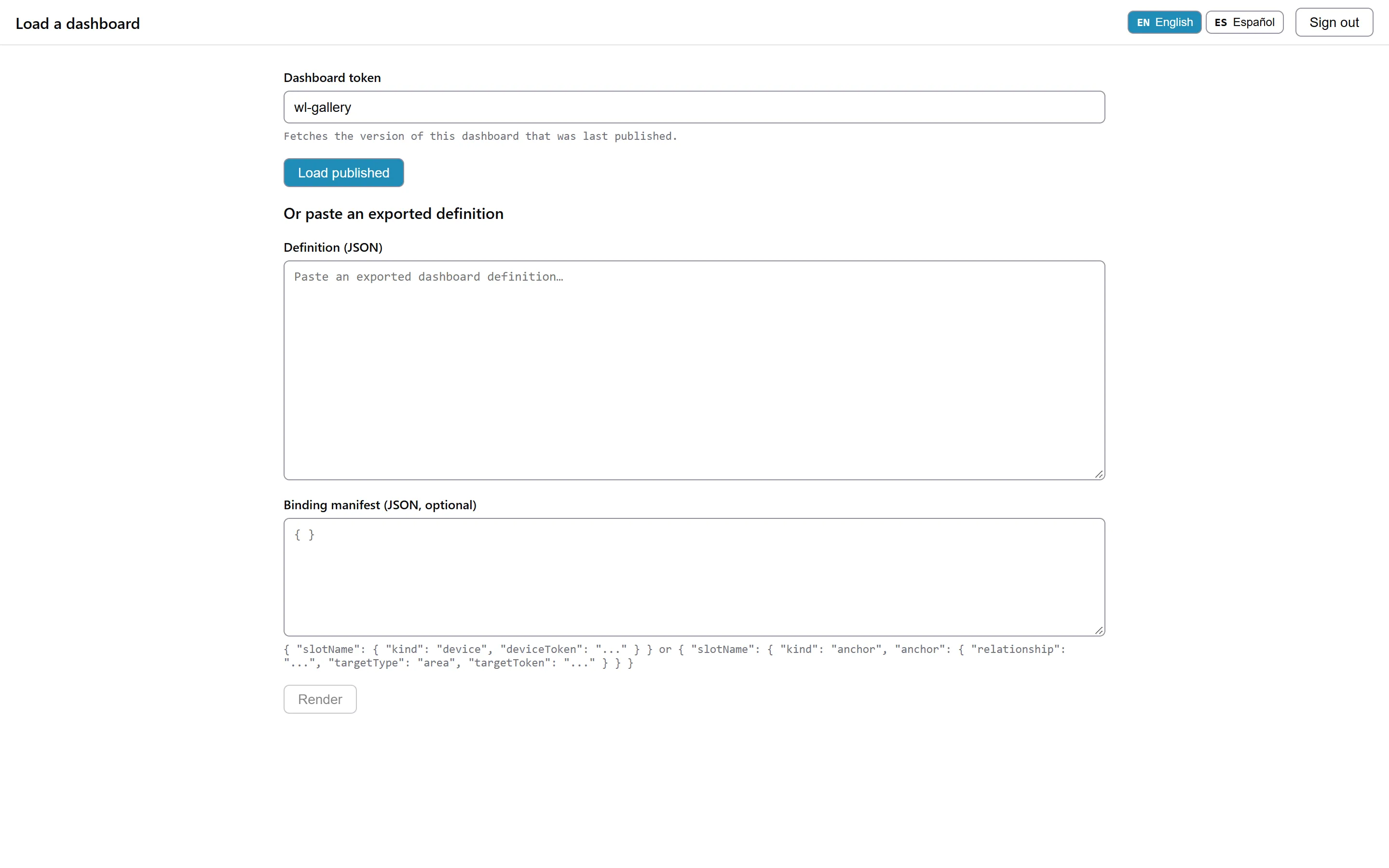
The lower half takes a dashboard you exported from the console instead: paste the definition and, optionally, a binding manifest that points its slots at particular devices, then choose Render. See Exporting and, for binding manifests, Embedding.
The board
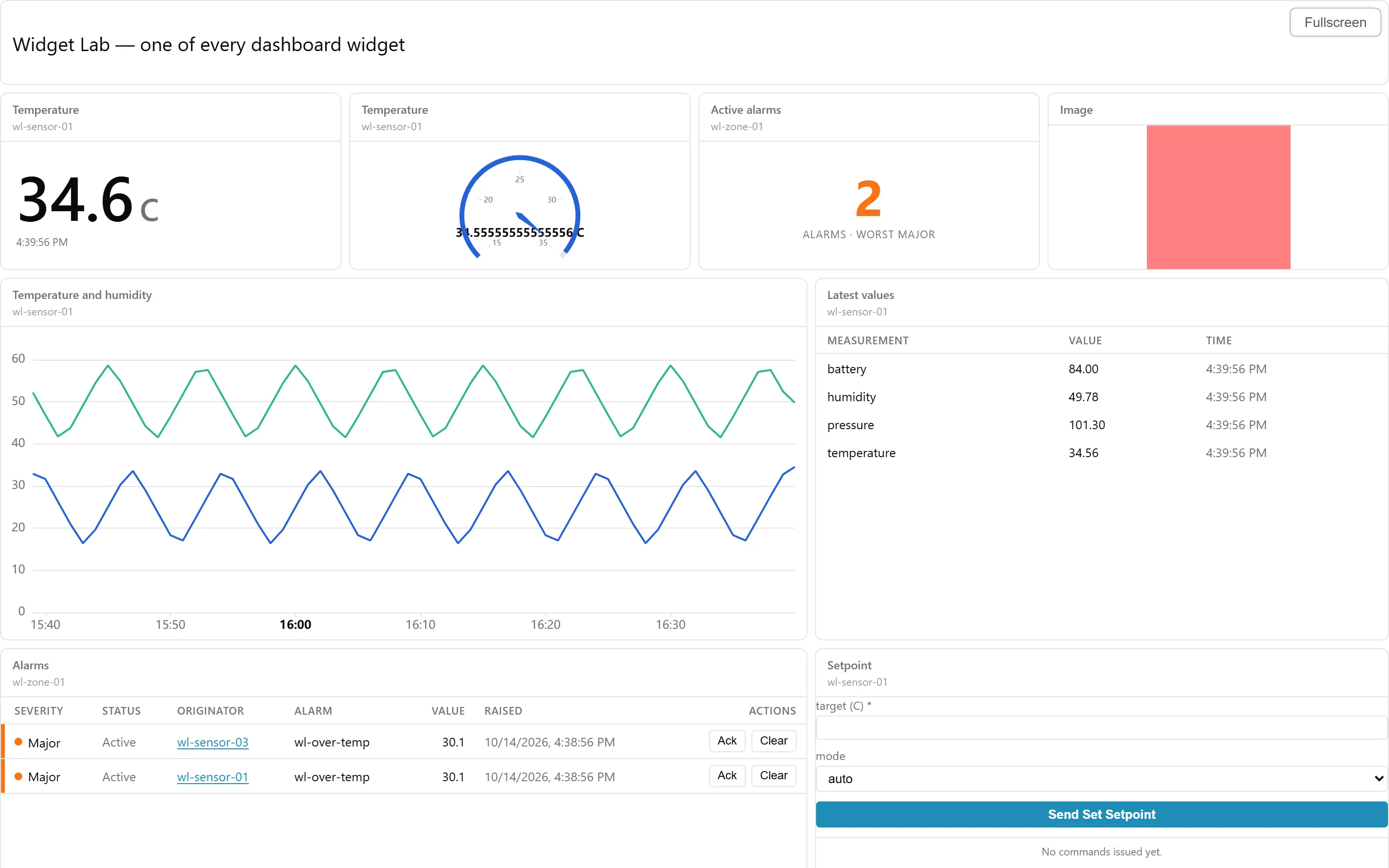
The loaded board fills the page under a slim header. The header shows the dashboard's title and offers the language switch, Dark theme (or Light theme), Change, which returns to the load form, and Sign out.
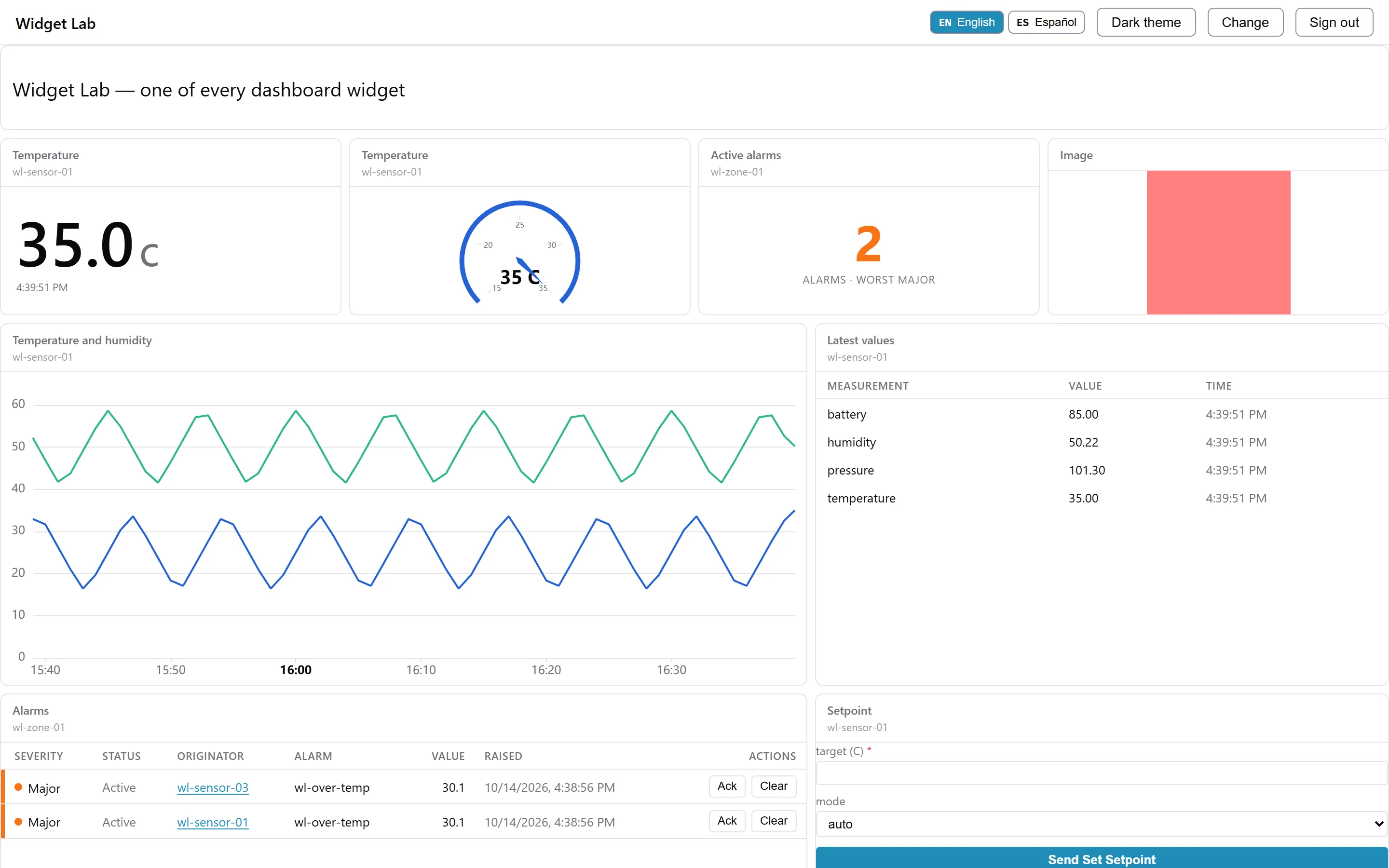
The widgets are live: values, charts and alarms update as data arrives. The viewer cannot change the
dashboard, but widget actions still work for those allowed to use them. Someone whose role grants
alarm:write can acknowledge and clear alarms from the board, and someone with command:write can
send commands to real devices. The server checks those rights for every action. See
Actions and permissions.
Dashboard and widget titles are text the dashboard's author wrote, so they stay as written whatever language the viewer is set to.
Light and dark
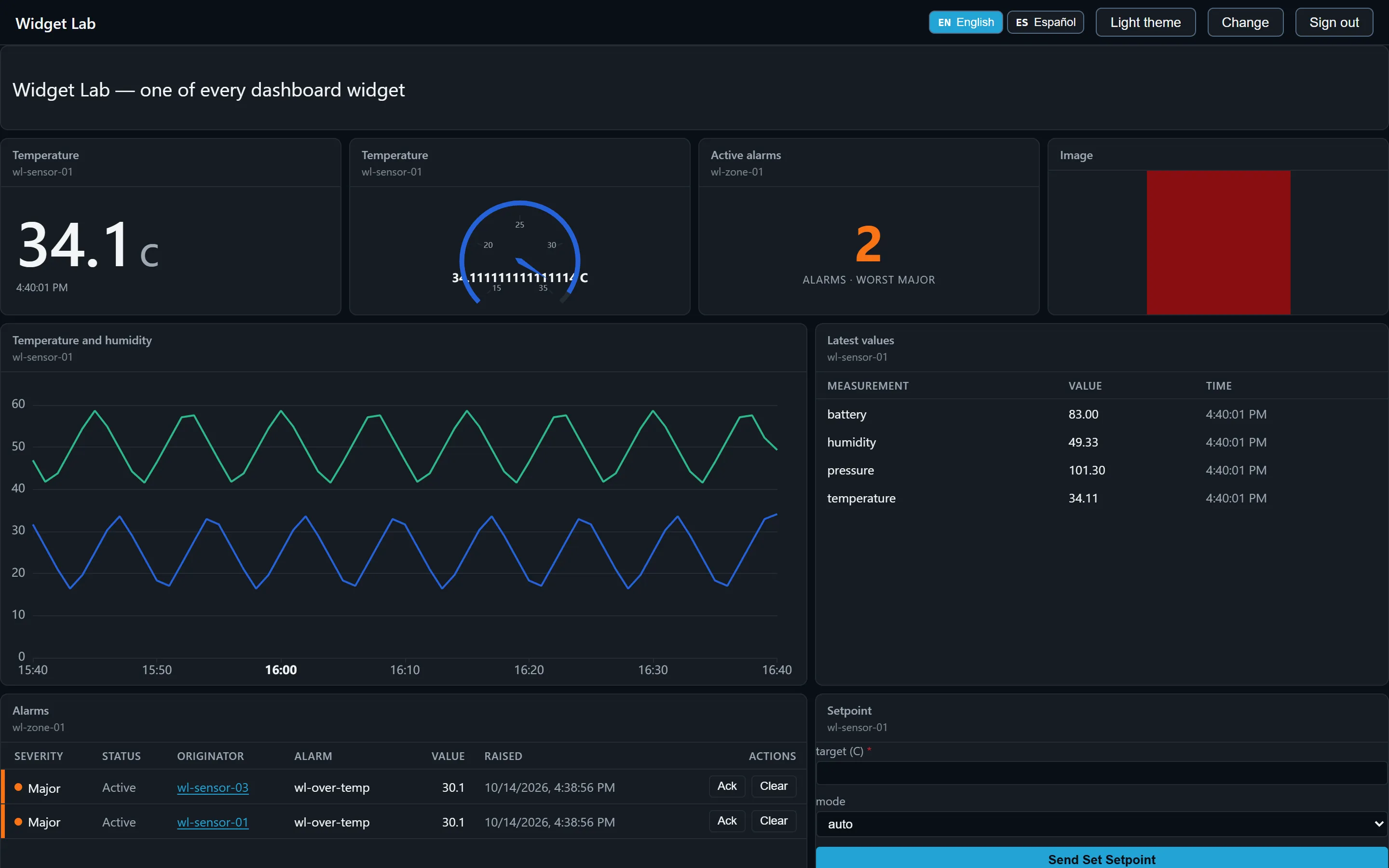
The theme button switches the board between light and dark, and this browser remembers your choice for next time.
Kiosk mode and links for wall displays
The viewer's address can carry parameters, so a bookmark or a wall display opens the right board in the right mode:
/dash/?dashboard=<token>&kiosk=1&theme=dark
| Parameter | Values | Effect |
|---|---|---|
dashboard | a dashboard token | Loads that dashboard straight after sign-in, including after single sign-on. |
kiosk | 1 or true | Kiosk mode: hides the header and its controls, and shows a Fullscreen button instead. |
theme | dark or light | Sets the theme. Unlike the theme button, the parameter is not remembered. |
density | compact, comfortable or wall | Accepted, but it does not change the layout yet. |
A parameter with a value the viewer does not recognise is ignored, and the other parameters still apply.
In kiosk mode the board takes the whole page. The only control is Fullscreen in the top right corner, which turns into Exit fullscreen; it is hidden if the browser cannot go full screen. There is no sign-out control in kiosk mode, so a wall display stays on its board.
Staying signed in
A wall display can run unattended for days, so the viewer renews its session on its own, a couple of minutes before it would expire. A network blip, such as a Wi-Fi reconnect, does not end the session: the viewer keeps retrying until its current access lapses.
If the session cannot be renewed, because the sign-in was ended on the server or the outage lasted
too long, the board is replaced by a full-screen Your session has ended notice with a Sign in
again button. The display never sits frozen on old values. When the address carries a dashboard
parameter, signing in again brings the same board straight back.
More detail is in Session refresh and kiosk mode.
Related
- Dashboards: building, publishing and exporting dashboards in the console.
- Dashboards: widgets, data sources, versioning and embedding.
- Signing in: the console's own sign-in.