Device types and profiles
Every device belongs to a device type, and a device type points to a device profile. The two split the job between them:
- The device type says what kind of thing a device is: its name, its manufacturer and model, how it looks in lists, and which maintenance window its disruptive commands wait for.
- The device profile says what the device can do: the measurements it reports, the commands it accepts, the configuration it receives and the rules that watch it. Several device types can share one profile.
This chapter covers both, including publishing a profile version, rolling back to an earlier one, and downloading a version as a Thing Model. It is for tenant administrators and anyone who sets up how a class of devices behaves. Detection rules and rule health live on the profile too; they have their own chapter.
For the ideas behind these screens, see Domain model.
Device types
Open Devices in the sidebar, then Device Types. The list shows each type's appearance, token, description and creation date. New device type creates one: give it a token, a name and, optionally, a description and a maintenance window.
Select a type to open it. Its page has four tabs: Basic, Identity, Appearance and Profile.
Basic
Basic holds the type's name and description, and its Maintenance window. Disruptive and destructive commands for devices of this type wait until that window opens. Leave it empty to send them straight away. Maintenance windows are explained in Commands.
Identity
Identity records the Manufacturer and Model of the physical device.
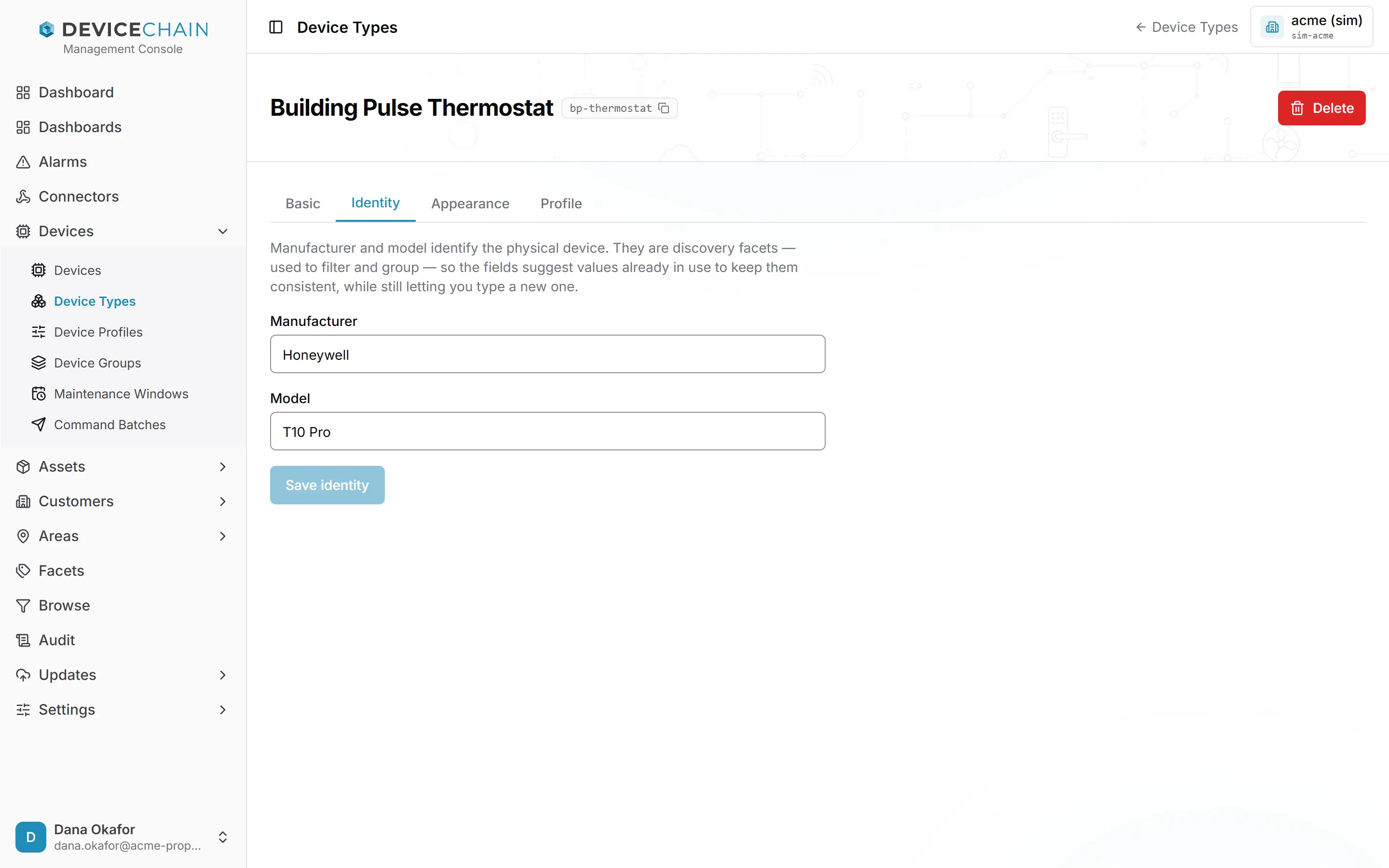
Both are used to filter and group devices, so the fields suggest values already in use. Pick an existing value where you can, to keep them consistent, or type a new one. Then choose Save identity.
Appearance
Appearance sets how the type is drawn wherever it appears, such as in the device list and on each device's page.
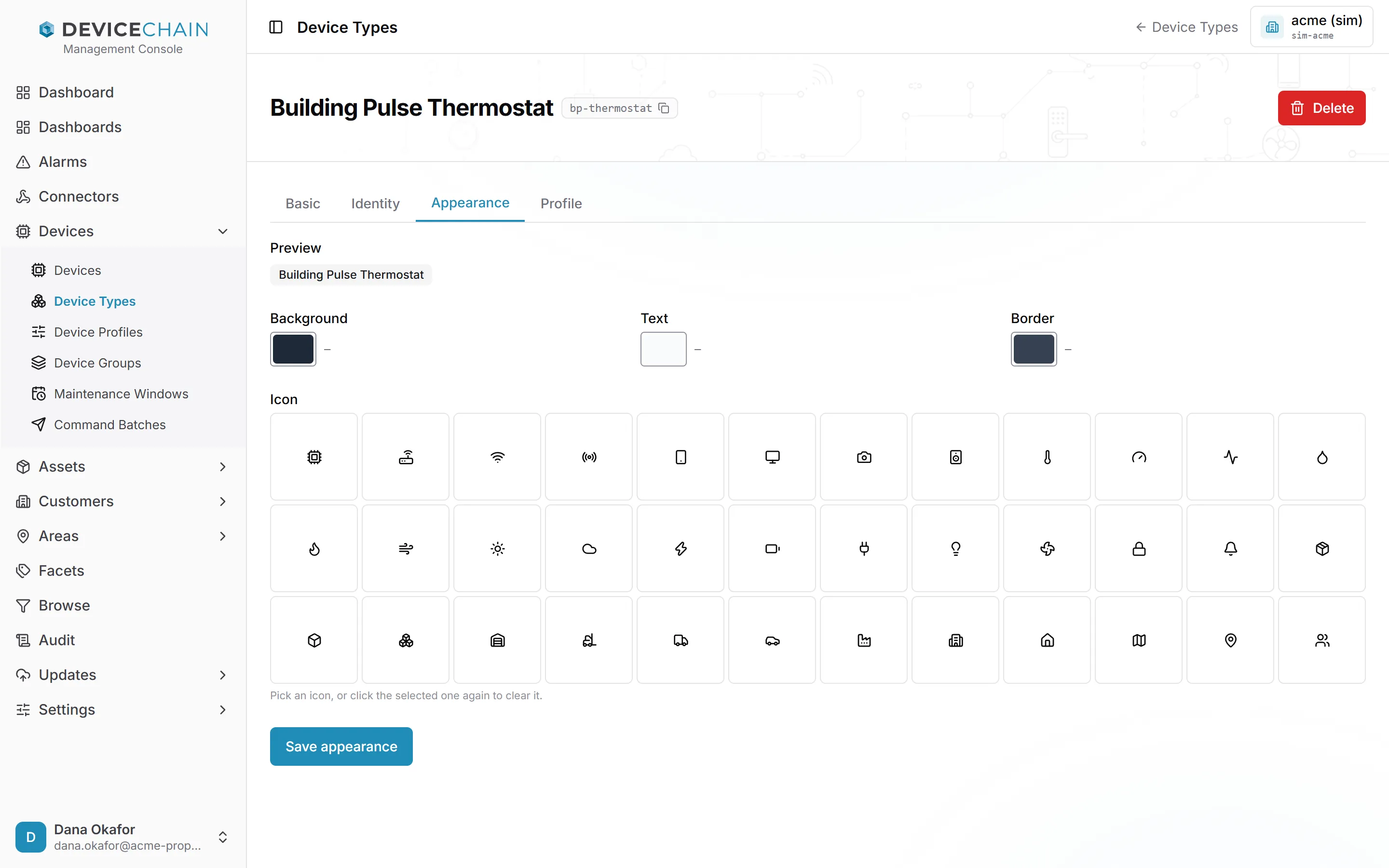
Choose a Background, Text and Border color, and an Icon. The Preview shows the result as you go. To remove the icon, select it again. Choose Save appearance when you are done.
Profile
Profile shows which device profile the type uses.
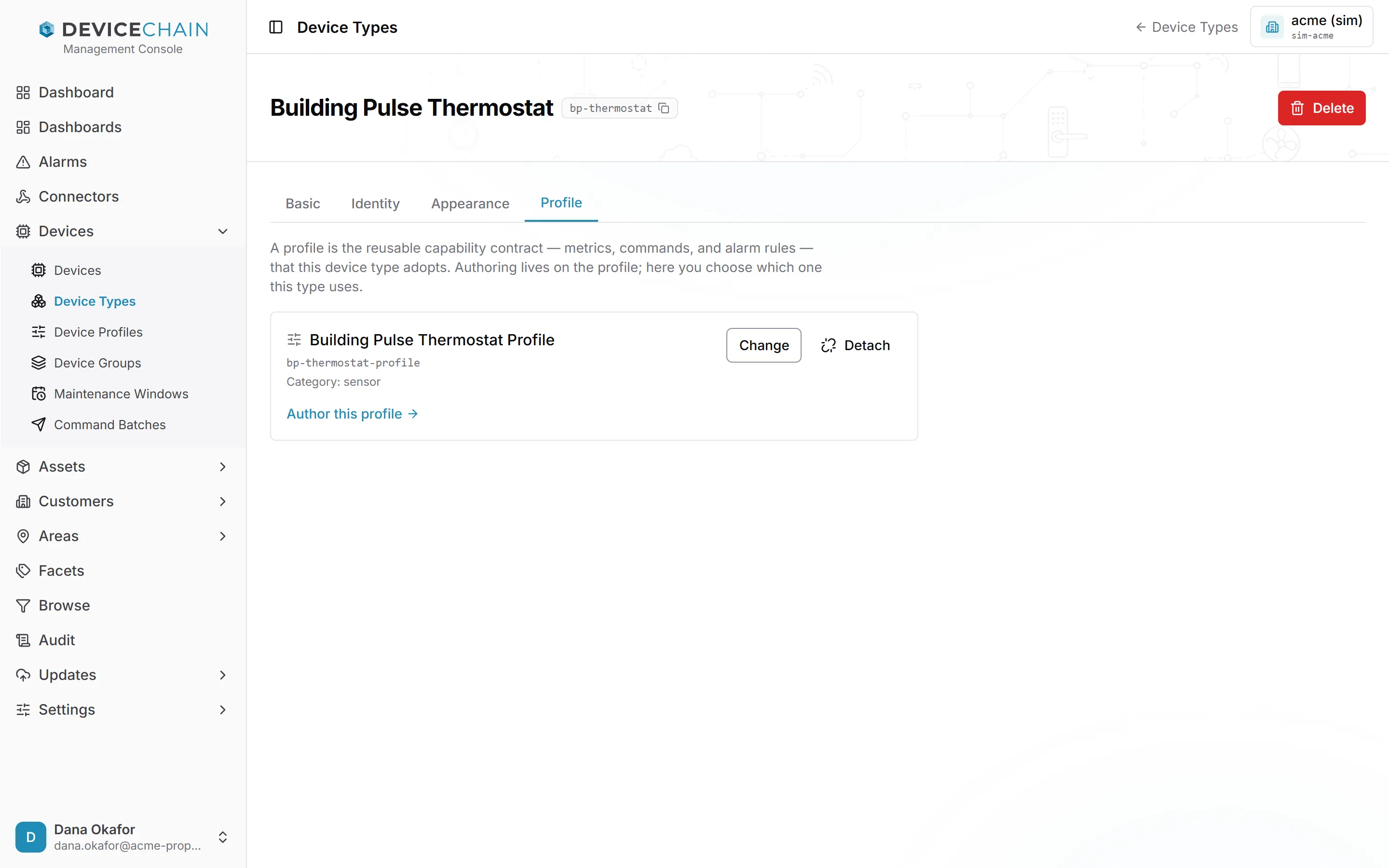
- Author this profile opens the profile, where you edit it.
- Change lets you attach a different profile.
- Detach removes the profile from the type. The profile itself is not deleted.
When a profile is shared by several device types, the card says so. A change to it affects all of them.
A type with no profile is allowed, but it is capability-limited: its devices are still listed and displayed, but they report no typed metrics, accept no commands and raise no alarms. To fix that, attach an existing profile or choose Create a profile for this type.
Device profiles
Open Devices in the sidebar, then Device Profiles. The list shows each profile's token, category, how many device types use it, its description and its creation date. New device profile creates one, with a token, a name, a Category (a functional class such as thermostat or meter) and a description.
Select a profile to open it. Its tabs are Basic, Metrics, Commands, Configuration, Detection Rules, Rule Health and Versions. Detection rules and rule health are covered in their own chapter.
Drafts and versions
A profile is versioned. Everything you change on its tabs changes a draft. Devices do not see the draft. They use the profile's active version, a frozen copy made when you publish. So an edit to a metric, a command or a configuration key takes effect on devices only when you publish the profile. See Publishing a version.
Metrics
Metrics lists the typed measurements a device of this profile reports.
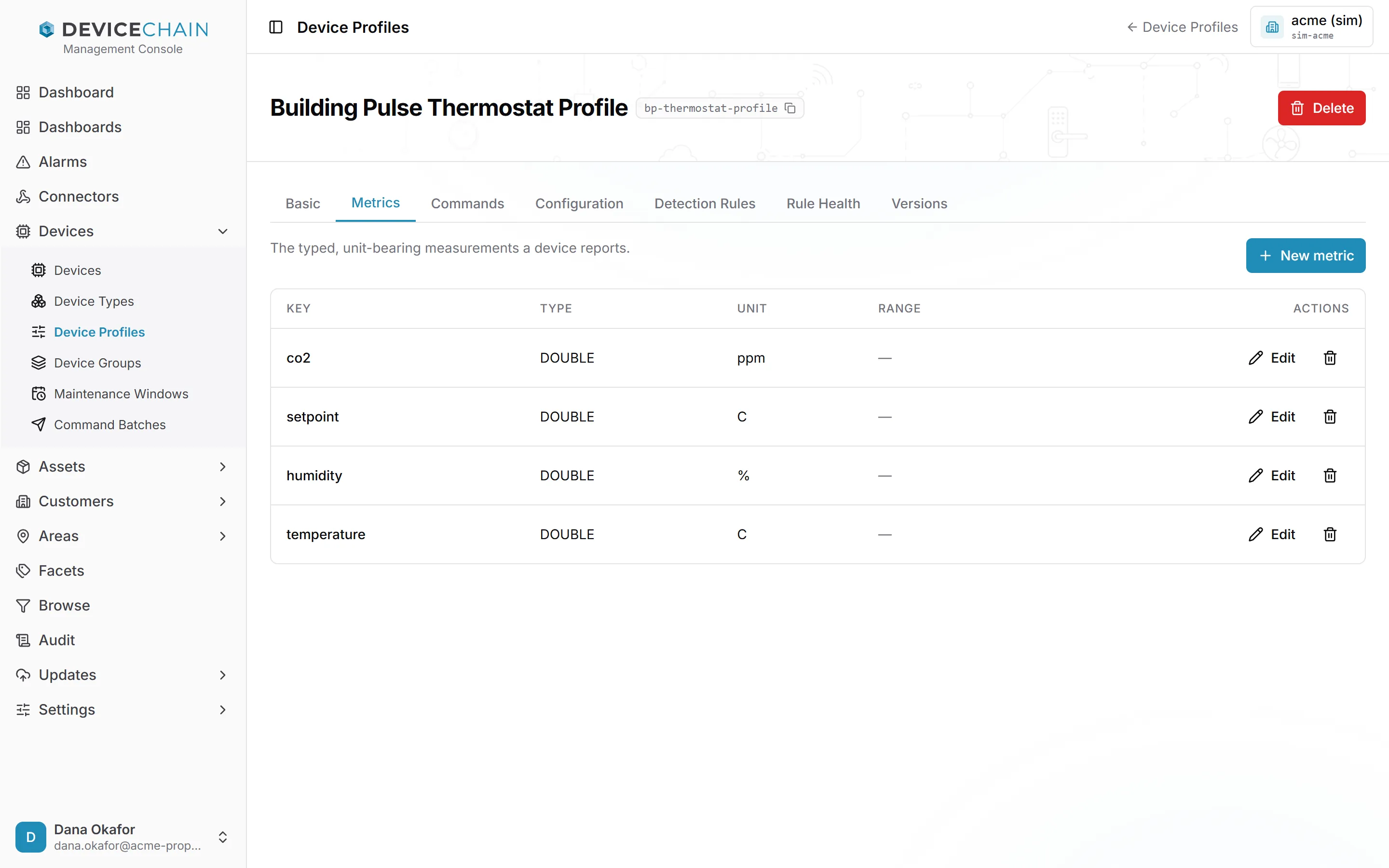
Choose New metric to add one, or Edit on a row to change it. A metric has:
- a Metric key: the name the device's measurements carry, such as
temperature; - a token and a Data type;
- a Unit, written in UCUM, such as
Cel; - an optional Min and Max, shown in the Range column;
- a name and a description.
Commands
Commands lists the commands a device of this profile accepts. These are the commands offered on a device's Commands tab.
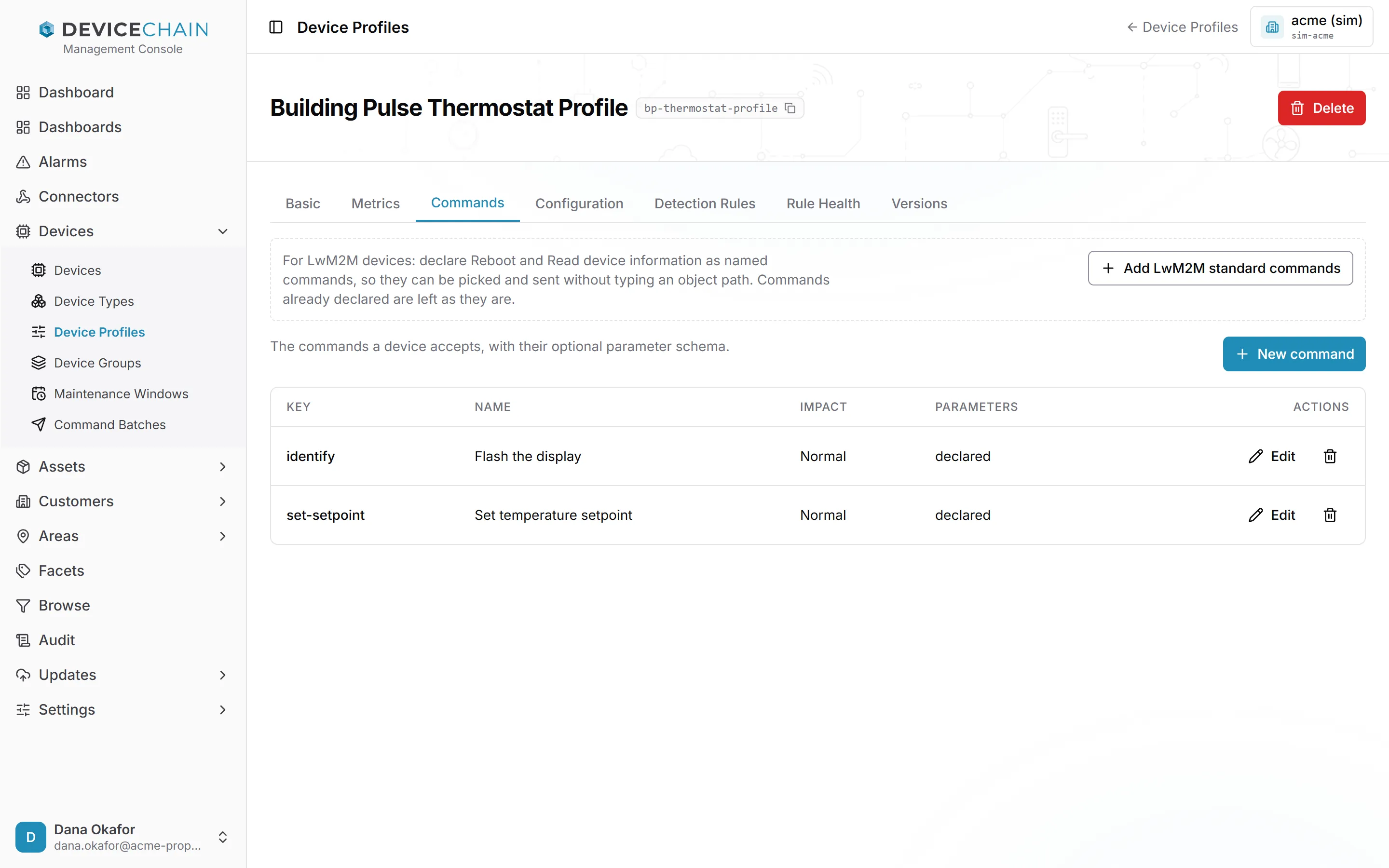
Choose New command to add one.
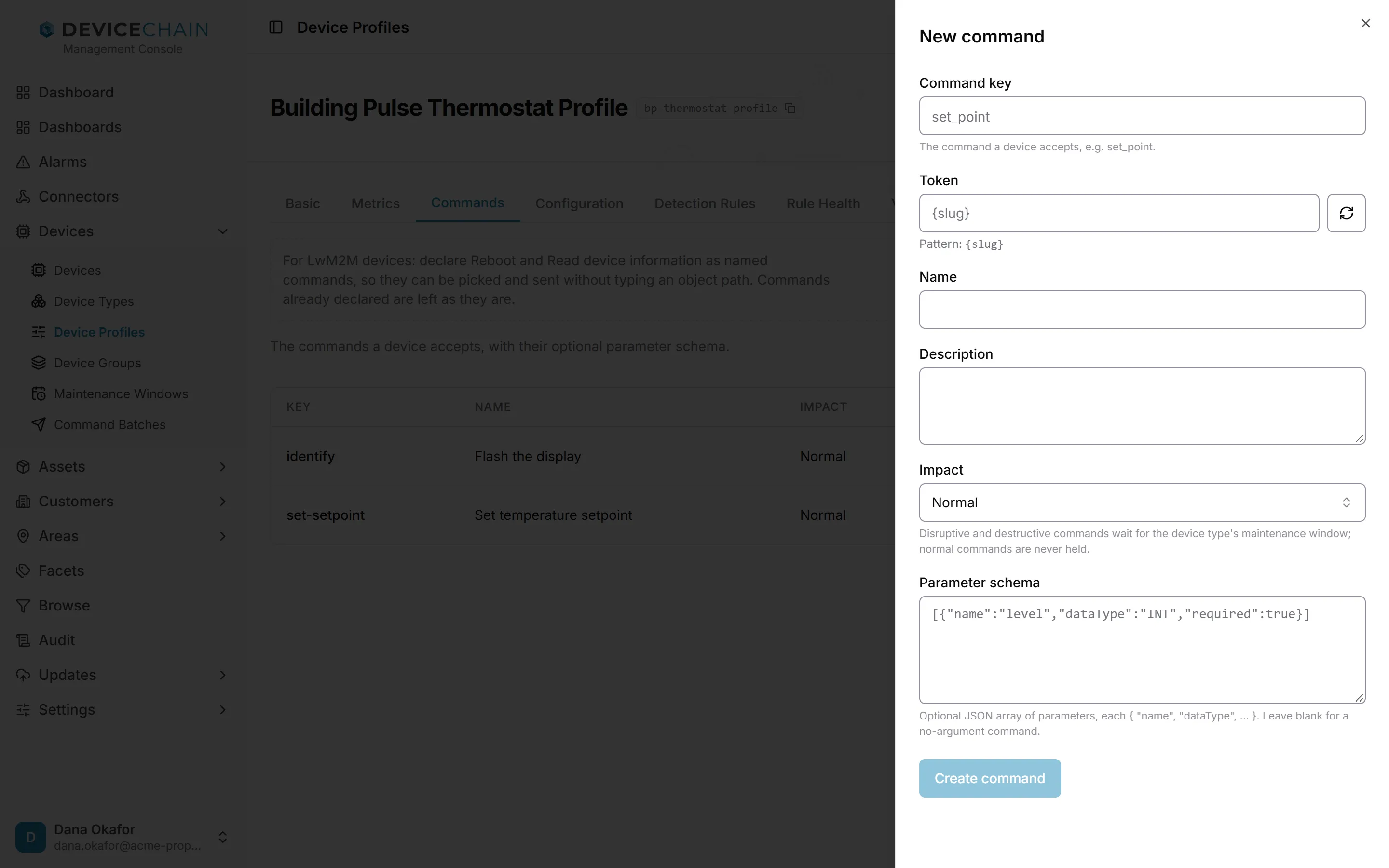
- Command key: the command the device accepts, such as
set_point. - Token, Name and Description.
- Impact: Normal, Disruptive or Destructive. Disruptive and destructive commands wait for the device type's maintenance window. Normal commands are never held.
- Parameter schema (optional): a JSON array describing the command's parameters, each with
a
nameand adataType. Leave it blank for a command with no arguments. The console builds the parameter form on a device's Commands tab from this schema.
For LwM2M devices, Add LwM2M standard commands declares Reboot and Read device information as named commands, so you can send them without typing an object path. Commands already declared are left as they are.
How commands are checked against the profile, and what impact means, is explained in Commands.
Configuration
Configuration declares which shared attribute keys a device of this profile receives as its configuration.
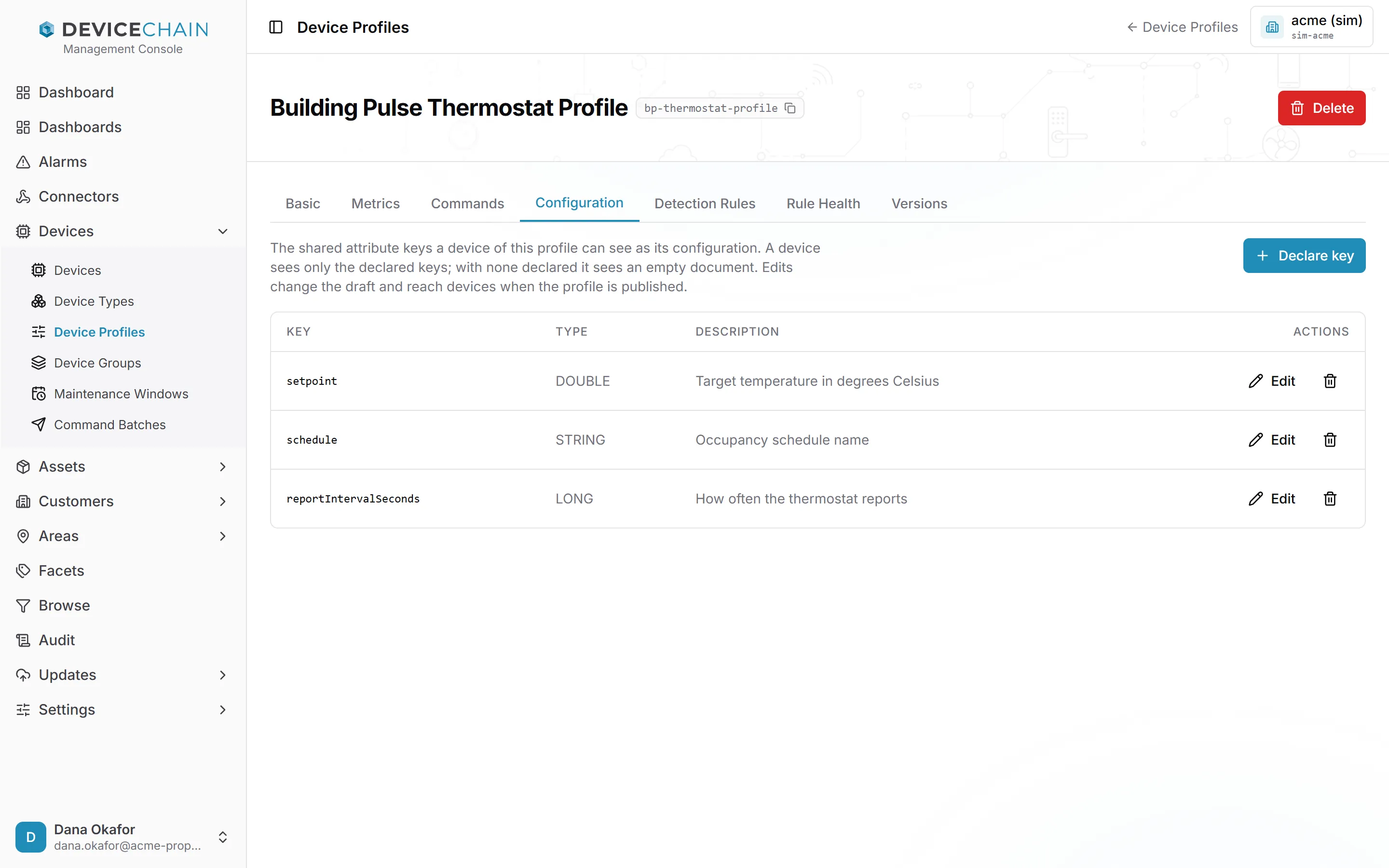
A device sees only the declared keys. With none declared, it sees an empty document. Choose Declare key to add one: give the Attribute key, its Value type (String, Integer (long), Decimal (double), Boolean or JSON) and a description.
The values themselves are set per device, as shared attributes. A device's Configuration tab shows the result.
Publishing a version
Versions lists every published version of the profile, newest first, and says which one is active.
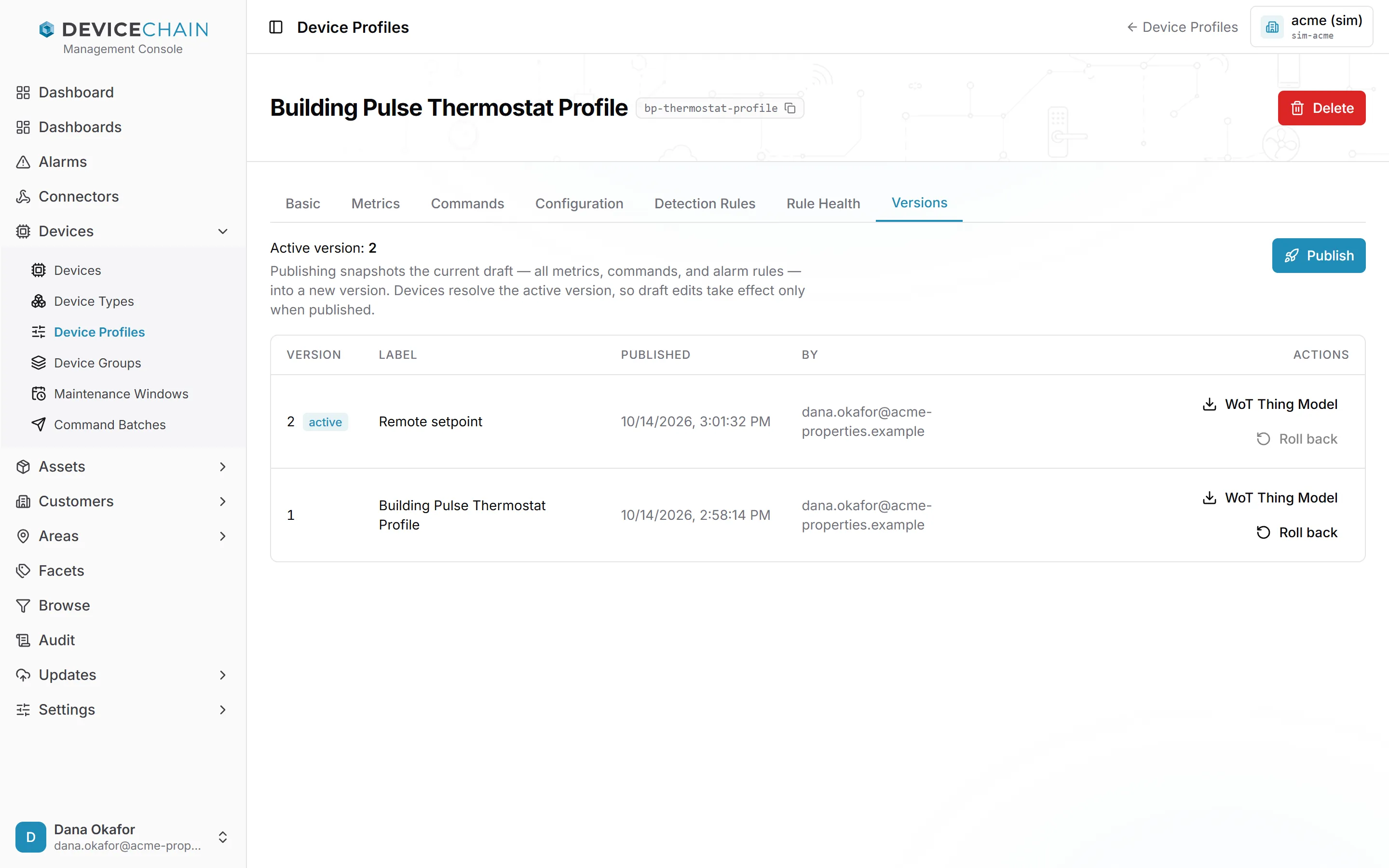
To publish your draft, choose Publish.
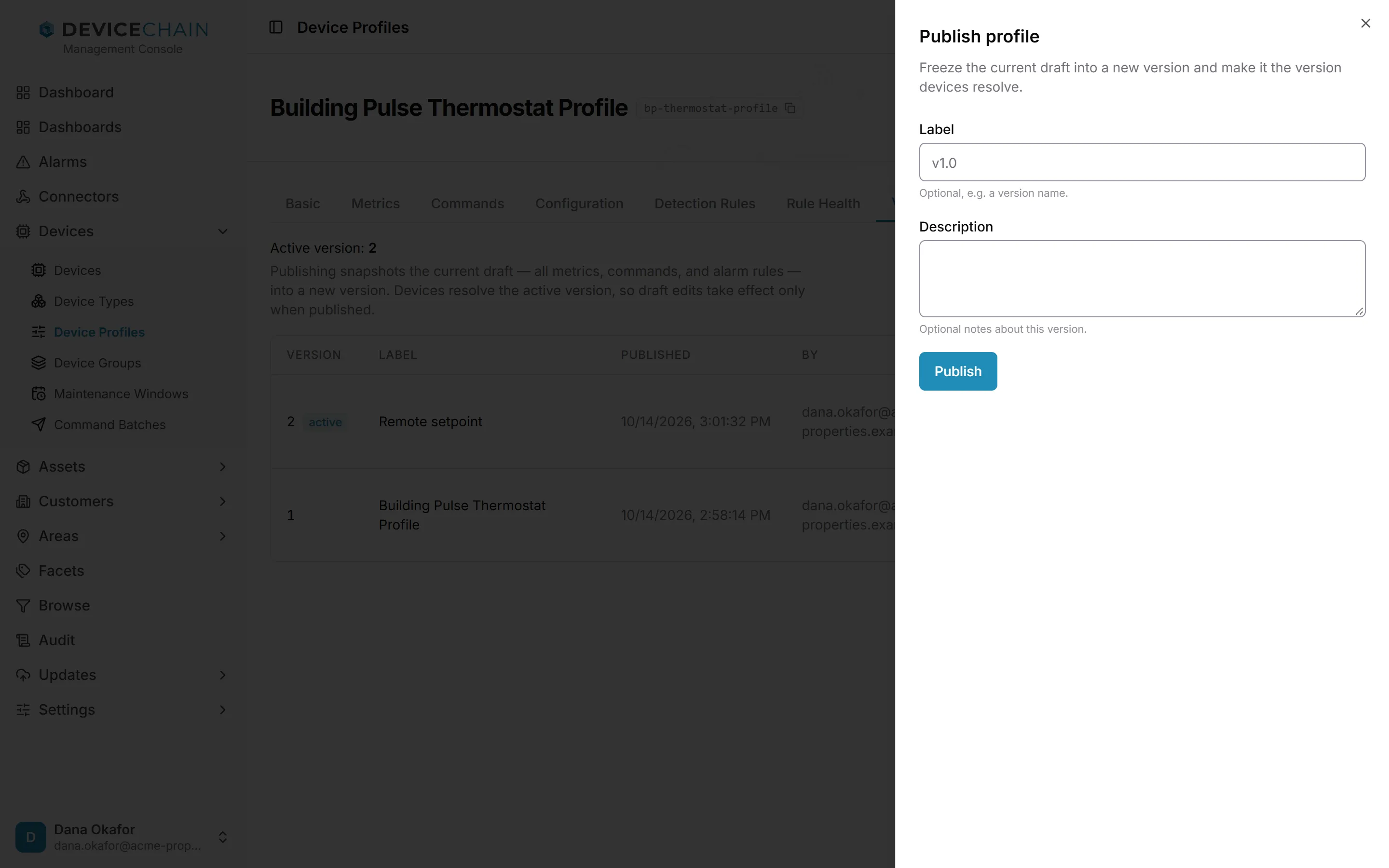
Give the version a Label and a Description if you like; both are optional. Then choose Publish. The draft is frozen into a new version, which becomes the active version straight away. The version holds everything on the draft, including its metrics, commands, configuration keys and detection rules. If several device types use the profile, the Versions tab warns you that publishing changes what all of them use.
Until a profile is published for the first time, its devices resolve nothing from it, and the tab says "Not published yet". Publish it at least once.
Rolling back
If a new version causes trouble, you can make an earlier version active again. Choose Roll back on that version's row, then confirm.
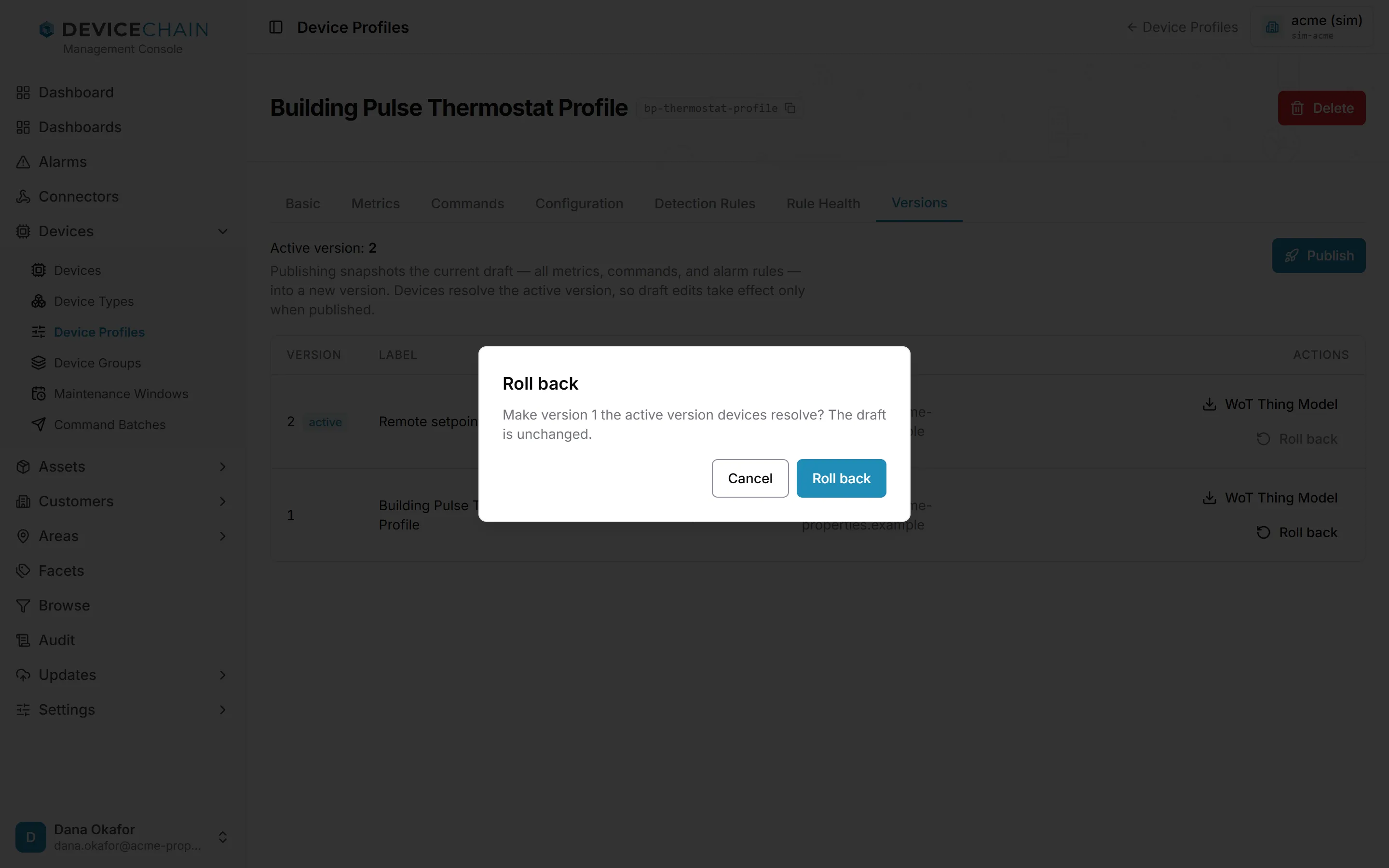
Rolling back changes only which version is active. It does not change your draft, so the edits you were working on are still there. The active version's Roll back button is greyed out, because it is already active.
Downloading a Thing Model
Each version row has a WoT Thing Model button. It downloads that version as a W3C Web of
Things Thing Model: a standard JSON-LD file describing the profile's metrics as properties and
its commands as actions. You can hand it to tools that understand the Web of Things. The file is
named after the profile token and version, such as bp-thermostat-profile.v2.tm.jsonld.
If a version uses something a Thing Model cannot express, the download fails with a message naming the version. What the export contains, and when it is refused, is described in Exporting a profile as a W3C Thing Model.