Assets, customers and areas
Devices measure things. The registry is where you describe those things and how they are organized: the assets a device monitors, the customers you serve, and the areas your fleet is spread over. This chapter is for tenant users and administrators who set up and maintain that structure.
The three families work the same way, so learn one and you know them all. Each family has three screens in the sidebar:
| Family | Instances | Templates | Collections |
|---|---|---|---|
| Assets | Assets | Asset Types | Asset Groups |
| Customers | Customers | Customer Types | Customer Groups |
| Areas | Areas | Area Types | Area Groups |
A type classifies instances, for example "HVAC Unit" for assets or "Building" for areas. A group is a named collection of instances of one family. The Areas menu also holds Geofences, which have their own chapter, Geofences.
For how these entities relate to devices and to each other, see the domain model.
Lists
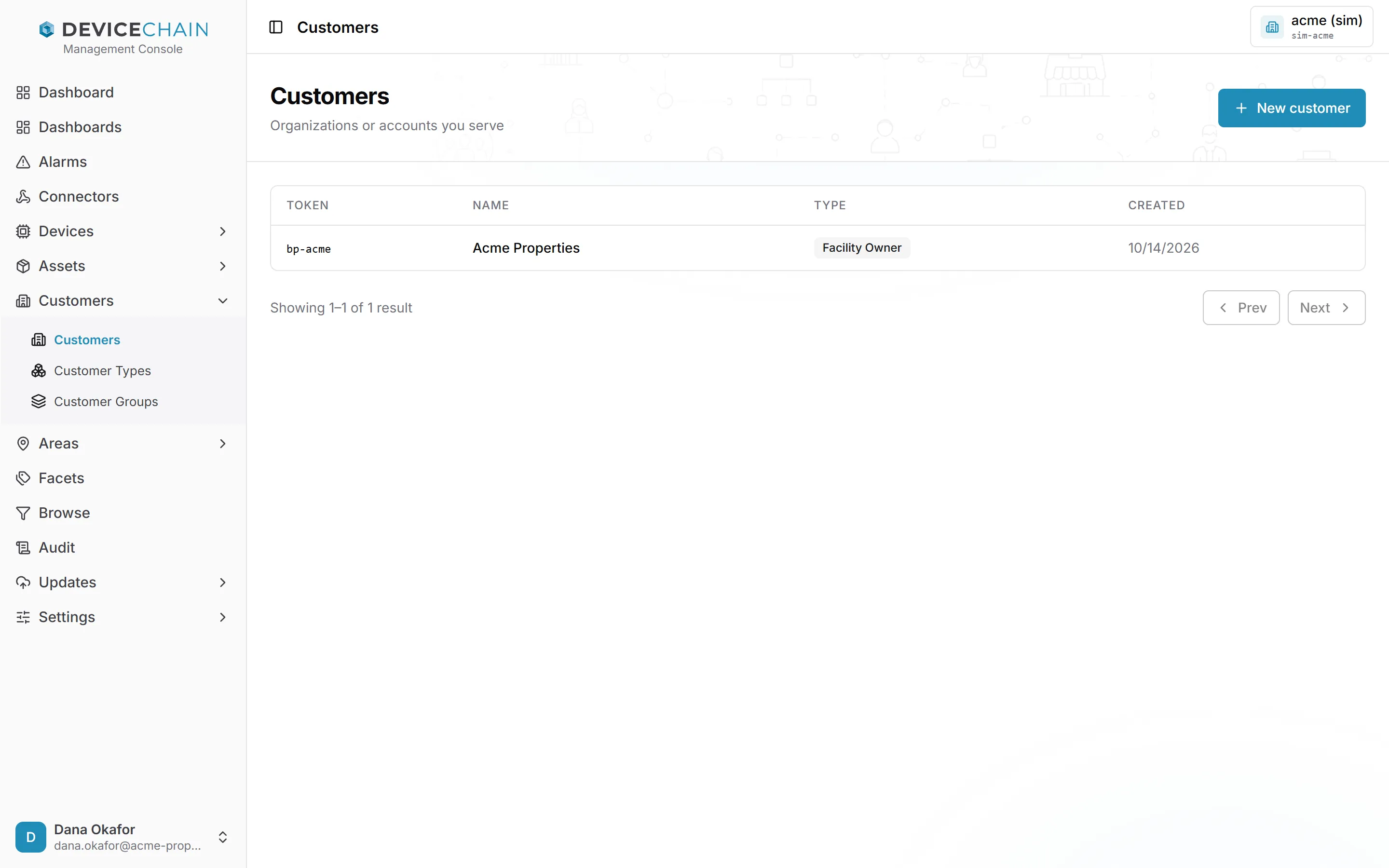
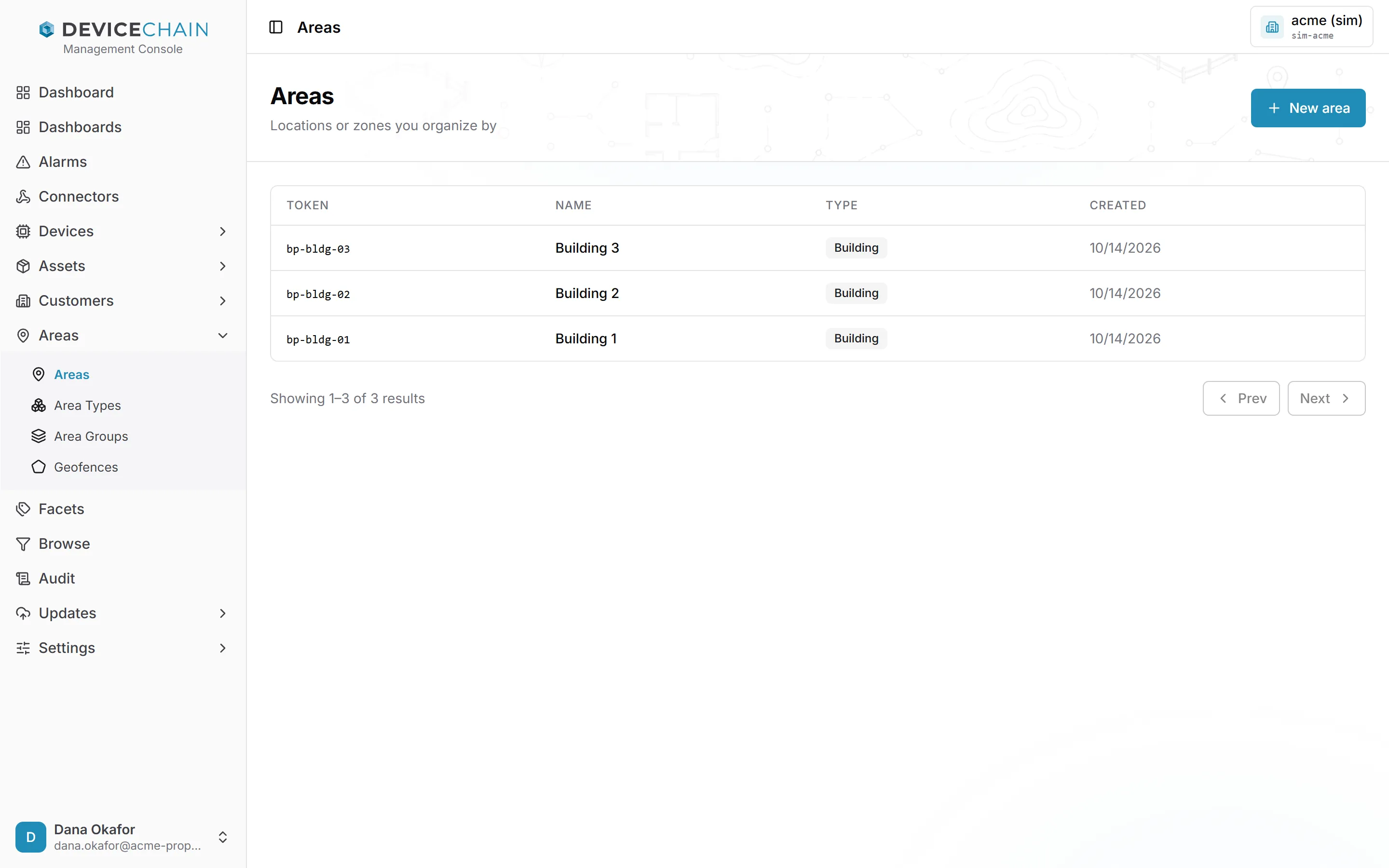
Each list shows the family's instances in pages, with Prev and Next below the table. For assets, customers and areas, the columns are Token, Name, Type and Created. Click a row to open it.
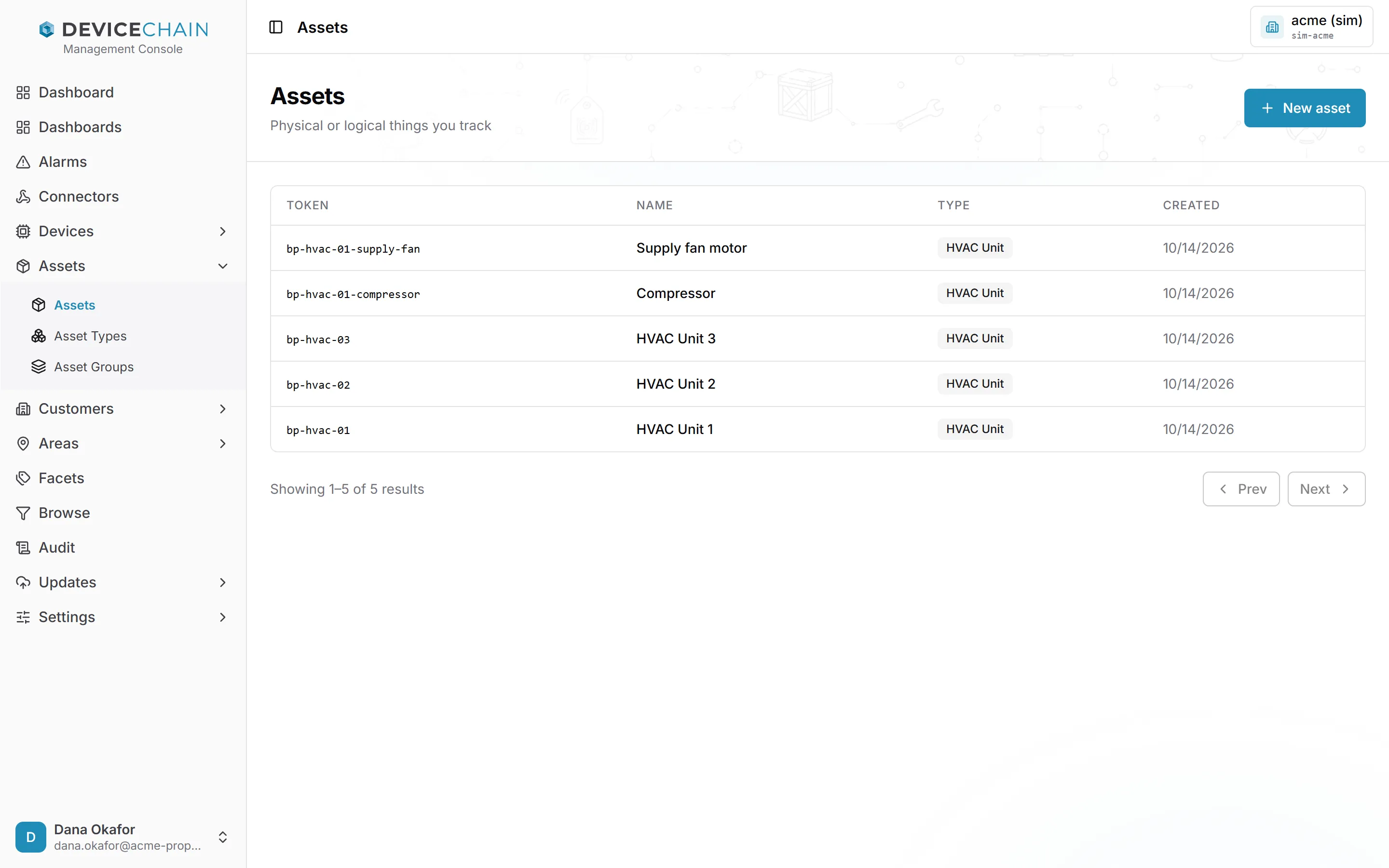
The token is the instance's identifier. Other screens, rules and the API refer to it by token, so it never changes after you create the instance. The name is the label people read, and you can change it at any time.
Creating an instance
Click New asset (or New customer, New area). A drawer opens with the same four fields for every family:
- Asset type (or customer type, area type): the template this instance belongs to. If none exists yet, the picker tells you to create a type first.
- Token: the identifier. The button beside it fills in a token from the token pattern your operator has set for this kind of entity, shown below the field. You can also type your own. A token may contain letters, digits, hyphens and underscores, and must start with a letter or digit.
- Name and Description: free text.
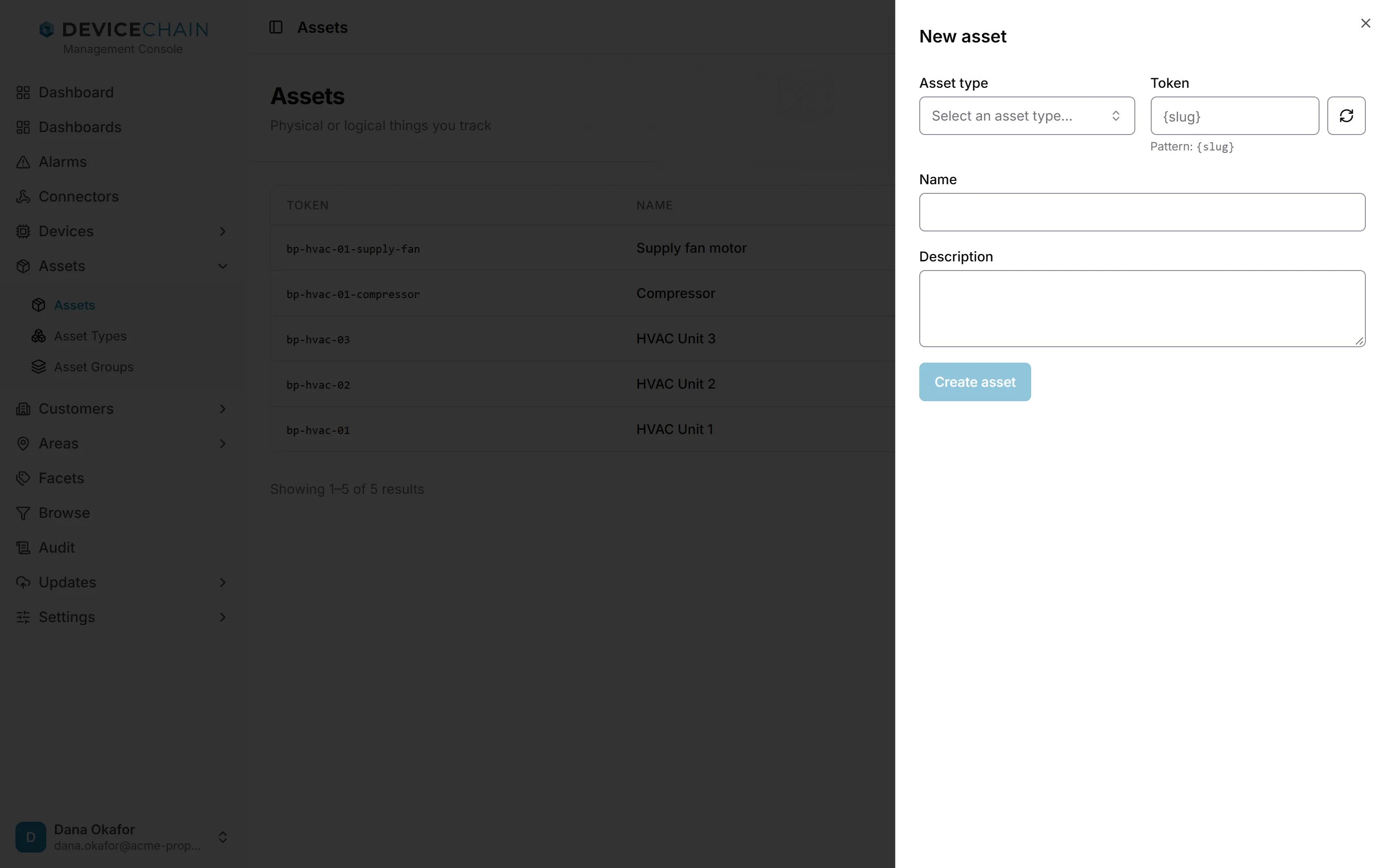
Click Create asset to save. The button stays disabled until you have chosen a type and entered a token.
The detail page
Open an instance to see its detail page. The header shows the name, the token (with a copy button) and the type. Delete is at the top right; it asks for confirmation, and a deletion cannot be undone. If something still depends on the instance, the console shows the server's refusal instead.
The Basic tab holds the same form you used to create the instance. You can change the type, name and description, then click Save changes. The token is shown but cannot be edited.
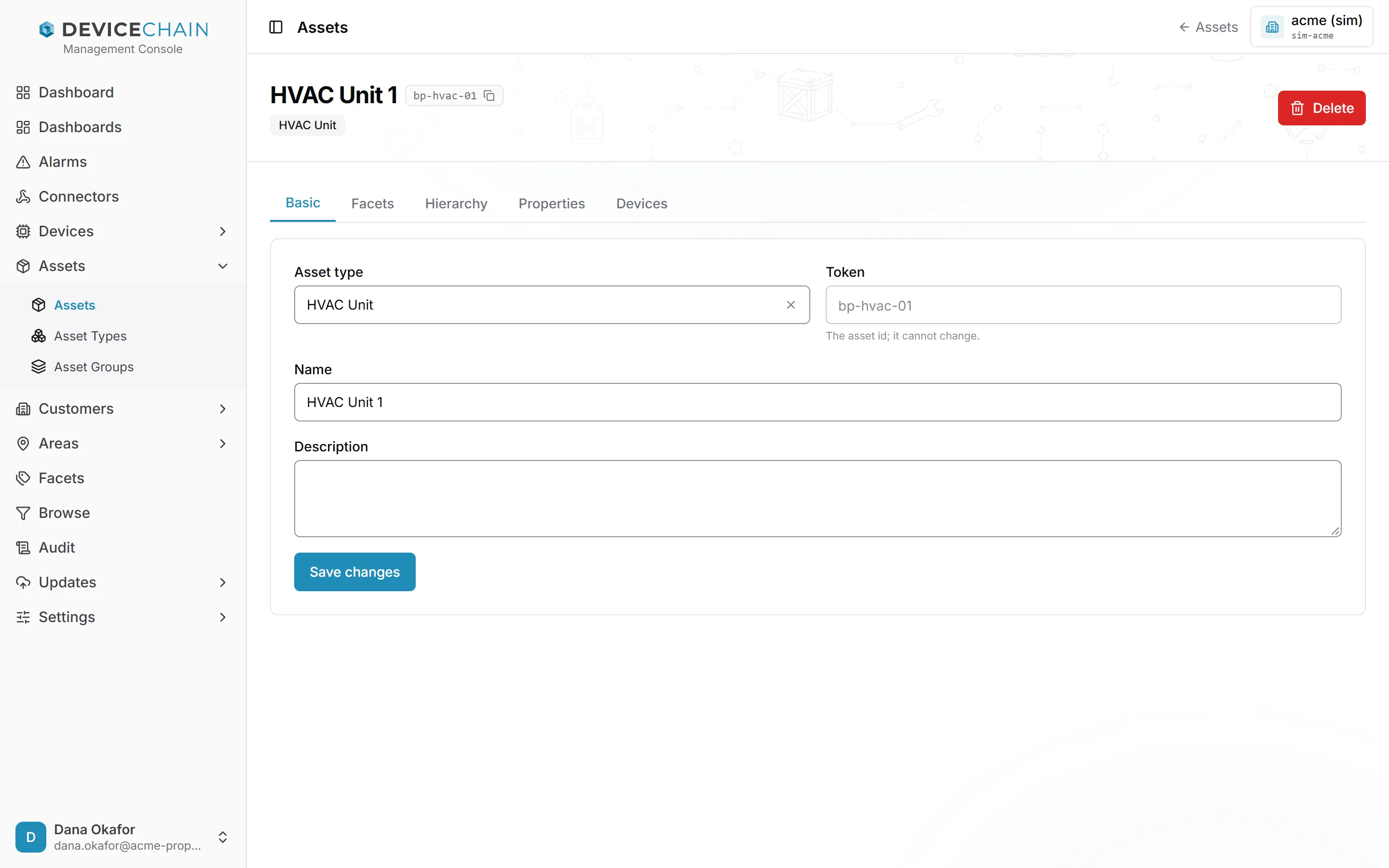
Every asset, customer and area also has a Facets tab, described below. Assets have three more tabs: Hierarchy, Properties and Devices.
Hierarchy (assets)
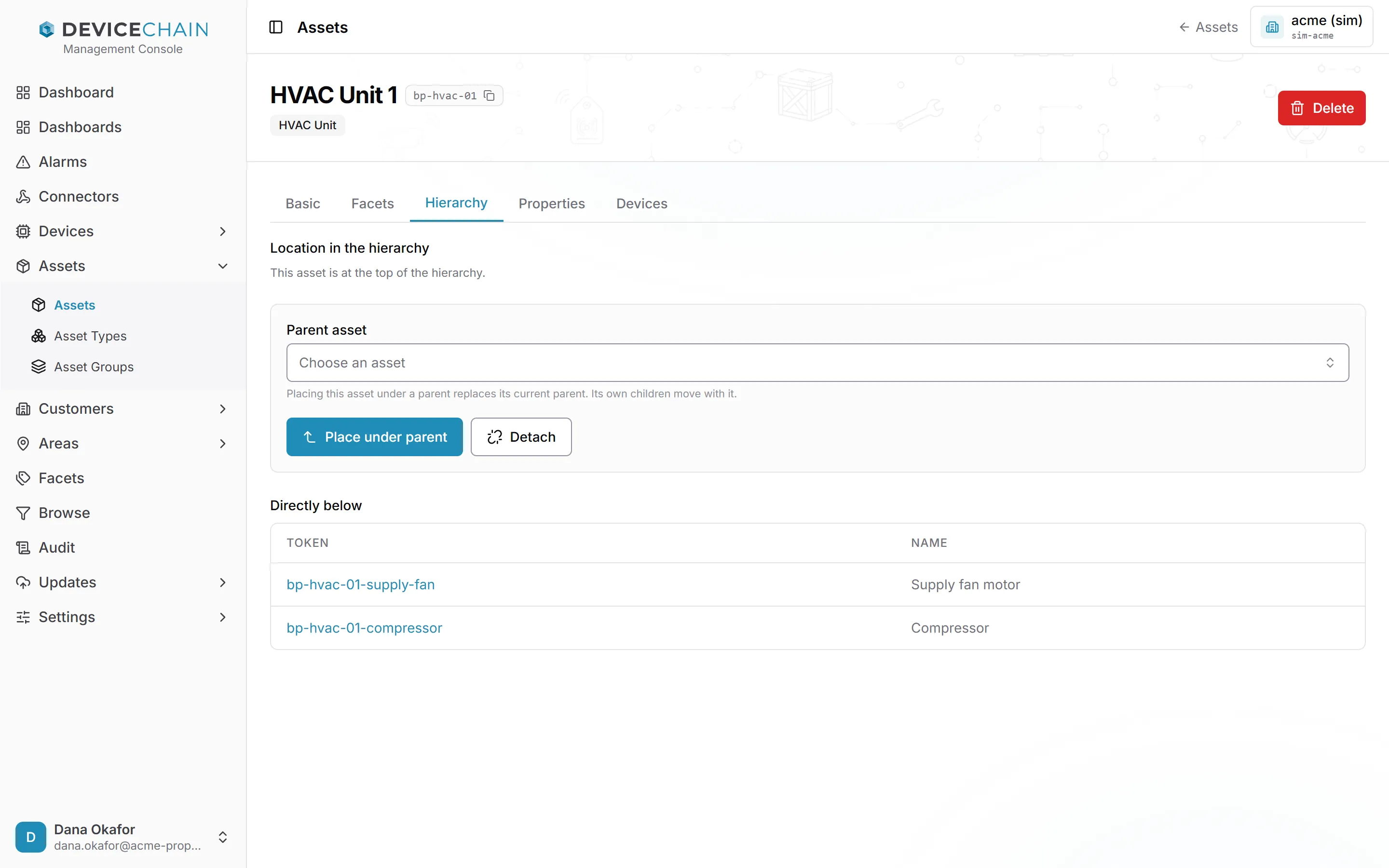
Assets form a tree. A pump can sit under the plant room it belongs to, and a fan motor under its HVAC unit. The Hierarchy tab shows where this asset sits and what is directly below it.
- Location in the hierarchy shows the path above the asset, or says that it is at the top.
- To move the asset, choose a Parent asset and click Place under parent. This replaces its current parent, and its own children move with it.
- Detach takes the asset out from under its parent, so it becomes a top-level asset.
- Directly below lists the asset's children. Click one to open it.
Properties (assets)
An asset type can publish a property contract: a list of named, typed values that its assets must carry, such as a manufacturer or a rated capacity. The asset's Properties tab is where you fill those values in. If the asset's type has not published a contract, the tab says so, and the asset carries no properties. You set up the contract on the asset type, as described in Asset types.
Devices (assets)
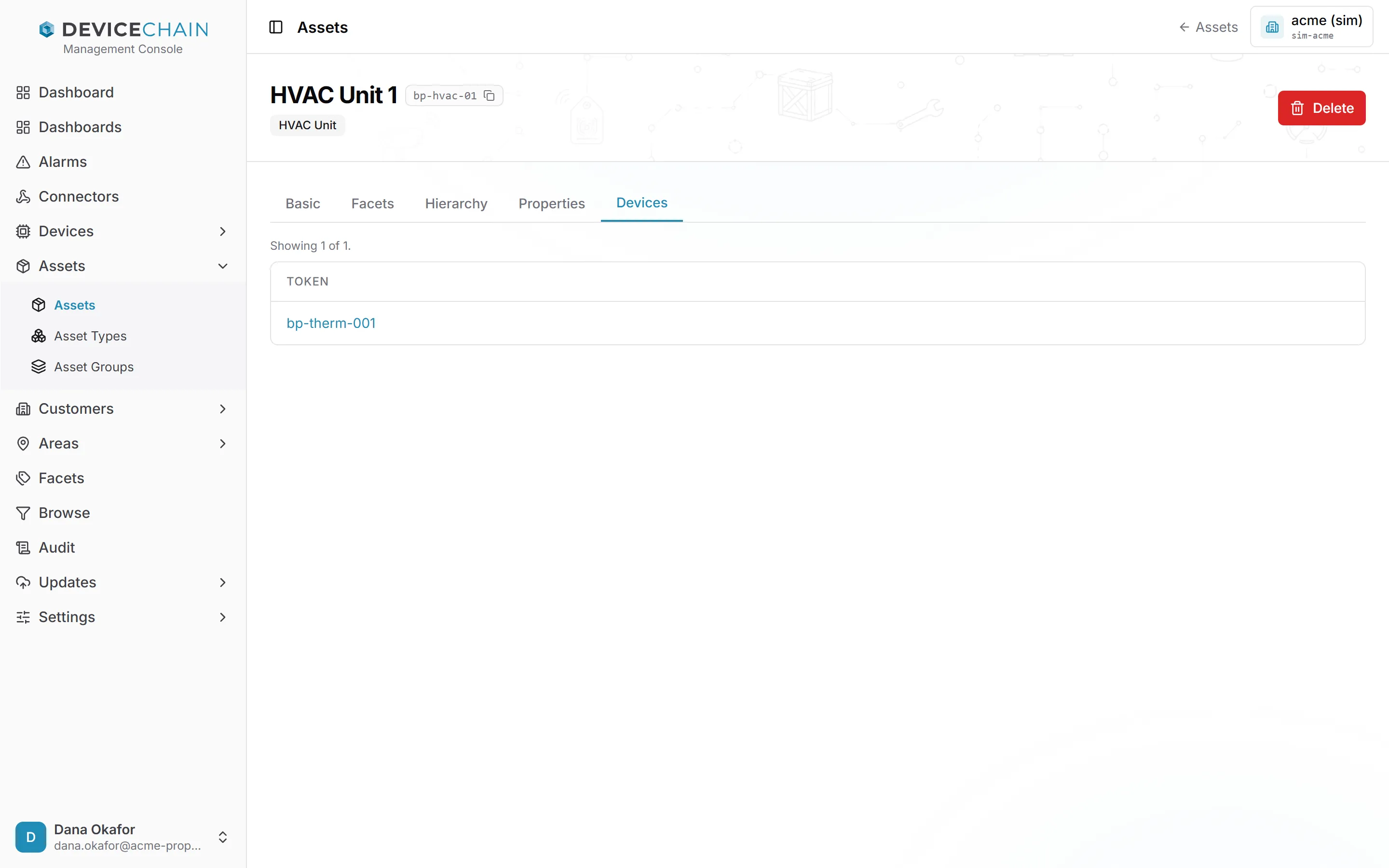
The Devices tab lists the devices assigned to this asset, which is the reverse view of a device's assignment. Click a token to open the device. To assign a device to an asset, see managing assignments.
Facets
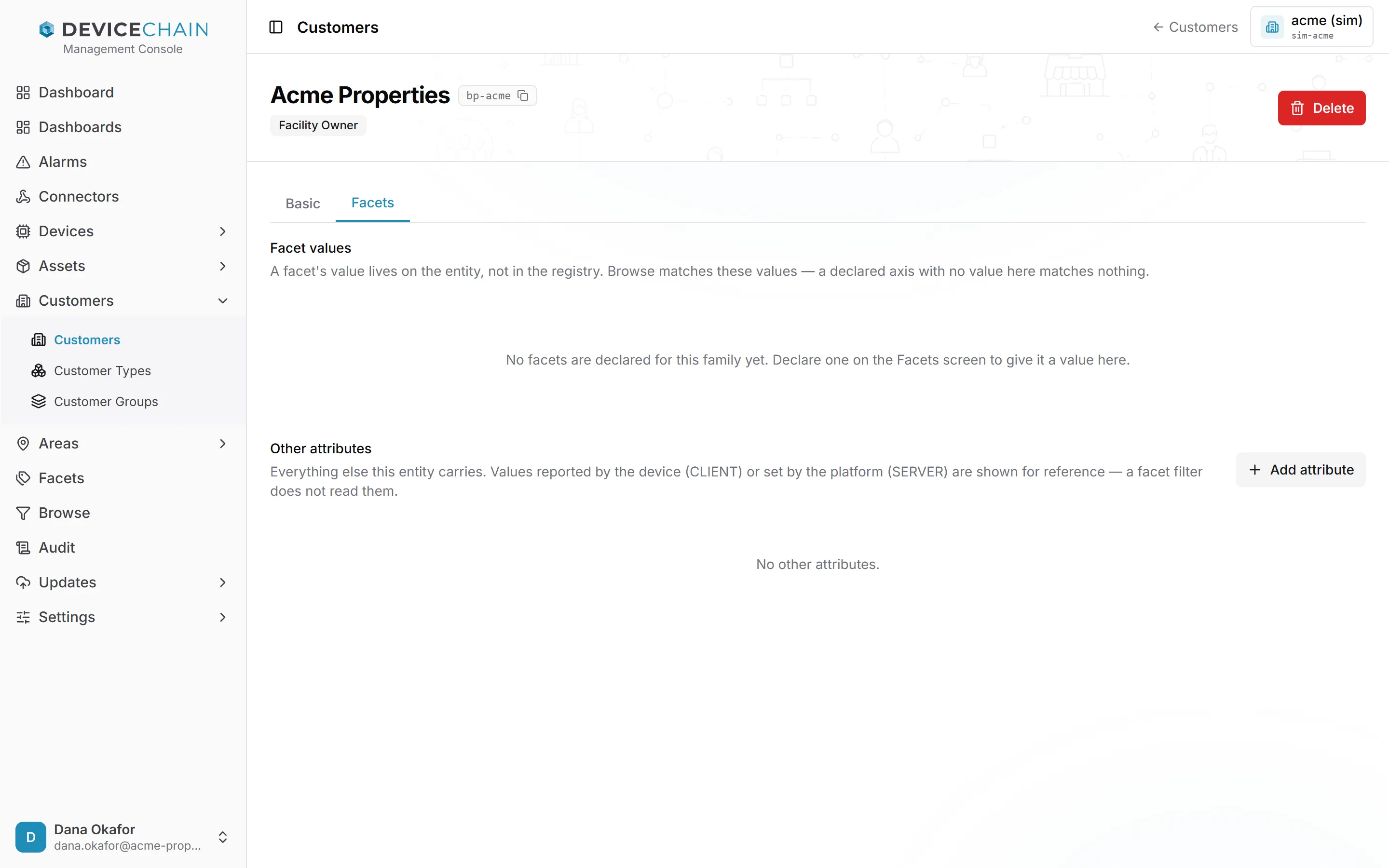
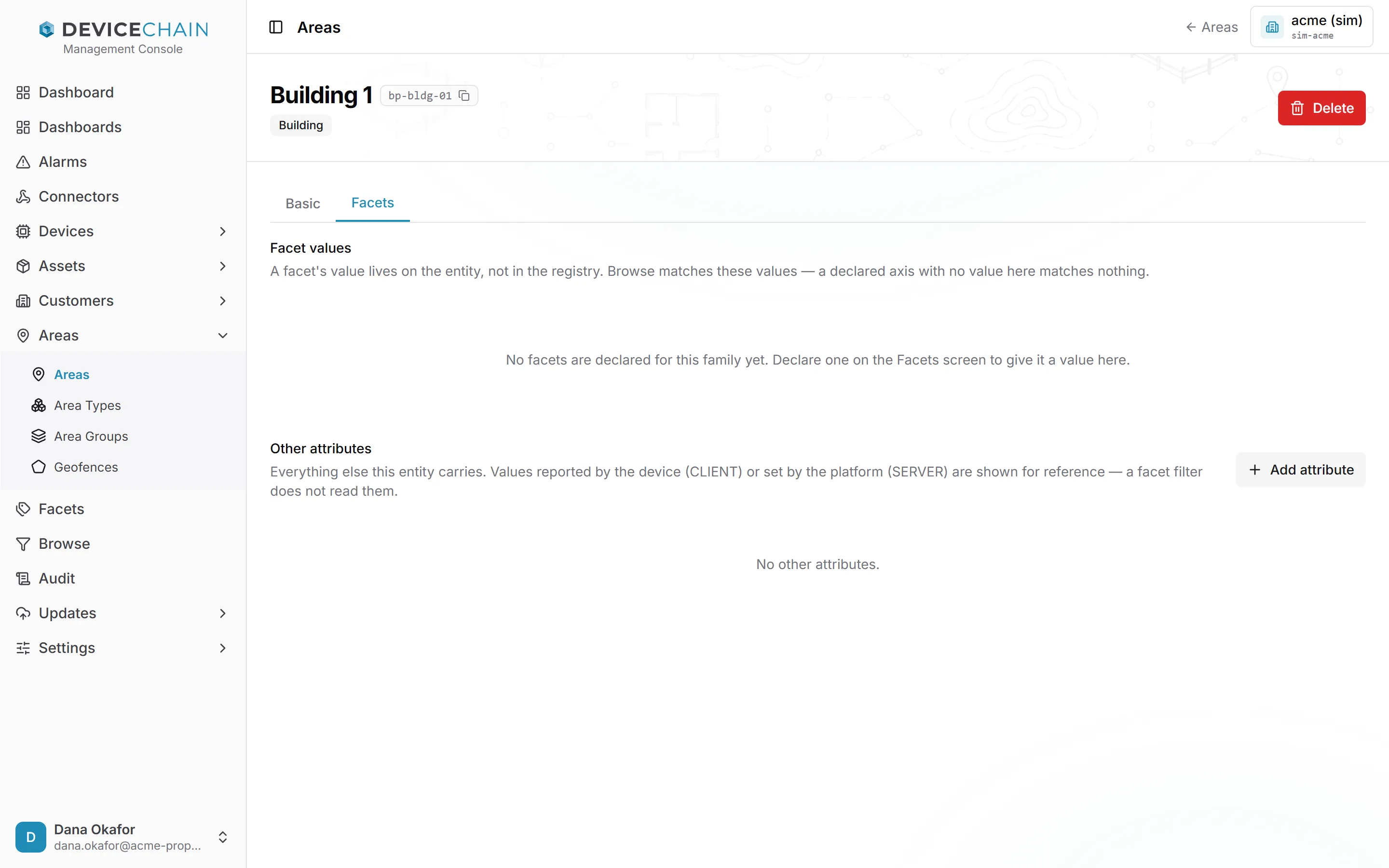
The Facets tab holds this instance's facet values: the classification values you browse and filter by on the Browse screen, such as the climate zone a building is in. A facet value lives on the instance itself. The Facets screen only declares which keys are facets, so a declared facet with no value here matches nothing.
If no facet is declared for the family yet, the tab says so and points you to the Facets screen. Below, Other attributes lists everything else the instance carries. Values reported by a device (CLIENT) or set by the platform (SERVER) are shown for reference only, and a facet filter does not read them. Add attribute stores a new key; to browse by it, declare it on the Facets screen.
Editing attribute values requires the device:write permission, for every family. Facets,
Browse and dynamic groups are covered in Groups, facets and Browse.
Types
Types are templates that classify instances. Each type list shows an Appearance column (the badge the type is drawn with), the token, a description and the creation date.
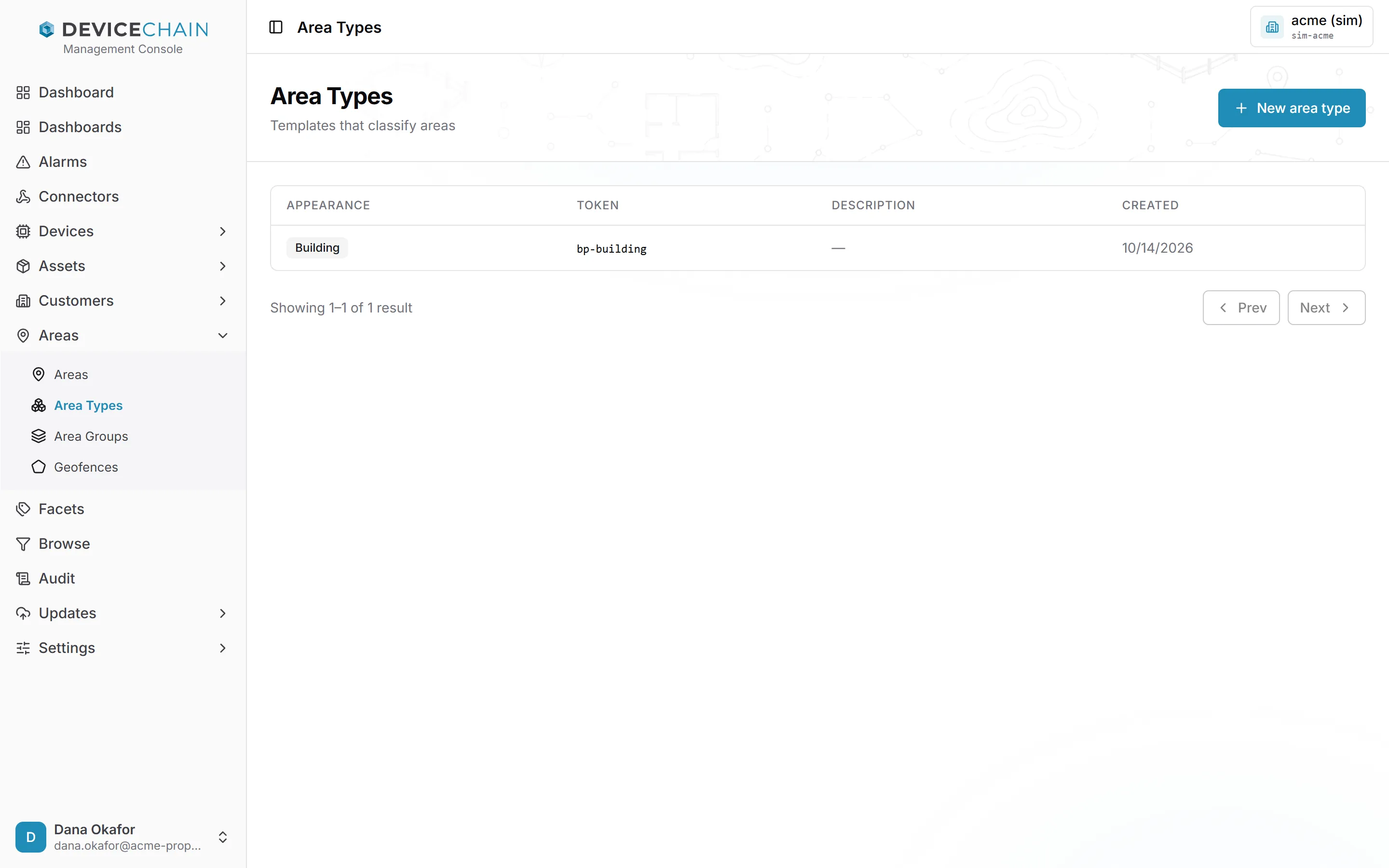
A type's detail page has a Basic tab for its name and description and an Appearance tab for the icon and colors of its badge. The badge appears wherever an instance of that type is shown.
Asset types: property contracts and versions
Asset types have two more tabs, because an asset type can declare what its assets carry.
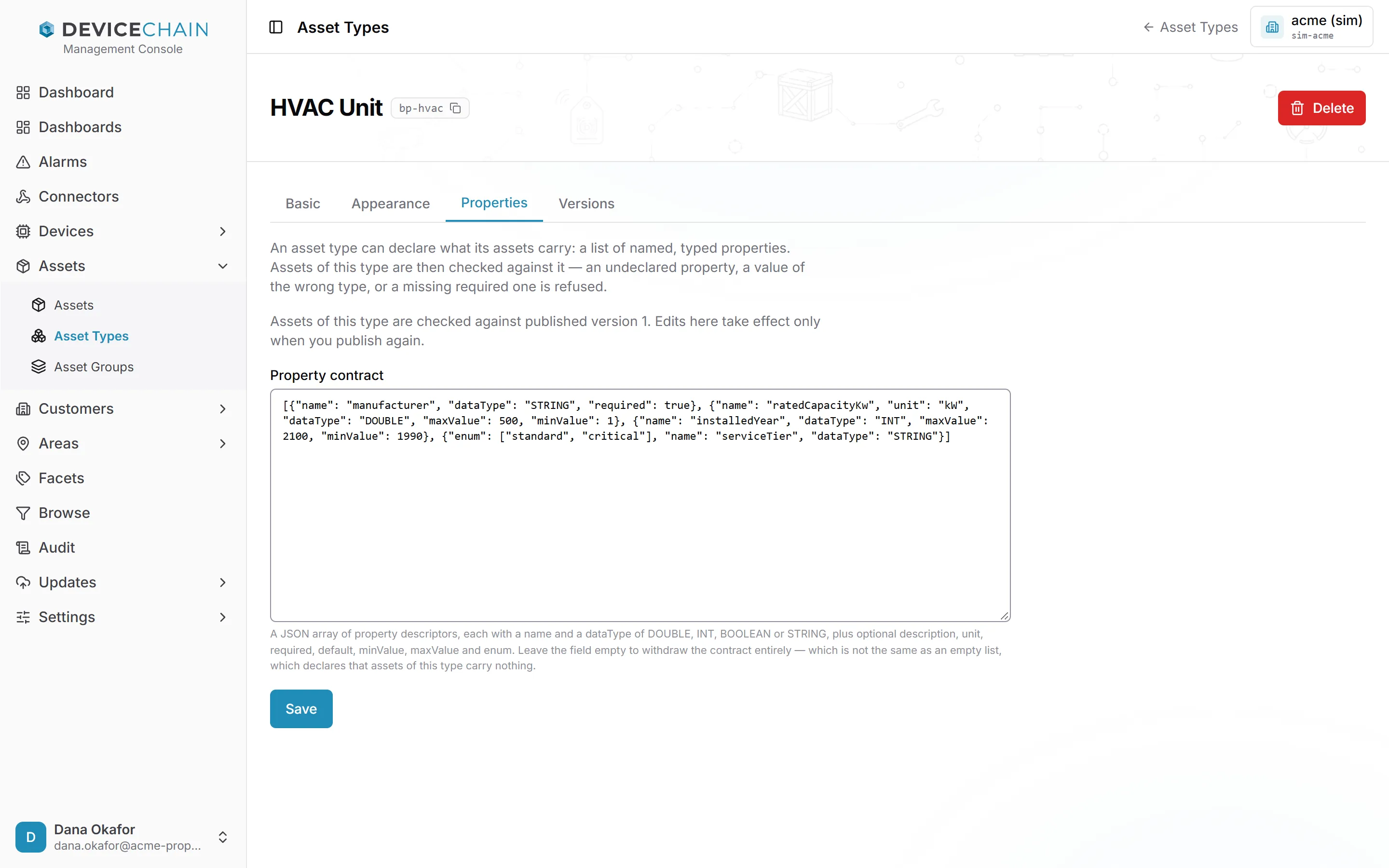
The Properties tab holds the draft Property contract: a JSON array of property descriptors.
Each has a name and a dataType of DOUBLE, INT, BOOLEAN or STRING, plus optional
description, unit, required, default, minValue, maxValue and enum. Assets of the type are
then checked against it: an undeclared property, a value of the wrong type, or a missing required
one is refused.
Two things to know:
- Leaving the field empty withdraws the contract. That is not the same as an empty list
[], which declares that assets of this type carry nothing. - Saving changes only the draft. Assets are checked against the published version until you publish again.
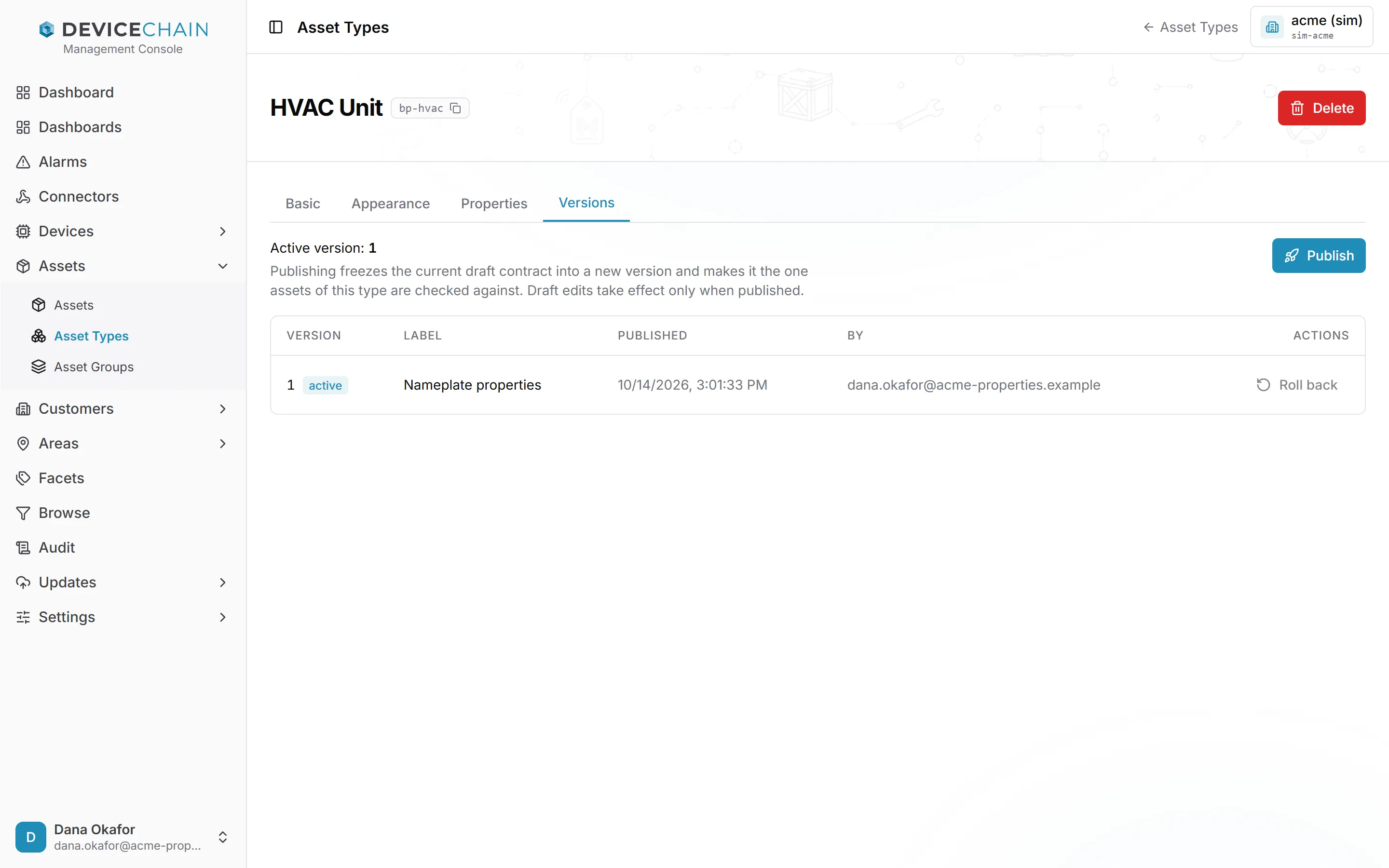
The Versions tab shows the active version and every published version, with its label, when it was published and by whom.
- Publish freezes the current draft into a new version and makes it the one assets are checked against. You can give the version a label and a description.
- Roll back makes an earlier version the active one. The draft is not changed. Properties already stored are neither rechecked nor rewritten, so an asset that no longer fits stays as it is until someone writes its properties again.
Publishing, rolling back and editing a property contract need device:write too.
Groups
A group collects instances of one family: Asset Groups hold assets, Customer Groups hold customers, and Area Groups hold areas. A group's list and detail pages work like the others. Its detail page has a Members tab where you add instances to the group and remove them.
Groups can also be dynamic: instead of a list you maintain by hand, the group is a saved filter whose members are worked out each time it is read. You create those on the Browse screen. See Groups, facets and Browse.
Related
- Domain model: assets, the asset hierarchy, groups and attributes.
- Managing assignments: attaching devices to assets, areas and customers.
- Groups, facets and Browse
- Geofences