Connectors
A connector is an outbound destination that a detection rule can publish to: an MQTT broker, an
Apache Kafka topic, an AWS SNS topic or an AWS SQS queue. When a rule fires, its publish action
sends a message through the connector you name. This chapter shows how to create a connector,
configure it and manage its versions. It is for tenant administrators who connect DeviceChain to
the systems they already run.
A one-off webhook needs no connector: a rule's webhook action carries its own URL. For how outbound actions work and are governed, see outbound connectors.
The connector service is not part of every installation. If your instance does not run it, the Connectors pages say so instead of showing a list.
The connector list
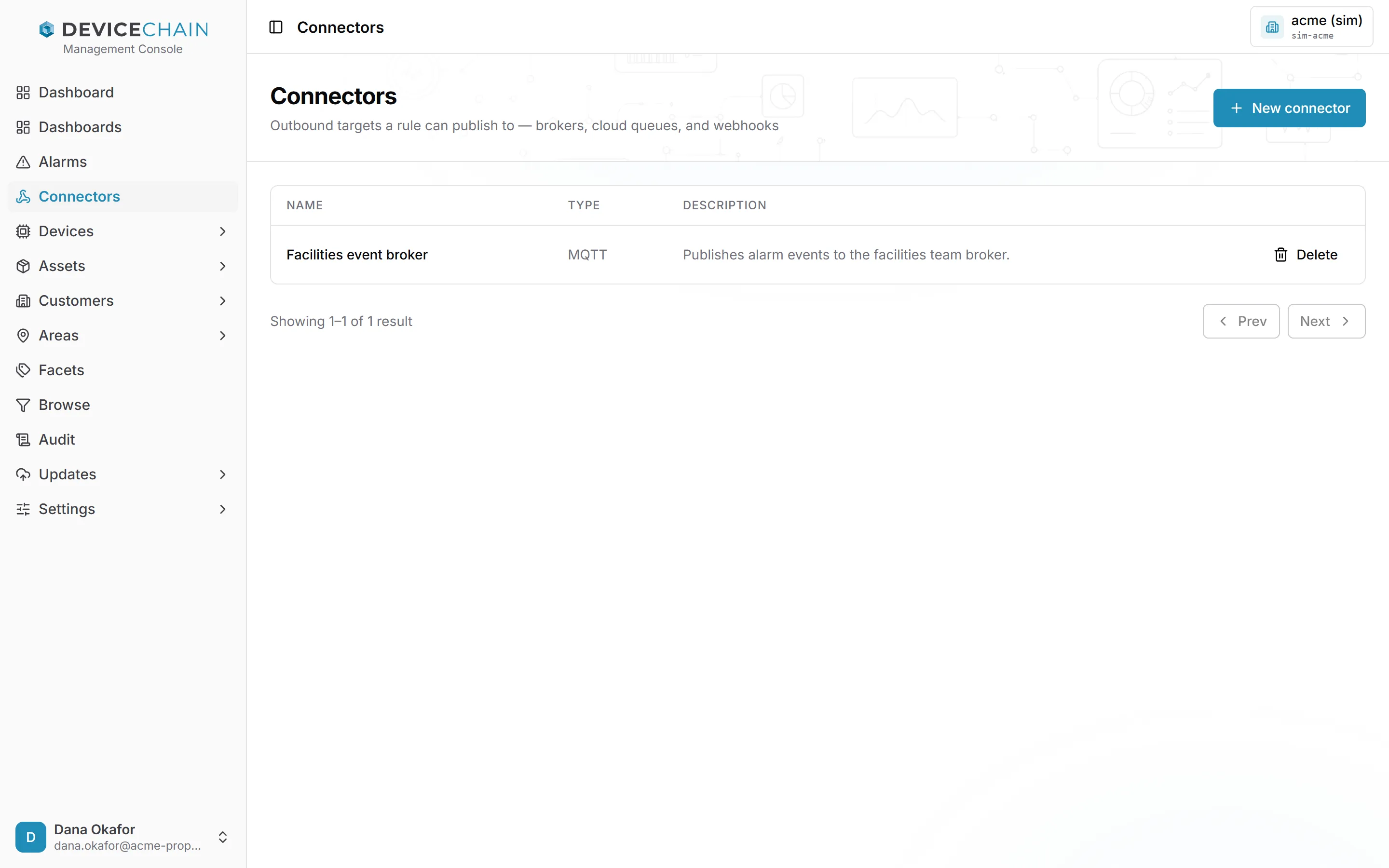
Open Connectors in the sidebar. The list shows each connector's name, type and description. Click a row to open it. Delete on a row removes the connector after you confirm. Any rule that publishes through a deleted connector fails to deliver until you point it at another one, and the deletion cannot be undone.
Creating a connector
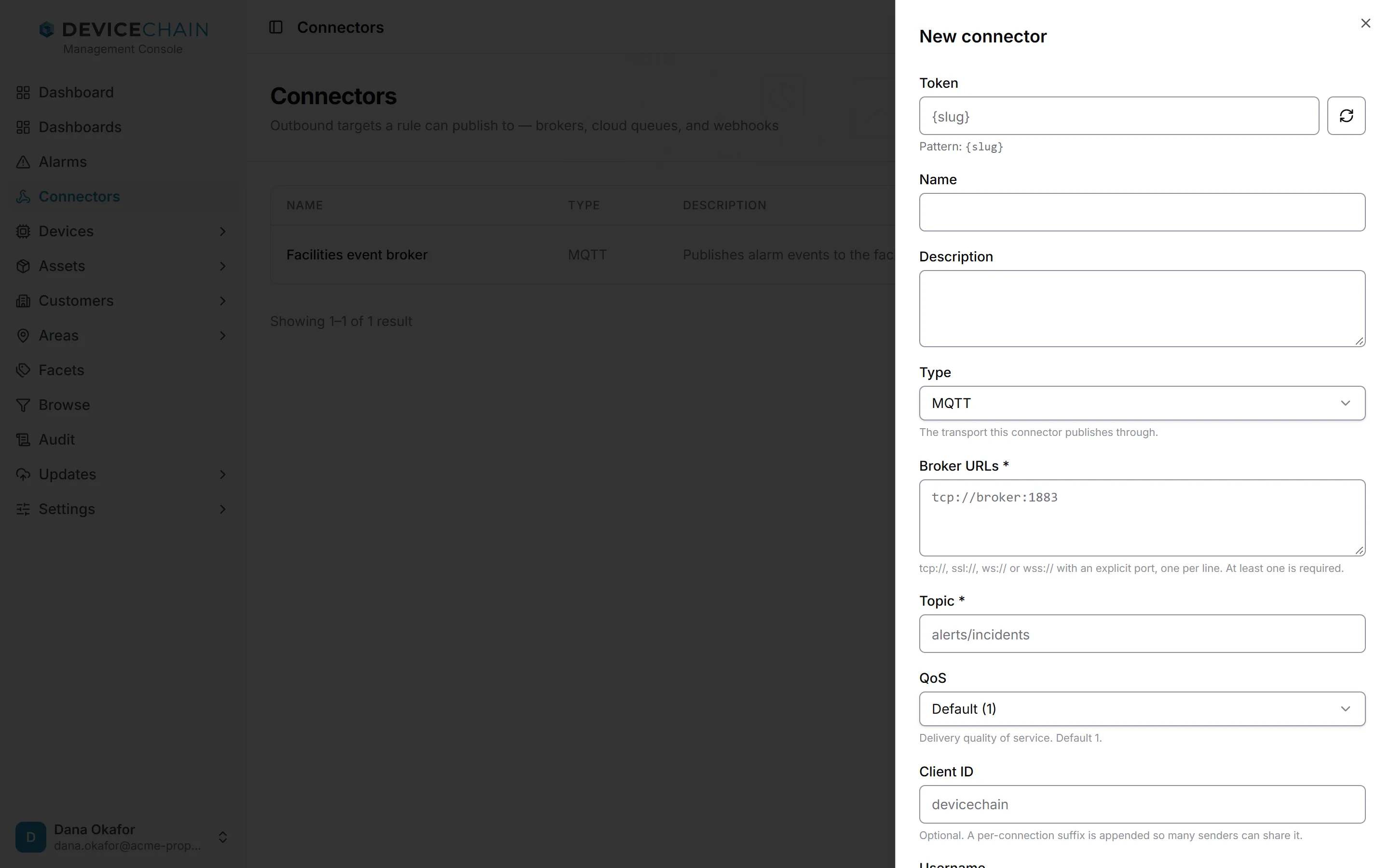
Click New connector. The drawer starts with fields every connector has:
- Token: the identifier rules use to name the connector. The button beside it generates one from your instance's token pattern.
- Name and Description: free text.
- Type: the transport the connector publishes through: MQTT, Apache Kafka, AWS SNS or AWS SQS. Changing the type clears the fields below, because each type needs different settings.
The rest of the form depends on the type. Fields marked * are required.
| Type | Settings |
|---|---|
| MQTT | Broker URLs (one per line, each with an explicit port and the scheme tcp://, mqtt://, ssl://, tls://, mqtts://, ws:// or wss://), Topic, QoS (0, 1 or 2; 1 by default), an optional Client ID and Username, and an optional Password. |
| Apache Kafka | Broker addresses (host:port, one per line), Topic, an optional Client ID, Use TLS, and optional SASL authentication with a mechanism, a username and a password. |
| AWS SNS | Region, Topic ARN, Access key ID, the required Secret access key, and an optional Endpoint override. |
| AWS SQS | Region, Queue URL, Access key ID, the required Secret access key, and an optional Endpoint override. |
The password or secret key is the connector's credential. It is write-only: once saved, the console only tells you that a credential is configured, and never shows it again. To change it, click Replace and enter a new value; to remove it, click Clear, and Undo takes the Clear back before you save. Clear is not offered when the type requires a credential: always for AWS, and for Kafka when SASL is on.
The console checks required fields as you go, but the server checks the whole configuration again when you save and again when the connector sends. When a connector sends, the platform also refuses a destination that resolves to a private or internal address, unless your operator has allowed it. See where a connector may send.
Click Create connector to save it. A new connector is a draft: no rule can publish through it until you publish a version, as described below.
Editing a connector
Open a connector to see its detail page. The Configuration tab holds the same form as the create drawer. The type is shown but cannot be changed; to move to another transport, create a new connector.
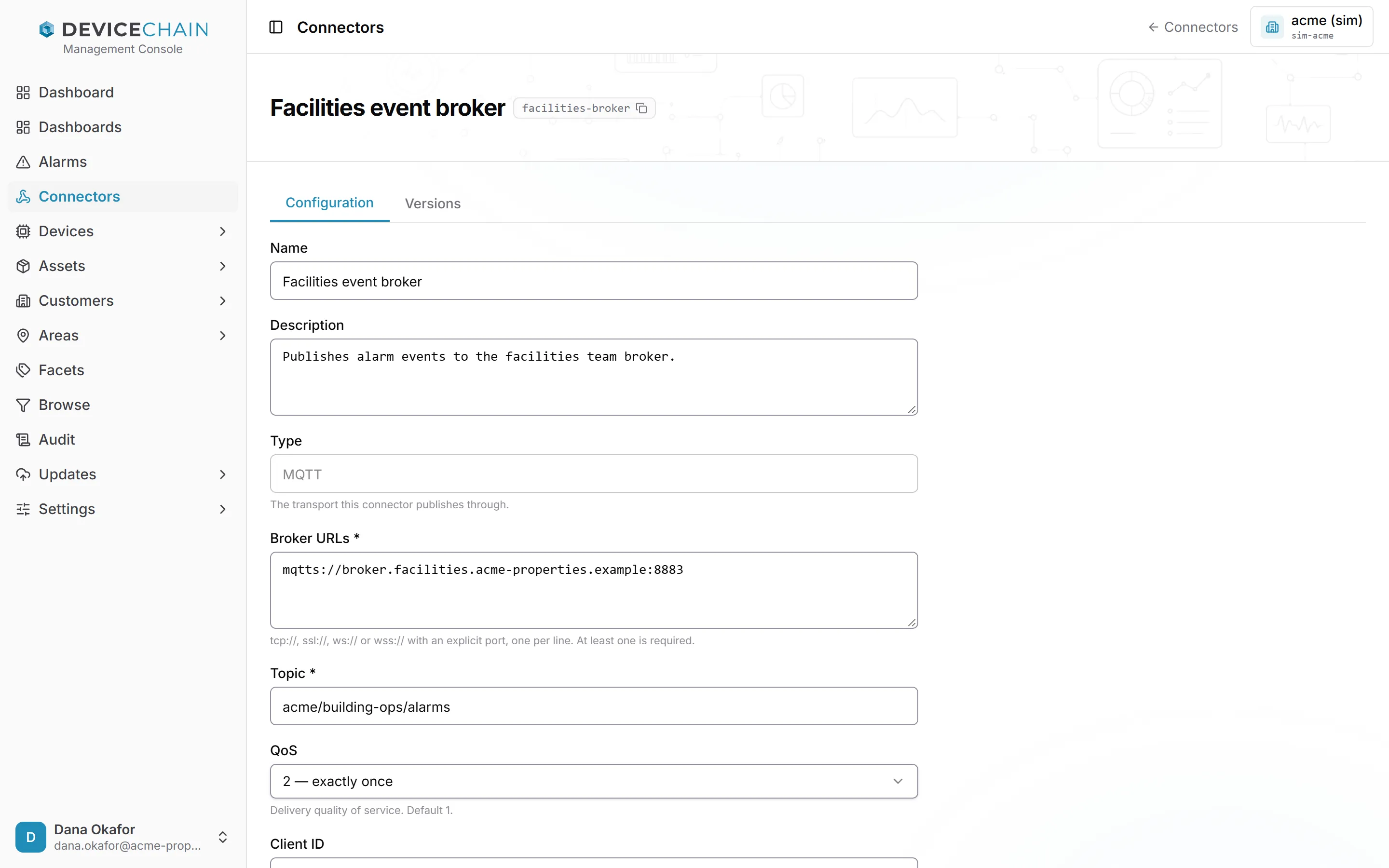
Edit the fields, then click Save draft. While you have changes that are not saved, the console shows Unsaved changes next to the button. Saving changes only the draft. Rules keep publishing through the last published version until you publish again.
Versions
The Versions tab lists every published version, newest first, with its label, when it was published and by whom. The newest one is marked live, and the line above the table names the version rules dispatch through.
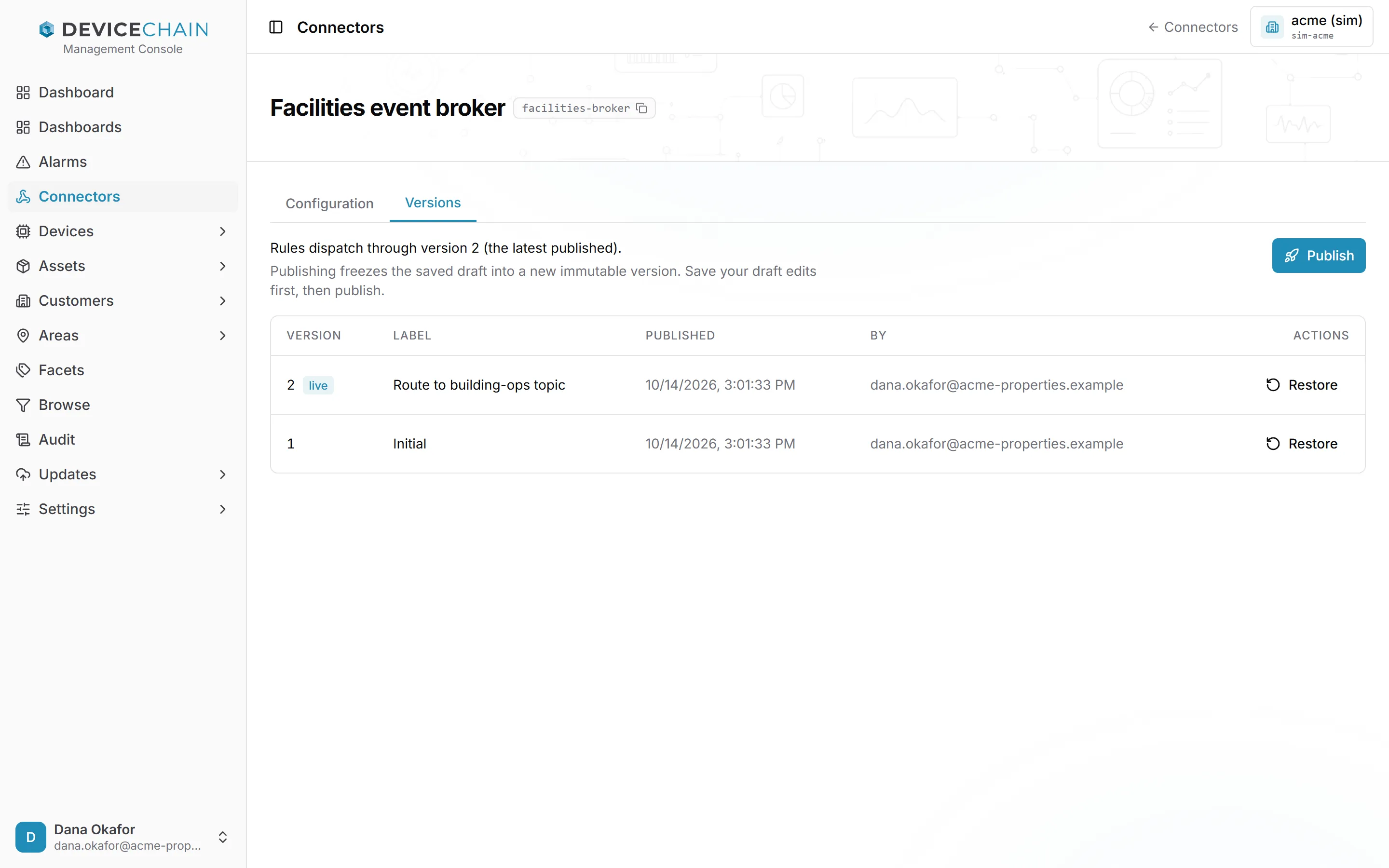
- Publish freezes the saved draft into a new, immutable version, which rules then publish through. You can add a label and a description. Save your draft first: Publish is disabled while there are unsaved changes.
- Restore copies an earlier version's configuration back into the draft, replacing any unsaved edits. It does not change what rules use: publish afterwards to make it the live version. The credential is not versioned, so restoring a version leaves the current credential as it is.
Related
- Outbound connectors: the publish and webhook actions, delivery, destinations and governance.
- Event processing: the rules that publish through connectors.