Alarms
An alarm is what a detection rule raises when something needs a person's attention. The Alarms page lists every alarm in the tenant and updates as alarms are raised, change and clear. This chapter is for operators who watch and handle alarms: reading the list, filtering it, acknowledging and clearing alarms, and exporting the list.
The alarm list
Choose Alarms in the sidebar. Each row is one alarm.
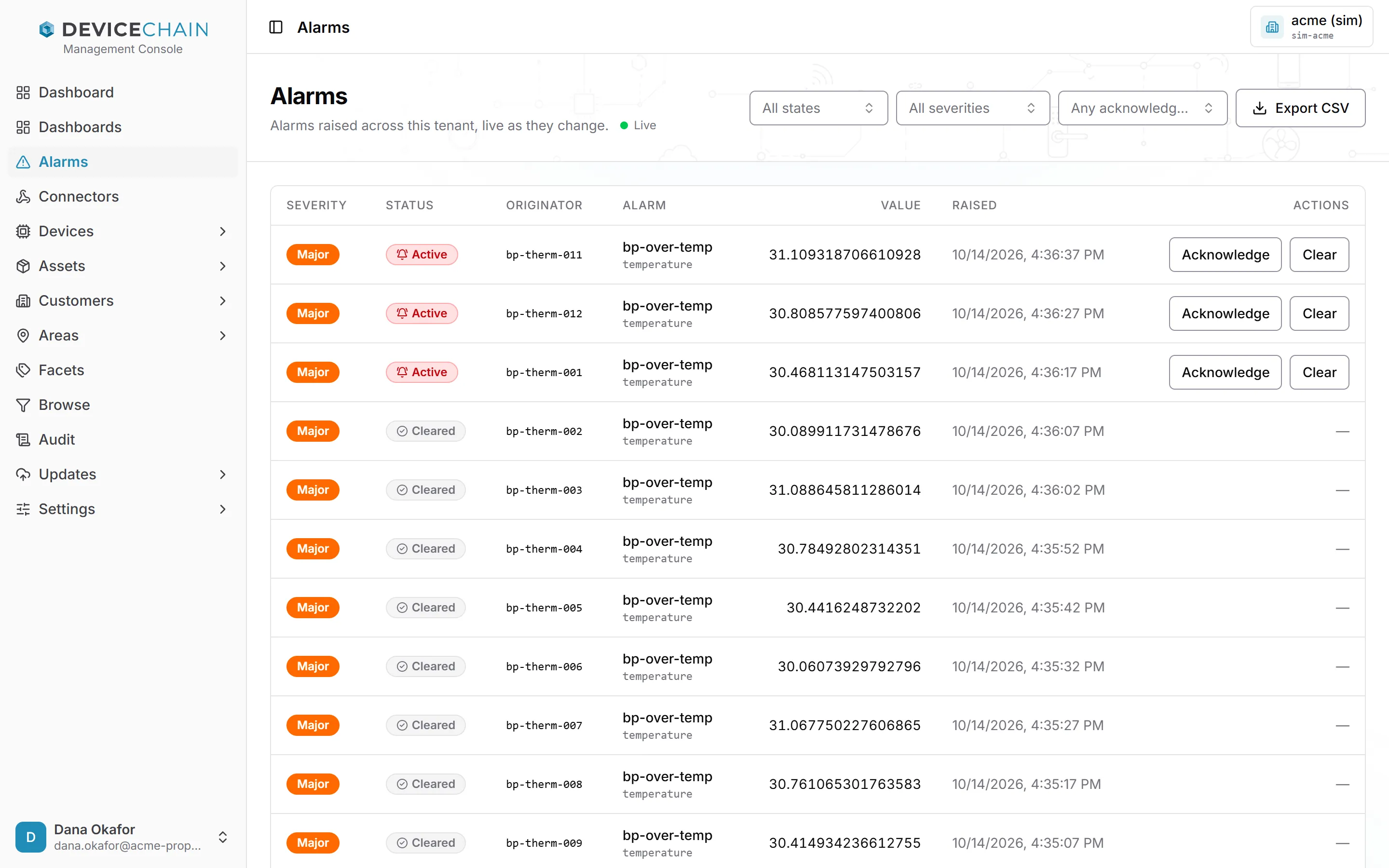
The columns:
- Severity: Critical, Major, Minor, Warning or Indeterminate, set by the rule that raised it.
- Status: Active while the condition holds, Cleared once it has resolved or someone cleared it, and Acknowledged for an active alarm that someone has taken on.
- Originator: the device that raised the alarm.
- Alarm: the alarm key, with the metric underneath.
- Value: the latest reading the alarm saw.
- Raised: when the alarm was raised.
- Actions: Acknowledge and Clear, for an active alarm.
The Live indicator beside the description shows that the page is receiving changes as they happen. If the connection drops, it shows that it is reconnecting, and the page catches up when it is back. The page also refreshes itself every 30 seconds, so a missed change does not linger.
One alarm stays one row. If the condition stops and starts again, the same alarm becomes active again rather than a new row appearing. Rules that share an alarm key can also raise or lower the severity of a single alarm. The alarm lifecycle explains both.
Filtering
Three filters sit above the table: state (Active or Cleared), severity, and acknowledgement (Unacknowledged or Acknowledged). Each opens a short list you can search.
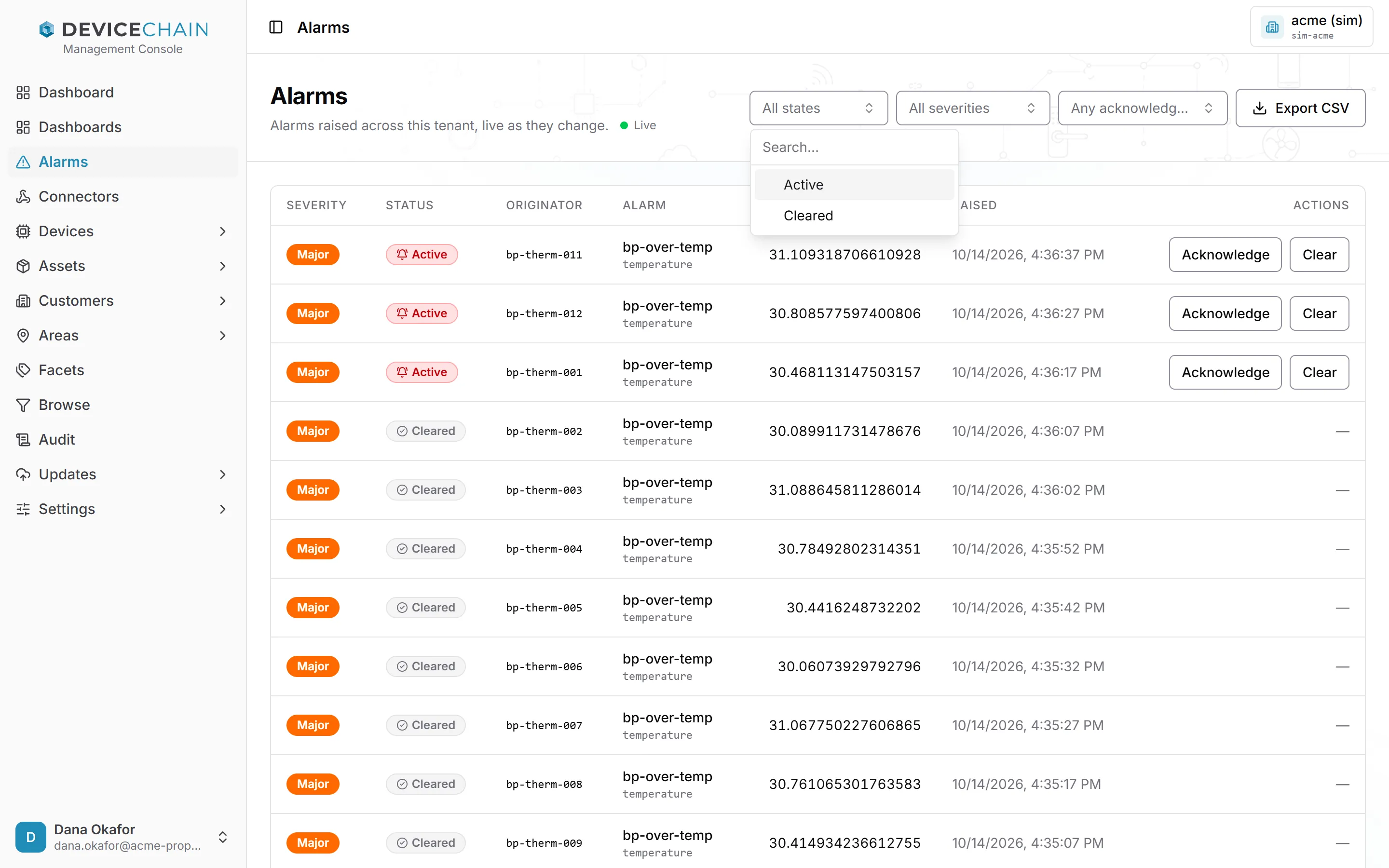
Filters combine. For example, choose Active and Unacknowledged to see what nobody has picked up yet. Clear a filter with the × inside it.
Acknowledging and clearing
Acknowledge says "I've got this". The alarm stays active, its status changes to Acknowledged, and the platform records who acknowledged it and when. Acknowledging also stops repeat notifications for that alarm.
Clear closes the alarm by hand. Most alarms clear themselves when the rule's condition stops holding, so you rarely need it, but it is there for an alarm you know is resolved.
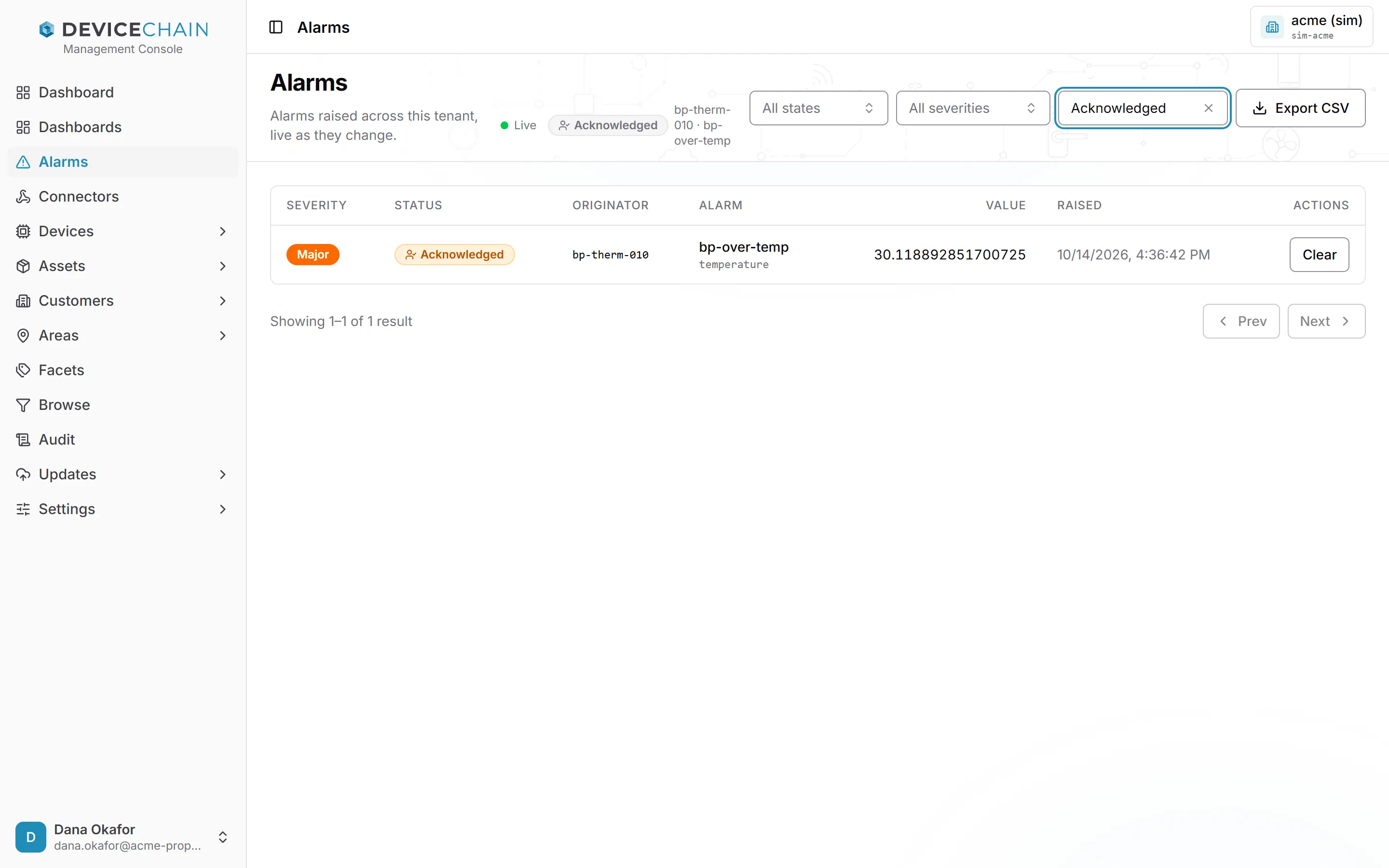
Things to expect:
- An acknowledged alarm keeps its Clear button but loses Acknowledge.
- If an acknowledged alarm clears and its condition later returns, the platform re-opens the same alarm with its acknowledgement cleared, so it needs acknowledging again.
- The buttons appear only if your role lets you change alarms. Without that right the page is read only.
Exporting the list
Export CSV saves every alarm that matches the current filters, not just the page you are looking at, up to 10,000 rows. If more alarms match, the console says the export stopped at the limit, and you narrow the filters to get the rest. The file holds each alarm's token, severity, status, whether it is acknowledged, originator, alarm key, metric, value, and the raised and cleared times.
Related
- Detection rules, which raise these alarms
- Event processing and alarms: the alarm lifecycle and escalation
- Configuring notification channels, to have alarms emailed or posted to a webhook