The console at a glance
This chapter is a short tour of the parts of the console you see on every page: the home page, the sidebar, the page header with its tenant chip, and the message you get when part of the console is not available on your installation.
It is for anyone new to the console. Read it once, and the later chapters will make more sense.
The home page
After you sign in, you land on the home page. It welcomes you by name and shows two counts: how many Devices and how many Device Types your tenant has. Select either count to open that list.
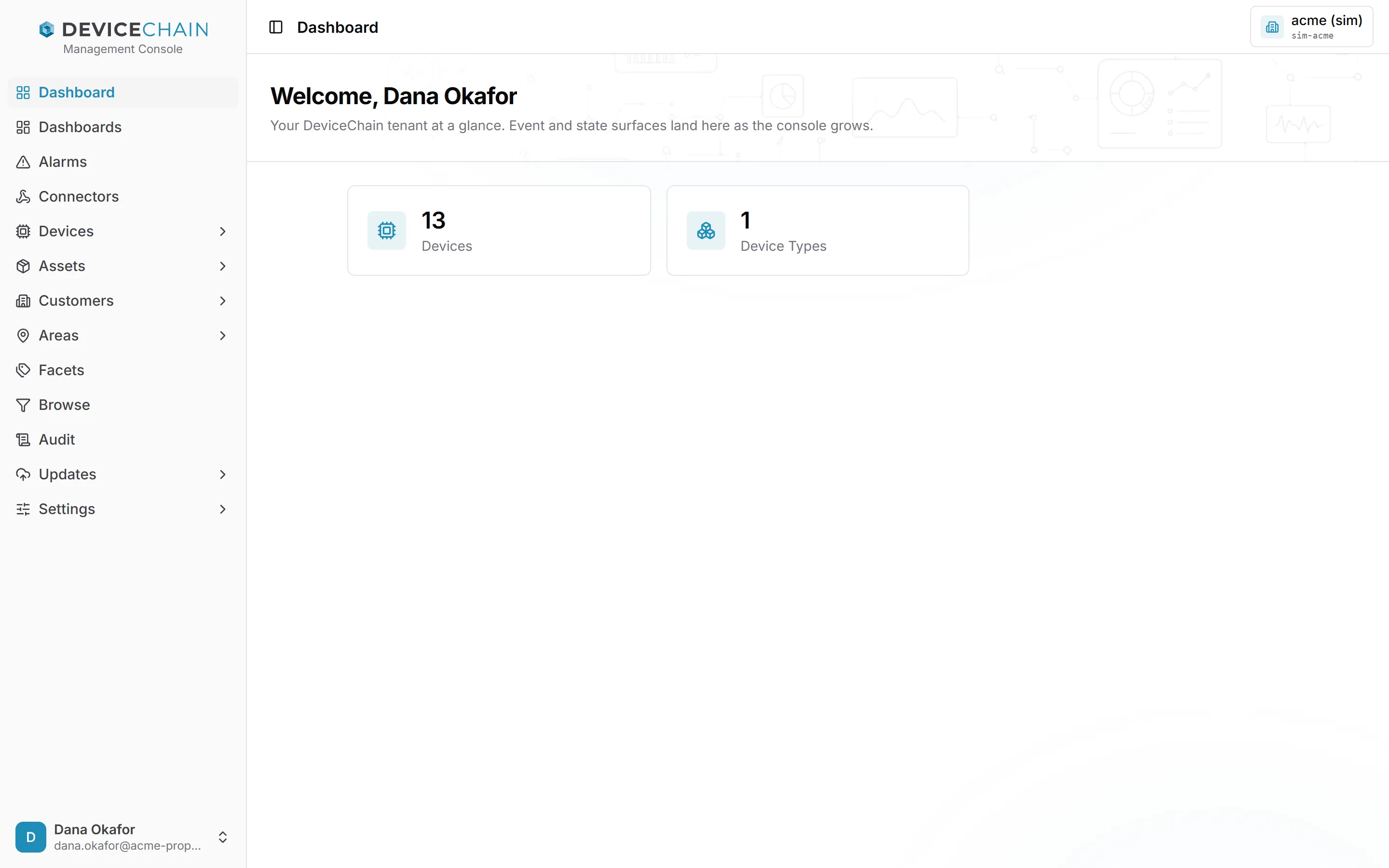
The Dashboard entry at the top of the sidebar always brings you back here. It is not the same as Dashboards, which holds the dashboards your team builds.
The sidebar
The sidebar on the left is how you move around the console. It lists the areas of your tenant in a fixed order.
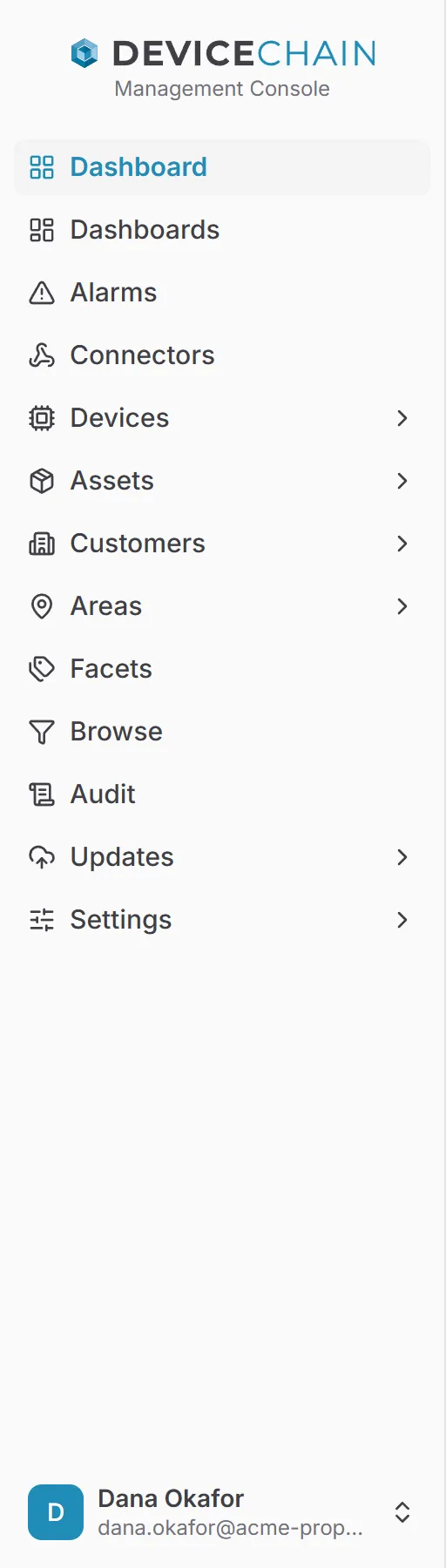
Some entries open a sub-menu instead of a page. Selecting one opens its sub-menu and takes you to its first page. Only one sub-menu is open at a time.
| Entry | What it holds |
|---|---|
| Dashboard | The home page. |
| Dashboards | Dashboards built by your team. |
| Alarms | The alarms your rules have raised. |
| Connectors | Outbound connections to other systems. |
| Devices | Devices, Device Types, Device Profiles, Device Groups, Maintenance Windows and Command Batches. |
| Assets | Assets, Asset Types and Asset Groups. |
| Customers | Customers, Customer Types and Customer Groups. |
| Areas | Areas, Area Types, Area Groups and Geofences. |
| Facets | The keys you use to describe and filter devices and other entities. |
| Browse | A query builder for finding entities by their facets. |
| Audit | The tenant's record of who changed what. |
| Updates | Artifacts and Signers for over-the-air updates. |
| Settings | Branding, Map and Language. |
You see only the entries your role allows. If your role cannot read alarms, for example, Alarms is not in your sidebar. Updates appears only when your installation runs the update service. The Settings entries are for tenant administrators.
Your name and email address sit at the bottom of the sidebar. They open the user menu, which is described in Signing in.
To make more room for the page, use the button at the left of the page header to collapse the sidebar to a narrow strip of icons. Use it again to expand it.
The page header and the tenant chip
Every page has a header bar. On the left is the name of the section you are in. On a detail page, such as one device, a link on the right takes you back to the list.
At the far right is the tenant chip. It shows which tenant you are working in: the tenant's name, with its token underneath.
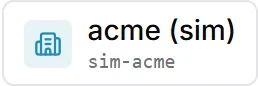
If your tenant has uploaded a logo, the chip shows the logo in place of the building icon. Everything you see and change in the console belongs to this tenant. To work in a different tenant, sign out and choose it when you sign in again.
When an area is unavailable
DeviceChain is made of several services, and whoever installs it decides which ones to run. Some are optional, such as the AI service or the outbound connectors service. If a page needs a service your installation does not run, the page shows Not deployed instead of its usual content.
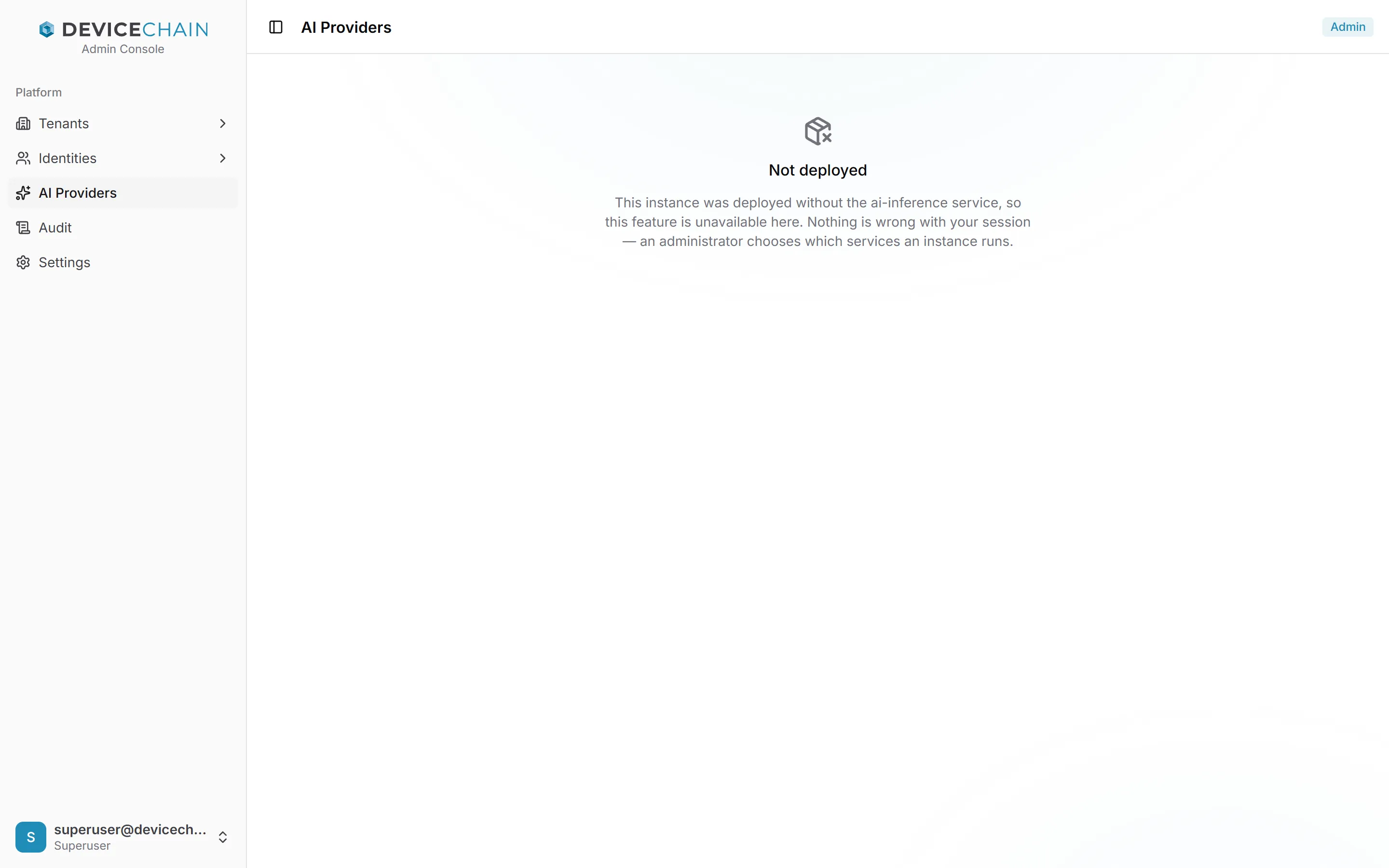
The message names the missing service. Nothing is wrong with your session or your account. If you need the feature, ask your administrator, using the service name from the message.
The screenshot shows an instance-administration page, but tenant pages behave the same way. For example, Connectors shows this message when the outbound connectors service is not running.
Related
- Architecture: the services that make up DeviceChain
- Multi-tenancy
- Signing in