Commanding a fleet
A command batch sends one command to many devices as a single, recorded operation: set a new setpoint on every thermostat in a building, or reboot a group of gateways. The batch keeps a record of what was attempted, which devices accepted the command and which were refused and why. You can follow its commands, call it off, and retry the devices that did not succeed.
This chapter is for operators who command devices in bulk. It assumes you know how a single command works; see Sending a command. For the full rules behind batches, see Commanding a fleet in the guides.
The batch list
Choose Devices → Command Batches in the sidebar. The list shows every batch, newest first.
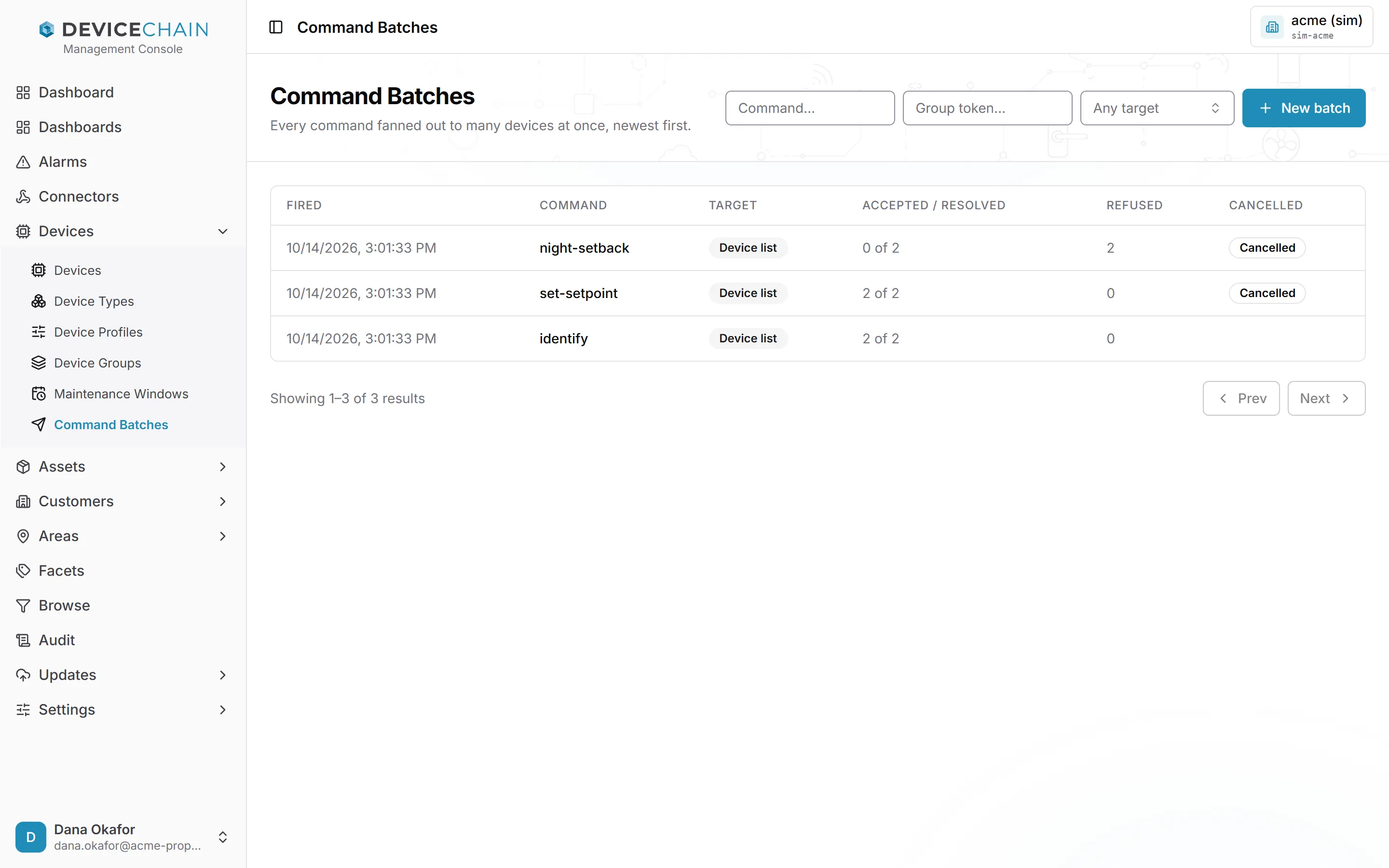
The columns:
- Fired: when the batch was sent.
- Command: the command key it sent.
- Target: Device list if the devices were named, or Group if a device group was resolved.
- Accepted / resolved: how many devices accepted the command, out of how many the target resolved to.
- Refused: how many devices were refused.
- Cancelled: a badge when the batch has been called off.
Filter by command key, by group token or by target kind. Select a row to open the batch.
Creating a batch
New batch opens a drawer.
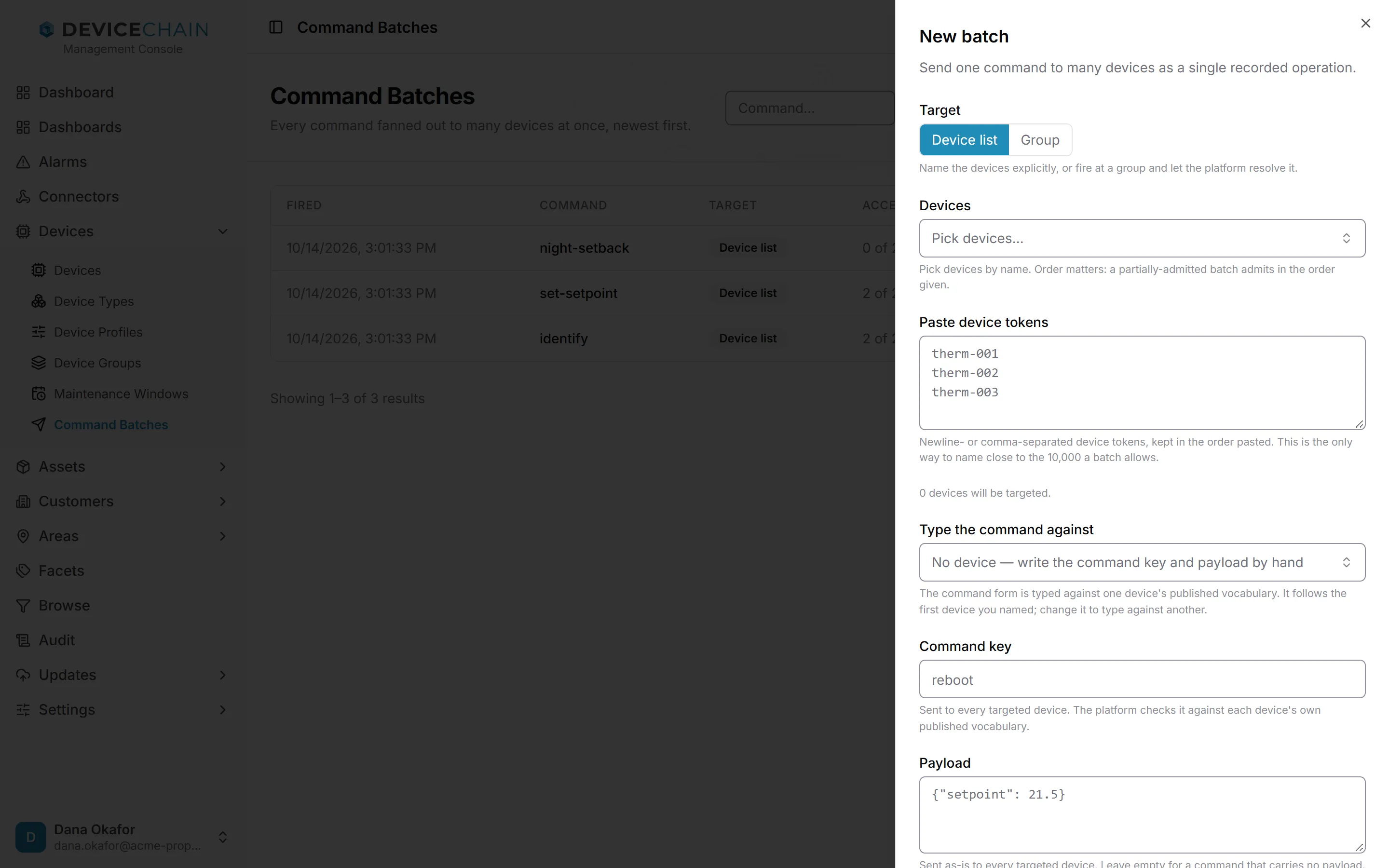
- Target. Choose Device list to name devices, or Group to fire at a device group.
- With a device list, pick devices by name in Devices, or paste tokens into Paste device tokens, one per line or separated by commas. Pasting is the way to name a large fleet, up to the 10,000 devices a batch allows. Order matters: if only part of the batch can be admitted, devices are admitted in the order you gave. A device named twice is sent the command once.
- With a group, choose the group. For a dynamic group you can pin a Group version, or leave it on the active published version. The group is resolved to its devices at the moment the batch fires.
- Command. With a device list, the form follows the first device you named and offers the commands its profile publishes, with a typed form for the parameters. Use Type the command against to pick a different device, or clear it, so it reads No device — write the command key and payload by hand, to type the Command key and Payload yourself. With a group target the picker starts empty. Every targeted device is checked against its own profile when the batch fires, so devices on other profiles can still be refused.
- If some devices cannot receive it. There is no default; you must choose:
- send to the devices that can take it, and record the rest as refusals, or
- refuse the whole batch, so nothing is sent and nothing is recorded unless every device can take the command.
- Choose Fire batch.
If the batch fires, the console opens its detail page. If the platform refuses the whole batch, the drawer explains why and confirms that nothing was created, so you can correct the request and fire again.
Following a batch
A batch's detail page has three parts: a Summary, the Refusals, and the Commands the batch created. Badges under the name show the target kind and whether partial fan-out was allowed (Partial fan-out allowed) or not (All or nothing).
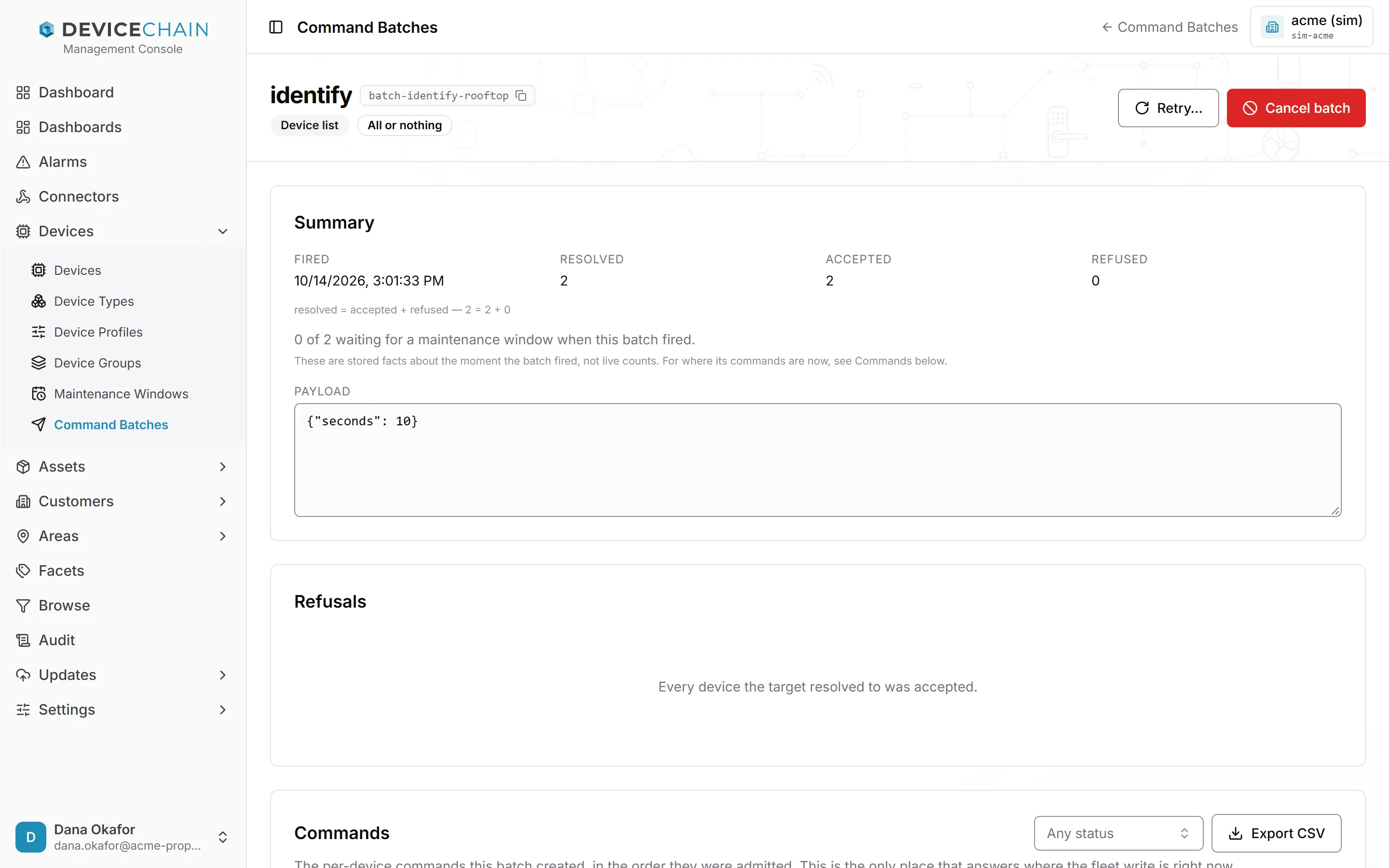
The Summary records the moment the batch fired: how many devices the target resolved to, how many accepted and how many were refused. These numbers do not change afterwards, and they always add up: resolved = accepted + refused. The summary also says how many accepted commands were waiting for a maintenance window (see Maintenance windows below).
For where the commands are now, look at Commands. It lists each device's command in the order the devices were admitted, with its status, its outcome, when it was queued and its result. Filter it by status, and use Export CSV to save every command that matches the filter, up to 10,000 rows.
Refusals
When some devices could not receive the command, the Refusals section groups them by reason.
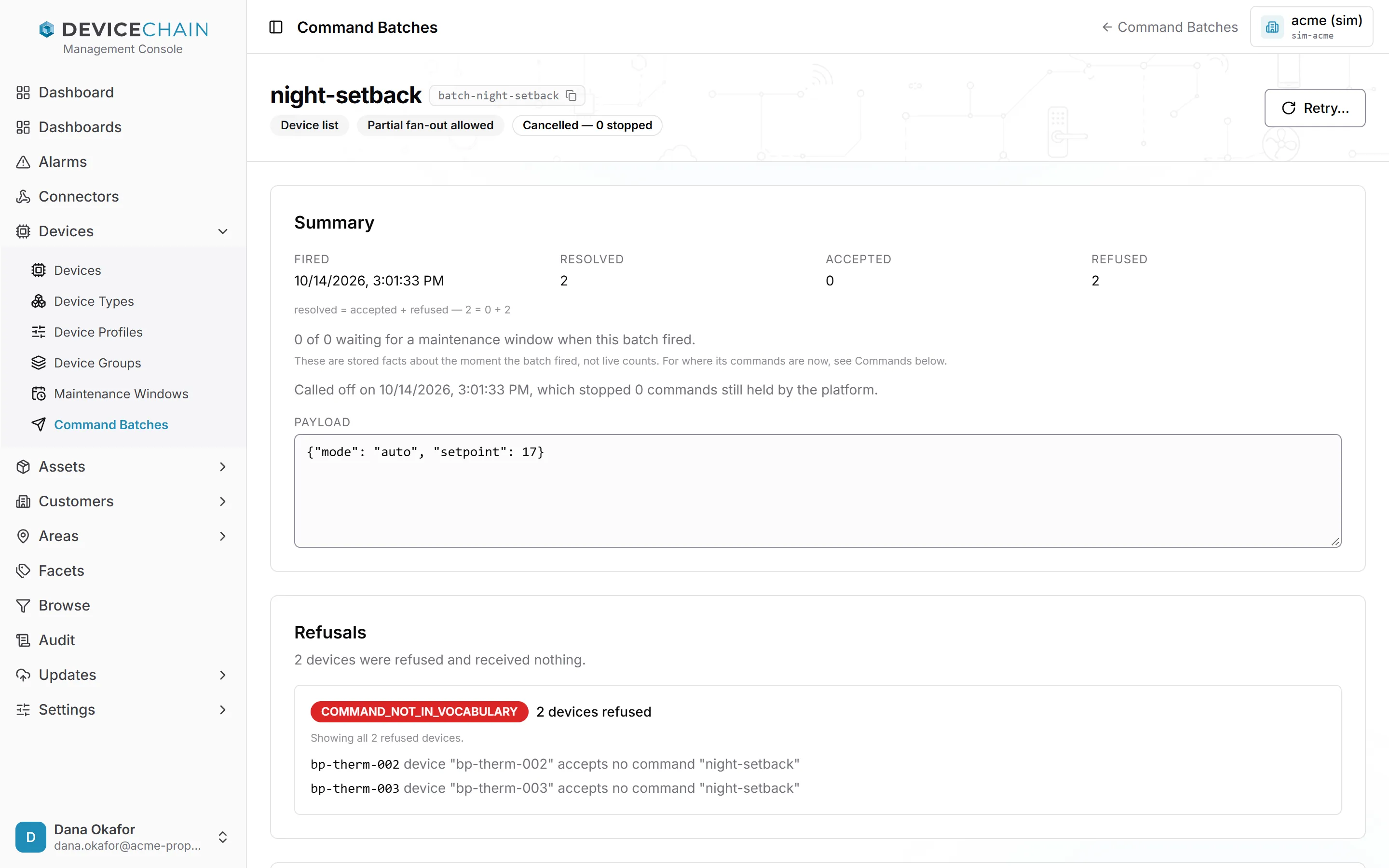
Each group shows the refusal code, how many devices it covers and the devices themselves, with the
reason for each. In the example, the thermostats' profile does not declare a night-setback
command, so both devices were refused with COMMAND_NOT_IN_VOCABULARY. The record names at most
100 devices per code; when more were refused, the console says how many it is showing out of the
exact total. What each per-device code means is explained in
When an enqueue is refused.
Cancelling a batch
Cancel batch calls the batch off. It stops every command the platform is still holding for the batch. It cannot recall a command that has already been handed to a device: that device will still act on it.
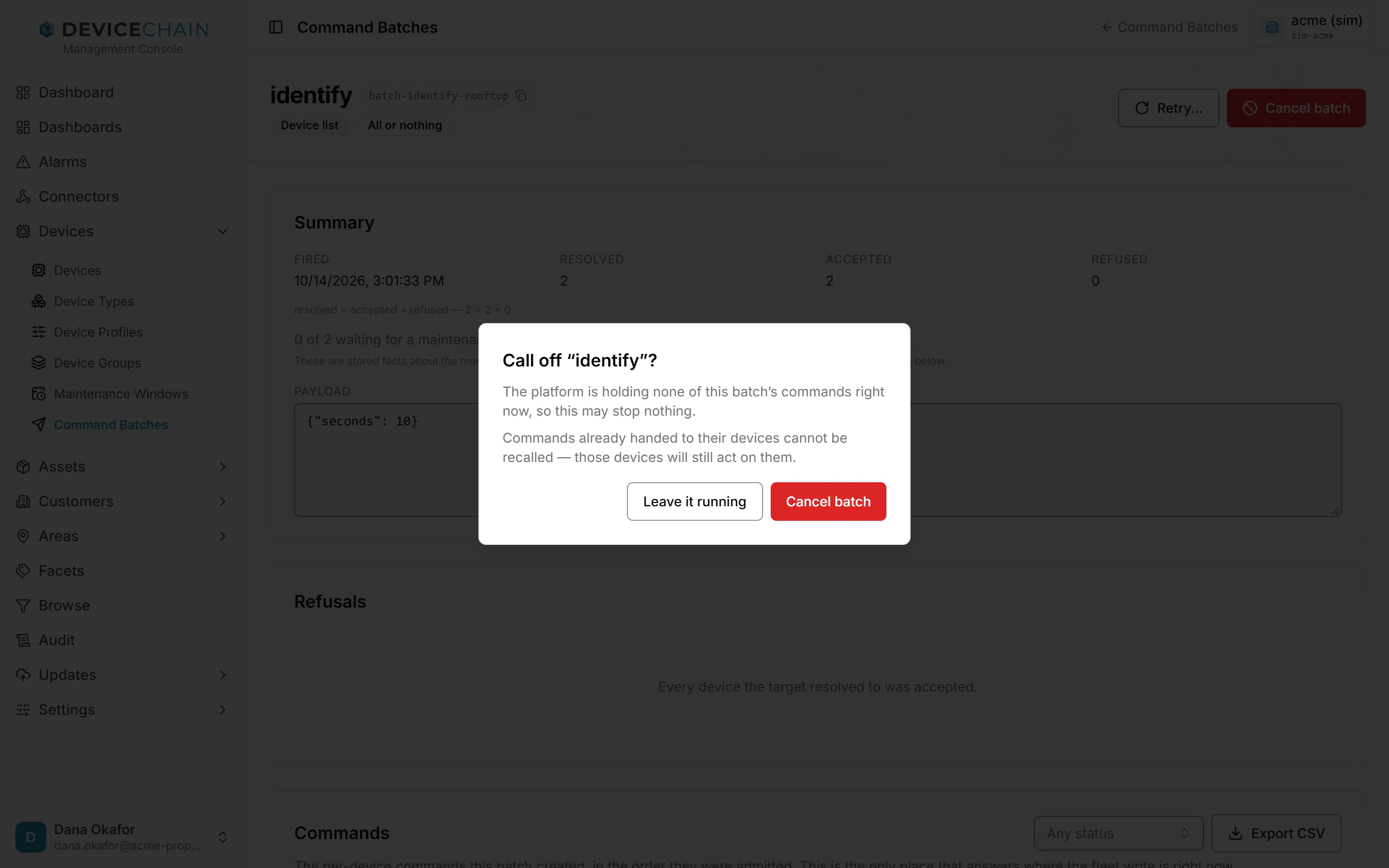
Before you confirm, the dialog tells you how many of the batch's commands the platform is still holding, so you know how much the cancel can stop. Choose Cancel batch to go ahead, or Leave it running. Afterwards the console reports what happened: how many commands were stopped, how many had already reached devices and how many had already finished.
A cancelled batch is stamped with when it was called off and how many commands that stopped.
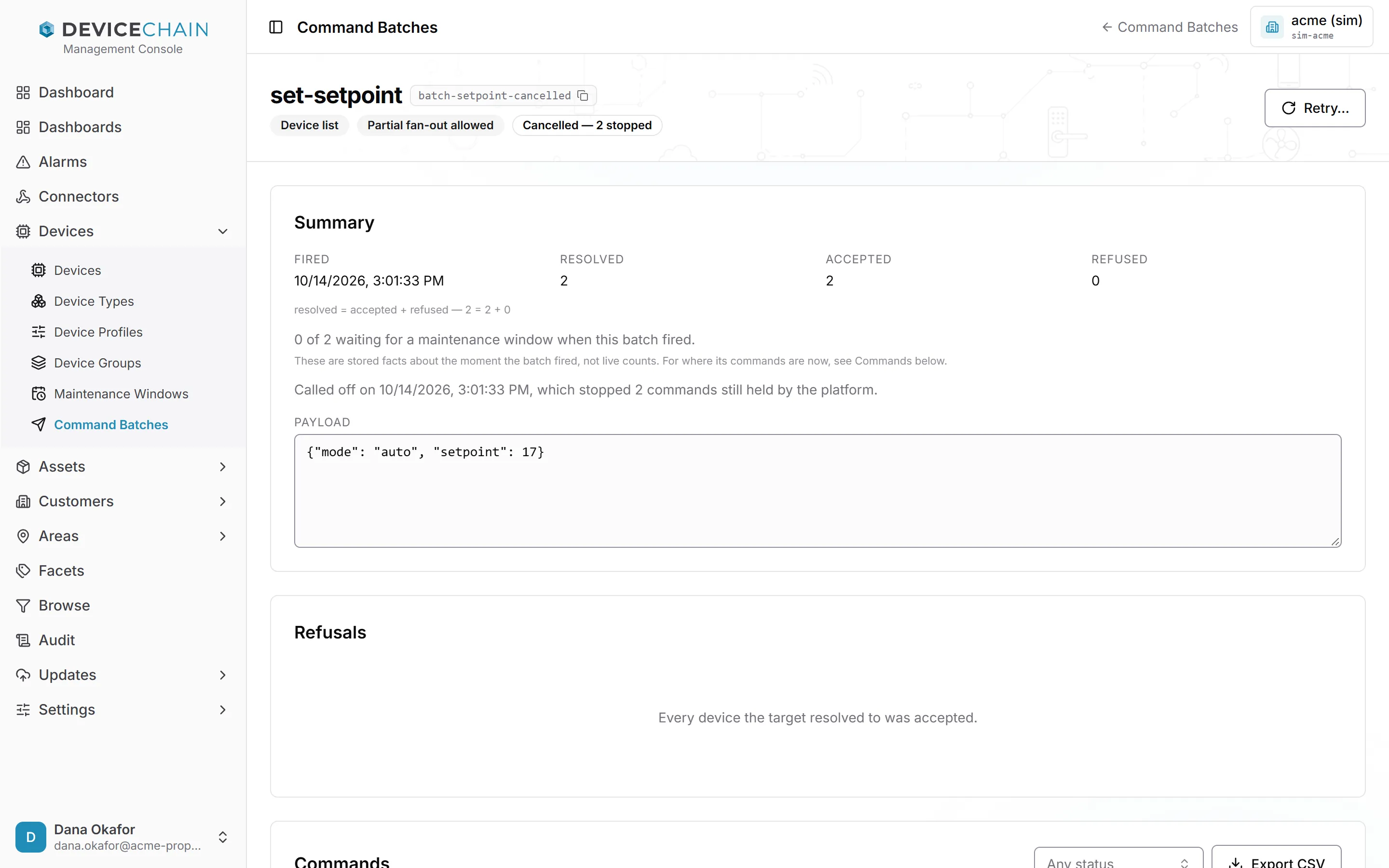
The badge and the summary keep the first cancellation's time and count. If the platform still holds commands for a cancelled batch, the button reads Cancel again, and cancelling again stops what is left without rewriting that record. When nothing is left to stop, the button disappears.
Retrying the devices that did not succeed
Retry… re-sends the batch's command, with the same payload, to devices that did not succeed. It opens a Retry unsuccessful devices section at the top of the batch page. The retry creates a new batch linked to this one, and leaves this batch as it is. No screenshot shows the retry section yet.
The section groups the unsuccessful devices by what happened to them:
- Never delivered: the platform can prove the command never reached the device, so sending it again cannot make the device act twice. Selected for you.
- Device rejected: the device received the command and answered that it did not do it. Selected for you.
- Refused when fired: the device was refused when the batch fired. Offered only when the batch record names every device refused with that code (it keeps at most 100 per code), but not selected, because the reason may still apply.
- Outcome unknown: the command was sent and no answer came back, so the device may already have acted. Not selected, and locked until you tick the box confirming that sending it again may make those devices act twice.
Commands still in flight are counted but cannot be selected. Choose the devices, then the retry button, which names how many devices you chose (for example Retry 2 devices). The new batch opens when it is created. Its page shows Retry of batch: with a link back, and the original shows Retried by: with a link to each retry. The retry goes through the same checks as a new batch, so a device that cannot receive the command now is listed as a refusal on the new batch. See Retry the devices that did not succeed for the full rules.
Maintenance windows
Some commands, such as a reboot, should only start when a device may be interrupted. A maintenance window is a weekly schedule, in a time zone, that holds those commands until it opens.
Three settings work together:
- A window is defined under Devices → Maintenance Windows, as a time zone and one or more weekly slots.
- A device type is given a window in its Maintenance window field. Every device of that type follows it.
- A command definition on the device profile has an Impact: Normal, Disruptive or Destructive. Only disruptive and destructive commands wait for the window. Normal commands are never held.
When a batch sends a disruptive or destructive command to devices whose window is closed, those commands are
accepted and wait. The batch summary records how many were waiting when it fired, and each waiting
command in the Commands list shows Waiting for maintenance window until the time it opens. A
waiting command can be cancelled like any other queued command. If the window would not open before
the command expires, the device is refused with WINDOW_AFTER_EXPIRY instead.
No screenshot shows the maintenance window pages yet. See Maintenance windows for setting one up, and the concepts page for how they work.
Related
- Commanding a fleet: targets, refusal codes, retry and cancel in depth
- Maintenance windows
- Sending a command
- Commands: the command lifecycle and outcomes